
How Easy Is It To Edit, Export, And Share Footage From The Insta360 X5 And Nano 360 Video Camera?

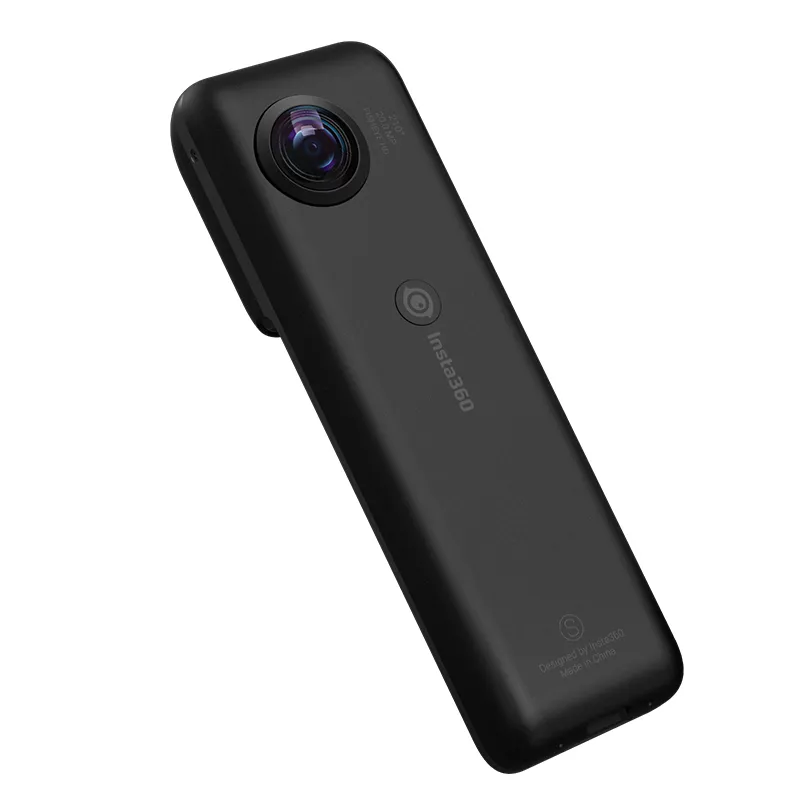
Yes, it is fairly easy to edit and export footage from Insta360 cameras, especially if you want quick reframed clips for social media or travel videos. The Insta360 X5 and Nano-style 360 workflow is built around app editing first, with desktop options when you want more control.
That said, easy does not mean identical for every buyer. Your experience depends on whether you edit on a phone or computer, how much 360 reframing you want to do, and whether you need simple sharing or polished final exports.
What makes edit and export footage easy on Insta360
The main reason Insta360 feels approachable is that it removes a lot of the complexity that used to come with 360 video.
Instead of locking your angle in while filming, you can often shoot first and decide the framing later. For most buyers, that means less stress while recording and a simpler path to a usable final clip.
What usually makes the workflow easier:
- Mobile app editing for quick trims, reframing, and exports
- Built-in templates and auto tools for social-friendly clips
- Stabilization and horizon leveling that reduce cleanup work later
- Direct sharing options once your export is finished
- Desktop support if you want more precision than the app gives you
If you are still comparing models or want to see the latest bundle and buying options, it helps to check the latest price before deciding.
Phone app vs desktop workflow
For most people, the fastest route is the phone app. You import clips, choose key moments, reframe the view, export, and post. That is the appeal of Insta360 for casual creators, travelers, cyclists, and anyone who does not want to learn a full pro editing suite just to publish a short video.
Desktop editing is better when you need:
- Longer-form projects
- More exact cuts and timeline control
- Better file organization
- More advanced color correction
- Integration with software like Premiere Pro
Here is the practical tradeoff:
| Workflow | Best for | Main limitation |
|---|---|---|
| Insta360 mobile app | Fast social clips, travel edits, simple reframing | Less precision on complex projects |
| Desktop editor | YouTube videos, client work, polished edits | Slower setup and steeper learning curve |
If you plan to move into a desktop workflow, Adobe's guide on Export video in Premiere is a useful reference for understanding output settings and final file delivery.
How the actual editing process feels
For short clips, the process is usually straightforward.
A typical workflow looks like this:
- Import your footage into the Insta360 app or desktop software.
- Trim the clip down to the parts you actually want.
- Reframe the angle if you shot in 360.
- Apply stabilization, horizon lock, or simple effects if needed.
- Choose your export settings.
- Save and share the finished file.
Where beginners often get confused is not the edit itself, but the reframing step. With a normal action camera, the camera angle is already fixed. With 360 footage, you may spend extra time deciding what the viewer should see.
That is the tradeoff:
- More flexibility after shooting
- Slightly more decision-making during editing
If you like the idea of “shoot now, choose the angle later,” the system feels very forgiving. If you want to record and upload with almost no touch-up, a standard wide-angle action cam can still be simpler.
Export speed and file handling
This is where expectations matter. It is usually easy to edit and export footage, but export speed is not always instant.
Export time depends on:
- Resolution and frame rate
- Clip length
- Whether you are exporting 360 or reframed flat video
- Your phone or computer performance
- Effects, stabilization, and processing load
Short social clips usually feel manageable. Longer, high-resolution files can take noticeably more time and may push older phones harder.
You should also think about storage. 360 files can be large, and if you shoot often, you will want a routine for moving finished exports off your phone or computer.
A few practical habits help:
- Keep only active projects on your phone
- Archive originals to a computer or external drive
- Export a platform-ready version rather than multiple unnecessary copies
- Name clips by date or trip so they are easier to find later
If you want a discount before buying extra accessories or the camera itself, you can grab the latest code.
Sharing to social media and messaging apps
Sharing is usually the easiest part once the file is exported. In most cases, you are posting a standard video file, so the experience is similar to sharing clips from any other camera.
The real choice is deciding what format to export for your platform.
| Platform need | Usually works best | Why |
|---|---|---|
| Quick stories and reels | Vertical export | Fills the phone screen better |
| Standard posts and YouTube | Horizontal export | More natural for broader scenes |
| Creative action moments | Reframed 360 clip | Lets you direct attention after filming |
If you want to see a practical example of the Insta360 editing style, this Insta360 X3 - How to Edit and Export Videos EASILY walkthrough is helpful because the general editing logic is similar across the brand's app-based workflow.
One small warning: every platform compresses uploads differently. A clip can look great in your export and slightly softer after posting. That is normal and not unique to Insta360.
Who will find this workflow easiest
The buyers who usually enjoy this process most are the ones who want strong results without building a full pro editor setup.
Insta360 editing tends to suit:
- Travelers who want fast highlight clips
- Action camera users who value stabilization and reframing
- Social creators posting short-form content
- Beginners who prefer app-based tools over complex desktop software
- Hobbyists who like experimenting with different camera angles after the fact
It may be less ideal for:
- Editors who want total manual control over every setting from the start
- People with older phones and limited storage
- Buyers who never plan to reframe 360 footage and just want point-and-shoot simplicity
So, is it easy? Yes for most people, especially on the mobile side. The biggest advantage is that Insta360 turns advanced-looking footage into a workflow that feels accessible, even if the exports and file sizes still demand a little patience.
Should you buy one if editing simplicity matters?
If easy editing is high on your list, Insta360 is one of the more approachable ways to get into 360 capture. The learning curve is real, but it is mostly about understanding reframing rather than wrestling with overly technical software.
In simple terms:
- Easy for quick edits and social sharing
- Moderately easy for reframing once you learn the basics
- Less convenient for long, high-resolution projects on weaker devices
- Best if you like flexibility after shooting
That makes the X5 and Nano-style concept appealing for buyers who want creative footage without committing to an advanced post-production workflow. Before you buy, it is smart to see the current Insta360 deal so you can compare the latest offer with your budget.
Frequently asked questions
Do I need a desktop editor to use footage from these cameras?
No. Most people can trim, reframe, export, and share clips from the Insta360 app. A desktop editor helps if you want more control, longer projects, or a more advanced color workflow.
Is 360 footage harder to edit than standard video?
A little, but only because you also choose the camera angle after shooting. Insta360 makes that easier with reframing tools, templates, and app-based exports.
Can I post straight to social media after exporting?
Usually yes. Once your clip is exported in a common video format, you can upload it like any other video. The main thing to watch is aspect ratio so it fits the platform you care about.
Will editing on a phone be enough for travel or action clips?
For many buyers, yes. If your goal is quick edits, social posts, and simple reframing, a phone workflow is often the easiest option. A computer is more useful for larger projects or more precise finishing.
What matters most for faster exports?
The biggest factors are clip length, resolution, your device performance, and how many effects you apply. Shorter clips and simpler edits usually export much faster than long, heavily processed files.