
How to Troubleshoot a Fitcamx 1080P Dashboard Camera That Stops Recording

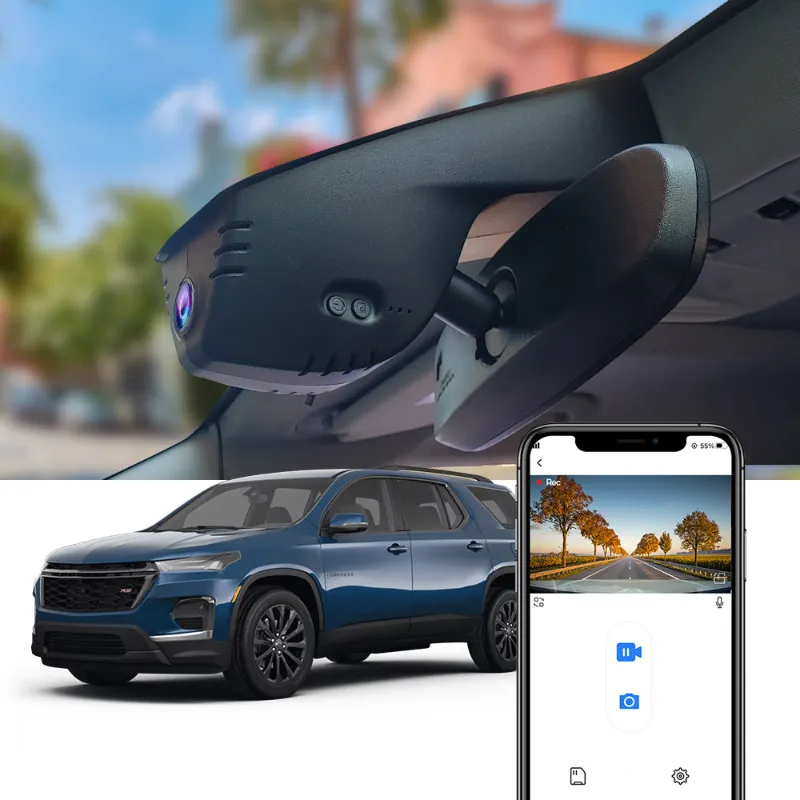
A 1080p dashboard camera that stops recording is usually reacting to a power issue, a full or failing microSD card, a loop-recording setting, heat, or a firmware/app problem. With FITCAMX models, the fastest path is to check storage first, then confirm power, then review the app and installation. This guide focuses on the fitcamx dash cam, including vehicle-specific options like the Civic and Toyota integrated designs, so you can get recording stable again without replacing the camera too early.
Quick Checks for a 1080p Dashboard Camera That Stops Recording
Start with the simple checks before pulling trim panels or resetting the unit. Most stopped-recording problems come from one of these basics:
- MicroSD card is full, slow, corrupted, or worn out. Dash cams constantly write and overwrite video, which is harder on cards than normal file storage.
- Loop recording is off or not working. If loop recording is disabled, the camera may stop when the card fills.
- Power is intermittent. A loose plug, weak fuse tap, poor ground, or unstable accessory power can interrupt recording.
- Protected files are filling the card. G-sensor events and manually locked clips may not be overwritten.
- The camera is overheating. Direct sun, parking mode, and hot windshields can trigger shutdowns.
- The app or firmware needs attention. A stuck setting, outdated firmware, or failed format can cause repeated recording failures.
If you are shopping because your current unit is unreliable, compare the exact FITCAMX option for your vehicle and check current pricing through our FITCAMX coupon page before you buy. For broader context on what dash cams do and how categories differ, Minolta Digital’s overview of Dash Cams is a useful neutral reference.
Step 1: Fix the MicroSD Card Before Blaming the Camera
Storage is the first thing we check because it is the most common failure point. A dash cam writes continuously, deletes old clips, protects impact clips, and repeats that cycle every drive. A card that works in a phone or laptop can still fail in a dash cam.
Use this order:
- Turn the camera off before removing the card.
- Back up any footage you need.
- Format the card in the FITCAMX app or camera settings, not only on a computer.
- Reinsert the card firmly and test a short drive.
- If it stops again, test with another high-endurance microSD card that matches the camera’s supported capacity.
Do not judge the camera from one old card. If recording resumes after a format but fails again later, the card may be wearing out or accumulating locked files. If the fhd 1080p dash cam user manual mentions a specific format process, follow that exactly. Manuals sometimes label this under storage, recording, or TF card settings.
If you are looking up a car camcorder fhd 1080p user manual pdf because the menu labels differ from your app, search by the exact model name printed in your order confirmation or product page. Generic manuals can be close, but model-specific instructions are safer.
Step 2: Confirm Loop Recording and Locked Files
Loop recording should automatically overwrite the oldest normal clips when the card fills. If it is disabled, or if too many clips are protected, the camera may stop saving new video.
Check these settings in the fhd 1080p dash cam app or FITCAMX app:
- Loop recording: Keep it enabled for daily driving.
- Clip length: Shorter clips are often easier for the camera to manage and review.
- G-sensor sensitivity: If set too high, normal bumps can lock too many clips.
- Parking mode: Confirm it is configured correctly for your power setup.
- Emergency folder: Delete old protected clips after saving anything important.
A common pattern is simple: the camera looks broken, but the card is packed with locked event files. If the camera records normally after deleting protected clips and formatting, the fix is settings and storage maintenance rather than hardware.
Step 3: Check Power on FITCAMX Integrated Installs
FITCAMX cameras are popular because many models look factory installed. That clean design is also why power checks matter. If a connector is not fully seated or a fuse tap is unstable, the camera may boot, record briefly, then stop.
For an integrated model like the fitcamx Dash Cam Civic, inspect the installation path carefully:
- Make sure the camera housing is fully clipped into place.
- Check that the power connector is seated and not pinched.
- Confirm the power source matches the installation guide.
- Watch whether the camera turns off when you hit bumps, shift gears, or open accessories.
- If hardwired, confirm the fuse location and ground point are correct.
For Toyota shoppers, the same logic applies to a toyota integrated dash cam. These models are designed for a clean OEM-style fit, but the camera still depends on stable power. If recording stops only after the car has been parked, focus on parking-mode wiring, battery protection, and whether the chosen fuse is constant or accessory power.
1080p Dashboard Camera vs FITCAMX 4K Options
A 1080p dashboard camera can be enough for everyday incident recording, but a higher-resolution FITCAMX model may capture finer detail in some conditions. The right choice depends on what you expect from the footage, how much storage you want to manage, and whether your vehicle supports a specific integrated model.
| Option | Best For | What to Watch |
|---|---|---|
| 1080p model | Basic daily recording and simple file sizes | Less detail at distance than higher-resolution models |
| FITCAMX 4K | Drivers who want more detail from front footage | Larger files and greater card demands |
| Front and rear setup | Drivers who want coverage behind the vehicle too | More wiring and more storage use |
If you are deciding between a standard model and the fitcamx 4k dash cam, do not compare resolution alone. Review sample footage, install style, app support, and whether you need rear coverage. This breakdown of 1080P, 2K, 4K Dash Cam—Which One Should You Choose? is helpful background when choosing resolution.
A front and rear dash cam can make sense if you often park on the street, commute in heavy traffic, or want more context after an incident. A single front camera is simpler, but rear footage can be valuable when another driver hits you from behind or disputes what happened.
App, Firmware, and Reset Troubleshooting
If storage and power look fine, move to software. FITCAMX cameras commonly rely on an app for formatting, changing recording settings, viewing files, and sometimes firmware updates.
Try this sequence:
- Open the app while the camera is powered on.
- Confirm the camera connects reliably.
- Check recording, loop, parking, and G-sensor settings.
- Format the microSD card from inside the app.
- Restart the camera and phone.
- If the product page or support instructions provide firmware, follow those steps carefully.
Avoid interrupting firmware updates. Keep the camera powered during the full process. If the update fails or the app cannot reconnect, check the official FITCAMX instructions for your exact model rather than guessing from a similar unit.
If you are replacing a problem unit or adding a second camera to another vehicle, use the product page for compatibility and our discount code page for the current code and latest pricing.
Heat, Lens Accessories, and Everyday Care
Heat can cause recording interruptions, especially when a camera sits high on a windshield under direct sun. If recording stops on hot afternoons but works at night, heat is a serious suspect.
Practical care steps:
- Park in shade when possible.
- Use a windshield sunshade during long stops.
- Avoid leaving parking mode on longer than your wiring and battery setup support.
- Keep the lens and windshield area clean.
- Check the mount after rough roads or seasonal temperature swings.
A cpl lens filter can help reduce glare in some daytime driving conditions, but it will not fix storage, power, or overheating problems. Treat a cpl camera filter as an image-quality accessory, not a recording-stability repair. If footage looks washed out or reflective but the clips save correctly, then a filter may be worth considering.
When It Is Time to Contact FITCAMX Support
After you test the card, loop settings, power, app, and heat, you should have a clearer answer. Contact support if the camera still stops recording with a known-good card, correct formatting, and stable power.
Have this information ready:
- Exact product name and vehicle year.
- MicroSD card brand, capacity, and speed class.
- Whether recording stops while driving, parked, or both.
- Any app error messages.
- Photos of the installation and power connection.
- A short description of what you already tested.
This is especially important for vehicle-specific products such as a 2019 traverse front camera, toyota dash cam, or Civic model, because compatibility and installation details can change the diagnosis. If you are still deciding what to buy, verify fitment on the product page first, then check the latest price through our FITCAMX deal page.
Most recording failures are fixable without replacing the camera. Start with the card, confirm loop recording, check power, then move into app and heat troubleshooting. That order saves time and prevents you from buying a new dash cam when a storage format or wiring check would solve the problem.
Frequently asked questions
Why does my 1080p dashboard camera stop recording after a few minutes?
Start with the microSD card. Back up needed footage, format the card in the camera or app, confirm loop recording is enabled, and test with a known-good high-endurance card if the issue returns.
Can a bad microSD card make a FITCAMX dash cam stop recording?
Yes, a failing or incompatible card is one of the most common causes. Dash cams write constantly, so a card can appear normal on a computer but still fail during continuous recording.
Do I need to replace my fitcamx dash cam if it keeps stopping?
Not always. Check storage, loop recording, locked event clips, power stability, and app settings first. If the same issue happens with a properly formatted known-good card and stable power, then contact FITCAMX support.
Will parking mode keep recording after I turn the car off?
Only if it is configured with the right power setup. If parking mode is connected to the wrong fuse or battery protection cuts power, recording may stop when the vehicle is off.
Is a fitcamx 4k dash cam better than a 1080p model for reliability?
A 4K model can capture more detail in some driving conditions, but it also creates larger files and puts more demand on the memory card. If your main issue is stopped recording, fix storage and power first before upgrading.