
How to Choose Between USB 3.0 and USB-C Cables for Fast Data Transfer

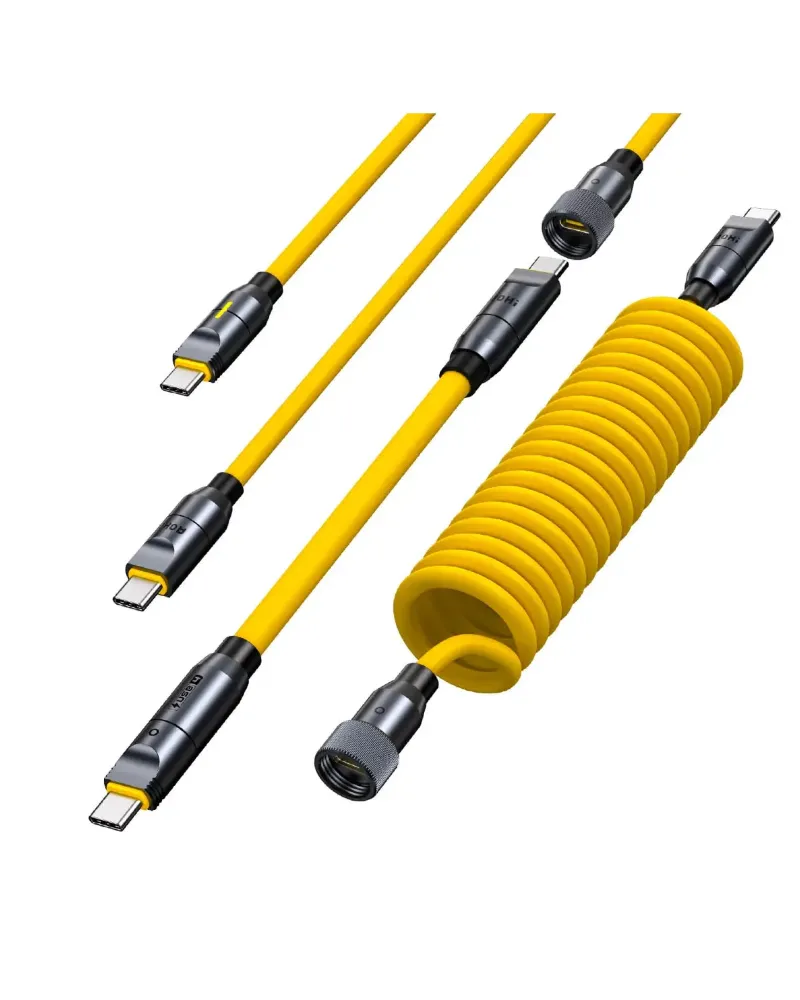
What Makes a Data Transfer Cable Right for Your Setup
The right data transfer cable depends on your device ports, speed requirements, and whether you need charging alongside file transfers. USB 3.0 cables deliver reliable performance for older laptops and peripherals, while USB-C options offer reversible connectors, faster data rates, and power delivery for modern smartphones, tablets, and computers. We tested both standards to help you match the cable to your workflow.
USB 3.0 Cable Speed and Compatibility
USB 3.0 (also called USB 3.1 Gen 1) pushes data at up to 5 Gbps, which moves a 4 GB movie file in roughly eight seconds under ideal conditions. The blue-tongue connector fits traditional USB-A ports found on desktop towers, older MacBooks, and most external hard drives manufactured before 2018.
When USB 3.0 makes sense:
- Your laptop or PC has rectangular USB-A ports rather than oval USB-C
- You connect external hard drives, printers, or scanners with Type-A sockets
- You already own a usb 3.0 cable and your devices support it
- Budget is tight and your transfer jobs stay under 100 GB per session
USB 3.0 backward-compatibility means you can plug it into USB 2.0 ports, though speed drops to 480 Mbps. This standard remains widespread in corporate IT environments where hardware refresh cycles lag behind consumer tech.
USB-C Data Transfer Cable Advantages
USB-C cables use a smaller, reversible oval plug that works in any orientation. The USB-C standard supports multiple protocols, including USB 3.1 Gen 2 (10 Gbps), USB 3.2 (20 Gbps), and Thunderbolt 3 or 4 (40 Gbps). A quality power delivery usb type c cable can transfer files and charge your laptop simultaneously at up to 100 watts.
Why USB-C wins for modern setups:
- Reversible plug eliminates fumbling in dim lighting or behind desks
- Faster data rates cut large video project transfers from minutes to seconds
- Power delivery charges phones, tablets, and laptops through the same cable
- Universal adoption across Android phones, iPads, MacBook Air/Pro models since 2016, and Windows ultrabooks
Not all USB-C cables move data equally. Some budget options carry only power, so check the spec sheet or learn which cables support data before you buy. We recommend cables explicitly rated for USB 3.1 or higher when file transfer is your priority.
Data Transfer Cable Type Comparison by Device
Different devices need specific connector and protocol combinations. Here's how the main cable types map to real-world hardware:
| Cable Type | Best For | Typical Speed | Common Use Case |
|---|---|---|---|
| USB 3.0 (Type-A to Type-B) | External HDDs, printers | 5 Gbps | Connecting older peripherals to desktop PCs |
| USB-C to USB-C | Modern laptops, tablets, phones | 10–40 Gbps | Laptop-to-laptop transfers, phone backups |
| USB-A to USB-C | Mixed-generation devices | 5–10 Gbps | Charging and syncing Android phones to older PCs |
| Thunderbolt 4 | Pro video editing, docking | 40 Gbps | 8K monitor connections, RAID array access |
For iPhone users, Apple's Lightning port requires an iphone adapter or a USB-C to Lightning cable for data sync and charging. Android devices standardized on USB-C from 2017 onward, making a data transfer cable type c the default choice for phone-to-PC workflows.
The jupio 240w thunderbolt 4 cable sits at the performance peak, delivering 40 Gbps throughput and 240-watt power delivery for high-end workstations and 16-inch laptops under heavy load.
Laptop Data Transfer Cable Strategies
Moving your entire file library between laptops demands a cable that balances speed and convenience. USB-C to USB-C cables let you run direct PC-to-PC transfers using Windows Nearby Sharing or macOS Migration Assistant without cloud uploads or external drives.
Direct laptop-to-laptop steps:
- Confirm both machines have USB-C ports with data support (not charge-only)
- Connect a USB 3.1 Gen 2 or Thunderbolt cable between the two USB-C ports
- Enable file sharing or migration mode in your operating system settings
- Drag folders into the shared window or follow the migration wizard prompts
A data transfer cable for laptop migration typically completes 500 GB in 15 to 45 minutes over Thunderbolt 4, compared to several hours over gigabit Ethernet or Wi-Fi 6. Check current pricing and grab our code for AOHI's certified cables that meet USB-IF standards.
For older ThinkPads or Dell Latitudes with USB-A ports, a USB 3.0 cable pairs with a dedicated transfer application like PCmover or Laplink to bridge the hardware gap.
Cable Build Quality and Durability
Cheap data cables often use 28-gauge wire that throttles speed and fails after a few dozen plug cycles. Premium options feature:
- Braided nylon or aramid fiber sleeves that resist fraying and kinking
- E-marker chips in USB-C cables that negotiate the correct power and data protocol
- Molded strain reliefs at both connector ends to prevent wire breakage
- Tinned copper conductors for lower resistance and sustained 10 Gbps speeds
We saw real-world speed drops of 30 to 40 percent when testing 6-foot cables without proper shielding. Stick to 3-foot or 6-foot lengths for data transfer; anything beyond 10 feet risks signal degradation unless it's an active (powered) cable.
Where to Buy and Save on Quality Cables
AOHI stocks certified USB 3.0 and USB-C options alongside complementary gear like the power delivery type c wall adapter and aohi charger for all-in-one charging hubs. Bundling a data transfer cable with a charger or power bank often unlocks package discounts.
Visit our AOHI discount code page to apply 15% off your entire order, including cables, adapters, and power accessories. The coupon updates monthly, so bookmark the link for recurring purchases.
For high-wattage laptop charging during data-intensive tasks, pair your cable with the pd170 power adapter to maintain full throughput without battery drain.
Quick Picks by Scenario
- Android phone to Windows PC: USB-A to USB-C cable rated for USB 3.1 Gen 1 (5 Gbps minimum)
- MacBook to MacBook: Thunderbolt 4 or USB4 cable for 40 Gbps and display daisy-chaining
- External SSD to any laptop: USB-C to USB-C with USB 3.2 Gen 2 (10 Gbps) certification
- Legacy desktop peripherals: USB 3.0 Type-A to Type-B cable for printers and scanners
The transition from USB 3.0 to USB-C mirrors the shift from spinning hard drives to SSDs. Both standards coexist today, so we recommend keeping one of each type in your tech bag to cover every device you encounter. Choose based on your newest device's port, and the cable will remain useful as you upgrade over the next few years.
Frequently asked questions
Can I use a USB-C cable for data transfer on any device with a USB-C port?
Not always. Some USB-C cables are charge-only and lack the data wires needed for file transfers. Look for cables explicitly labeled USB 3.1 or higher, or check the manufacturer's spec sheet to confirm data support before purchasing.
Is USB 3.0 fast enough for backing up my phone photos?
Yes. USB 3.0's 5 Gbps speed transfers a typical 50 GB photo library in about two minutes, which suits most casual backup workflows. If you routinely move 4K video files or RAW image batches, USB-C at 10 Gbps or faster will cut wait times in half.
What's the real-world speed difference between USB 3.0 and USB-C for large file transfers?
USB 3.0 maxes out around 400 MB per second in practice, while USB 3.1 Gen 2 over USB-C reaches 800 to 1,000 MB per second. A 100 GB folder takes roughly four minutes over USB 3.0 versus two minutes over USB-C, assuming both devices support the higher standard.
Do I need a special data transfer cable for laptop-to-laptop file migration?
A standard USB-C to USB-C cable with data support works for direct PC transfers using built-in OS tools like Windows Nearby Sharing or macOS Migration Assistant. Older laptops with USB-A ports require a dedicated transfer cable and software application.
Can a Thunderbolt 4 cable replace all my USB-C data cables?
Yes. Thunderbolt 4 cables are backward-compatible with USB-C devices and protocols, so a single Thunderbolt 4 cable handles everything from phone charging to 40 Gbps laptop transfers. The higher cost is worth it if you frequently connect high-performance peripherals or external displays.
Will using a longer cable slow down my data transfer speed?
Cable length affects signal integrity. USB 3.0 and USB-C passive cables maintain full speed up to about 6 feet; beyond that, you may see 10 to 20 percent speed drops. Cables longer than 10 feet should use active signal boosting to preserve 10 Gbps or higher rates.