
How to Set Up 4G Home Internet With an InHandGo Mini Router

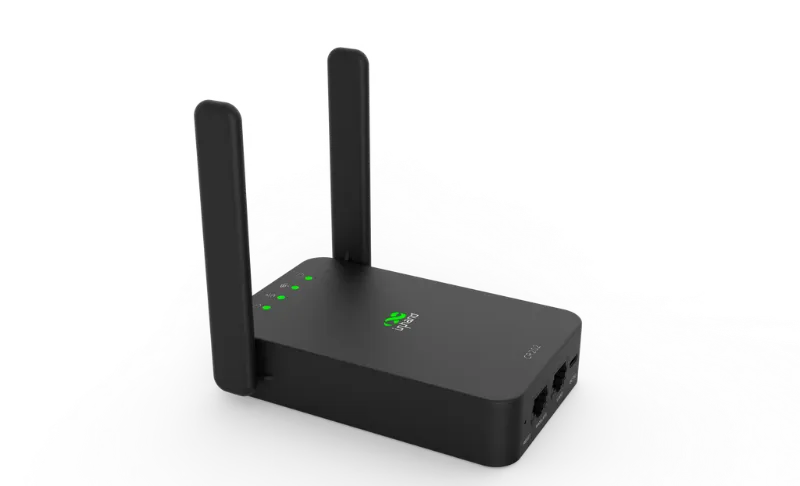
If you live in a rural area, rent an apartment where fiber isn't available, or simply want a backup connection that doesn't depend on your cable company, 4G home internet is one of the most practical solutions available today. And thanks to compact hardware like the InHandGo mini router, you no longer need bulky equipment or a professional installer to get online. In this guide, we'll walk you through the entire setup process, step by step, using an InHandGo mini router as the heart of your home network.
Why Choose a Mini Router for 4G Home Internet?
A mini router packs everything you need for 4g home internet into a device that fits in the palm of your hand. Instead of a full-sized desktop router with external power bricks and antenna farms, a mini router combines the LTE modem, NAT router, and Wi-Fi access point into one small box. Plug in a SIM card, power it up, and you have a working internet connection in minutes.
Compared with industrial routers like the inrouter300 compact industrial lte vpn router, a consumer mini router is cheaper, quieter, and easier to manage for typical household use. Industrial units shine in harsh environments — think remote cabinets, kiosks, or mounted equipment — but for a living room shelf or desk, the mini form factor wins. If you're unsure which category fits your needs, this overview of industrial routers is a good starting point for comparison.
Mini routers also pair nicely with other compact tech. Some users run them alongside a Starlink backup connection — there's an interesting discussion of mini router + Starlink setups if you want to explore dual-WAN failover. Others mount one on a small shelf of mini router wood stands for a clean living-room look. Whatever your use case, the setup steps below are the same.
What You'll Need
Before you begin, gather the following:
- InHandGo mini router — the mini router we'll use throughout this guide (make sure it ships with firmware 5.0.12 or later, which includes the improved LTE band-locking and Wi-Fi scheduling features).
- A data SIM card — from any carrier that has good coverage at your address. The router is SIM-slot based, so no special hardware is needed per carrier.
- Antennas — the included stub antennas work, but signal quality improves dramatically with high gain antennas. If your router sits near a window, a magnetic wifi antenna nearby placed on a windowsill can add several dB of gain for free.
- Power adapter and Ethernet cable — included in the box.
- Optional: an access point — if your home is large, an eap600 access point can extend your Wi-Fi to rooms the mini router can't reach.
A quick note on antennas: LTE performance lives or dies on antenna placement. The stock antennas are fine for strong-signal areas, but upgrading to high gain antennas or a dedicated high gain wifi antenna is the single best investment you can make. For wall-mounted or outdoor installations, a weatherproof high-gain antenna pointed at your carrier's nearest tower can be transformative. If you want to compare antenna options before buying, this guide to high-gain antennas covers the basics well.
Step 1: Insert the SIM Card
Power off the router first. Locate the SIM tray on the side or bottom of the unit and insert your SIM card with the gold contacts facing the correct direction (the tray is usually labeled). Push until it clicks into place.
Tips:
- Use a standard-size SIM or the adapter that matches your router's tray.
- If your carrier gave you a SIM with a PIN code, remove the PIN using a phone first, or you'll have to enter it in the router's admin panel.
- Some carriers activate SIMs only when they detect data traffic — we'll trigger that in the next step.
Step 2: Power Up and Connect
Plug in the power adapter and wait about 60 seconds for boot. The status LEDs should show:
- Power — solid
- LTE/4G — blinking while connecting, then solid
- Wi-Fi — solid once the wireless radio is up
Now connect a device:
- Wi-Fi: Find the network name (SSID) printed on the router's label and enter the default password.
- Ethernet: Plug your laptop into one of the LAN ports.
Open a browser and load any website to trigger the SIM's initial data session. If the LTE LED never turns solid, jump to the troubleshooting section below.
Step 3: Log Into the Admin Panel
Open a browser and go to the router's default management address (typically `192.168.1.1` — check the label). Log in with the default credentials on the same label, then change the admin password immediately. This is the step most people skip, and it's the one that matters most for security. For general router-hardening principles beyond the defaults, SmallNetBuilder is an excellent resource for tuning home network gear.
Once inside, you'll find the dashboard showing signal strength (RSRP/RSRQ), data usage, and connected clients.
Step 4: Configure the 4G Connection
Navigate to the Network → Cellular/WAN section:
- APN: In most cases, leave this on "Auto." If your carrier requires a specific APN (some MVNOs do), enter it manually.
- Band selection: On firmware 5.0.12, you can view per-band signal readings and lock the router to the strongest bands. Locking to a good B2/B4/B12 (or your region's equivalent) often yields more stable speeds than letting the router hop around.
- Roaming: Leave disabled unless you're traveling with the router.
If you plan to use the router as a failover behind a primary connection, you can also configure it in bridge or passthrough mode — useful when pairing with another gateway. Enthusiast discussions of mini router cnc builds and multi-WAN rigs usually cover this in depth, but for most homes, standard NAT routing is all you need.
Step 5: Optimize Wi-Fi Coverage
Out of the box, the mini router broadcasts on both 2.4 GHz and 5 GHz. A few quick wins:
- Rename the SSIDs and set strong Wi-Fi passwords (WPA2 or WPA3).
- Separate the bands if you have smart-home devices — many IoT gadgets only work reliably on 2.4 GHz.
- Upgrade the antennas: Swap the stock antennas for high gain antennas, or place a magnetic wifi antenna nearby on a metal surface near a window. A directional high gain wifi antenna aimed at your main living area beats raw gain numbers every time.
- Add an access point for dead zones: For larger homes, run an Ethernet cable to an eap600 and set it up with the same SSID and password. Devices will roam between the two seamlessly.
Fun fact from the home-internet community: some people even repurpose unexpected household gear in their network experiments — from g710 irons used to mount heat-shrink cabling setups to custom antenna brackets — but for a clean setup, the antenna upgrades above are all you need.
Step 6: Secure and Maintain
- Update firmware to the latest release (at minimum 5.0.12) before going live. Firmware updates fix LTE driver bugs and security holes.
- Enable the firewall (on by default) and disable WAN-side management access.
- Set a data cap alert if your plan has a monthly limit — the mini router's dashboard can notify you at a threshold you choose.
- Reboot on schedule: A weekly 3 a.m. auto-reboot keeps long-running sessions healthy.
Troubleshooting Common Issues
No LTE signal / LED stays off
- Reseat the SIM card.
- Check the APN settings against your carrier's documentation.
- Try a different band lock or reset to auto.
Slow speeds
- Signal is usually the culprit. Move the router near a window, or upgrade to high gain antennas.
- Test with antennas removed and reattached — a loose SMA connector is a surprisingly common issue.
- Compare your speed test to the signal reading in the admin panel: RSRP below -110 dBm will always feel slow.
Wi-Fi drops in far rooms
- Add the eap600 access point or reposition the router centrally.
- A high-gain antenna on the router's external connectors can also help.
Router keeps rebooting
- Underpowered USB or third-party power supplies are a common cause — use the included adapter.
Mini Router vs. Other 4G Options
How does a mini router stack up against the alternatives?
| Option | Best for | Drawback |
|---|---|---|
| Mini router | Renters, small homes, backup internet | Limited range without extra APs |
| Phone hotspot | Temporary use | Battery drain, no Ethernet, carrier throttling |
| Industrial LTE router | Remote sites, VPN tunnels | Cost, overkill for homes |
| Fixed-wireless ISP plans | Long-term rural primary connection | Installation, contracts |
If your use case drifts toward the industrial side — a detached workshop, a camper, or a remote sensor hub — the inrouter300 compact industrial lte vpn router is worth a look. But for the average household, the mini router is the sweet spot of price, size, and capability.
If you're still shopping, the mini router amazon listing is a quick way to check current pricing, and CNET's hands-on with a pocket-sized ASUS mini router gives a nice sense of what this category can and can't do. There's also a solid comparison of mini WiFi routers across travel, hotspot, and compact home use cases if you want side-by-side specs.
Save on Your Setup
Before you buy, check the InHandGo discount code page — there's currently 5% OFF All Orders, which applies to routers, antennas, and accessories alike. Between the antenna upgrades and the discount, you can put together a complete 4G home internet kit for well under what a month of cable costs in most areas.
Final Thoughts
Setting up 4G home internet with an InHandGo mini router takes maybe 15 minutes: SIM in, power on, APN configured, Wi-Fi secured. The real difference between "it works" and "it works great" comes down to antenna placement and firmware configuration — so invest a little time in the high gain antennas and band-locking settings, and you'll have a connection that feels nothing like the clunky mobile hotspots of years past.
Frequently asked questions
Can I use any SIM card with an InHandGo mini router?
Yes. The InHandGo mini router has a standard SIM slot and works with any carrier that supports the LTE bands your router covers. Just check that your carrier has good coverage at your address.
How can I improve my mini router's 4G signal?
The most impactful upgrade is better antennas. Swapping the stock antennas for high gain antennas, or placing a magnetic WiFi antenna near a window, can meaningfully improve both speed and stability.
Do I need an industrial router instead of a mini router?
A mini router is designed for home and small-office use, while industrial routers like the InRouter300 are built for harsh environments, VPN tunnels, and 24/7 remote deployments. For typical household internet, a mini router is more affordable and easier to manage.
Can I extend the Wi-Fi range of my mini router?
Yes. Run an Ethernet cable from the mini router's LAN port to an access point such as the EAP600, configure it with the same SSID and password, and your devices will roam seamlessly between the two.
What firmware version should my InHandGo mini router be running?
Firmware 5.0.12 or later is recommended, as it adds improved LTE band-locking and Wi-Fi scheduling that make the 4G connection faster and more stable.