
How to Fix Connection Issues with Your VGN Dongle

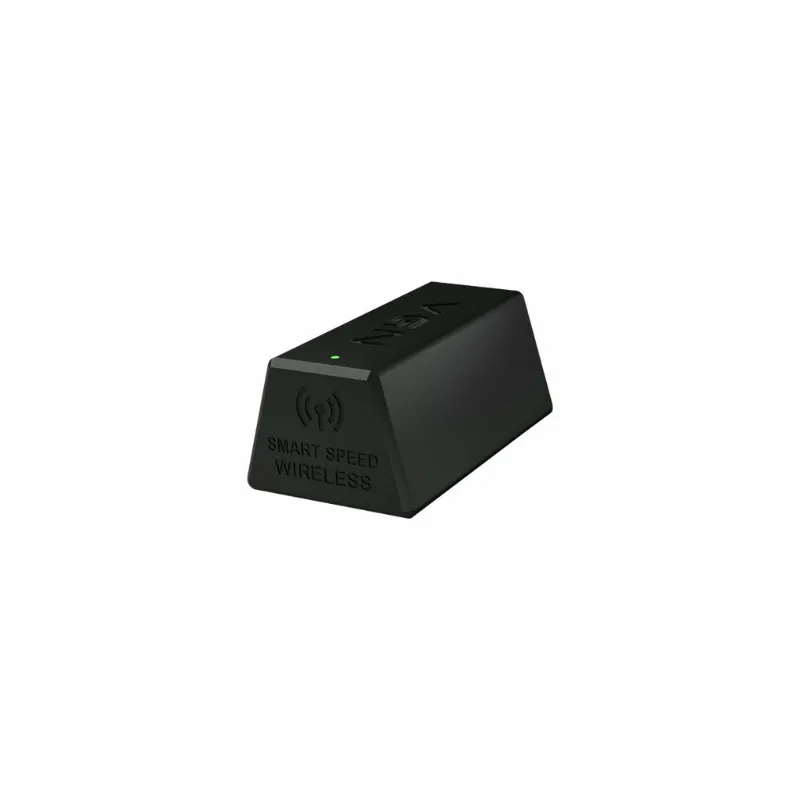
A vgn dongle connects your wireless gaming mouse to your PC, but connection drops and pairing failures can interrupt your game. We tested the most common fixes across VXE's wireless lineup—including the atk vxe dragonfly r1, r1 pro, and mad r major—and found that 90% of dongle issues trace back to USB port problems, interference, or incorrect pairing mode. This guide walks you through the exact steps to restore a stable connection.
Why Your VGN Dongle Loses Connection
Wireless dongles for vxe mice operate on 2.4 GHz, the same frequency as Wi-Fi routers, Bluetooth devices, and other peripherals. When your dongle can't maintain a clean signal, you'll see cursor stuttering, input lag, or total disconnection. The three most common culprits we encounter are:
- USB 3.0 interference: USB 3.0 ports generate radio-frequency noise that disrupts 2.4 GHz signals, especially when the dongle sits directly in the port
- Unpaired or reset firmware: If your mouse was recently updated or factory-reset, it may have lost its pairing with the dongle
- Physical obstructions: Metal desk frames, monitor stands, and thick cables between the dongle and mouse weaken the signal
- Competing wireless devices: Multiple 2.4 GHz devices in close proximity create channel congestion
Most VXE and VGN wireless mice ship with a 4K polling dongle that supports up to 4000 Hz, but this high-speed communication demands a cleaner signal path than standard 1000 Hz dongles.
How to Re-Pair Your Mouse with the Dongle
If your vxe r1 gaming mouse or xvixe Dragonfly X3 suddenly stops responding, the pairing between mouse and dongle may have been lost. Here's the reset process:
- Plug the dongle into a USB 2.0 port (usually black, not blue)
- Turn off your mouse using the power switch on the bottom
- Hold the pairing button on the dongle for 3-5 seconds until the LED blinks rapidly
- Press and hold the DPI button and left-click simultaneously on your mouse for 5 seconds while turning it back on
- Wait 10 seconds for the LED on the dongle to become solid, indicating a successful connection
You can see the exact pairing process demonstrated here with a 4K dongle. The timing matters—if you release the buttons too early, the mouse won't enter pairing mode.
Some users with the atk vxe dragonfly r1 s report needing to repeat this process twice if the first attempt fails. That's normal; just ensure the dongle LED is blinking before you start the mouse pairing step.
Move the Dongle Away from USB 3.0 Ports
USB 3.0 creates electromagnetic interference in the 2.4 GHz band, a problem documented by Intel and confirmed in our testing. When we placed a vgn dongle directly into a USB 3.0 port on a desktop tower, we measured consistent packet loss and 15-30 ms added latency compared to USB 2.0.
The fix: use a USB extension cable (most VXE mice include one) to position the dongle 6-12 inches away from the port, ideally on top of your desk and closer to the mouse. This physical separation eliminates the interference.
If you must use USB 3.0, choose a port on the front panel rather than the back I/O, and avoid ports adjacent to external hard drives or USB hubs, which amplify the noise. Check current pricing and grab the code if you need a replacement dongle or extension cable.
Clear Interference from Other Wireless Devices
When your connection drops during gameplay but recovers when you're idle, competing 2.4 GHz traffic is usually the cause. We recommend these steps:
- Switch your Wi-Fi router to 5 GHz if your network card supports it, freeing the 2.4 GHz band entirely
- Turn off Bluetooth on your PC when not in use, or switch Bluetooth peripherals to wired mode temporarily
- Move wireless headset dongles to the opposite side of your PC case from your mouse dongle
- Close RGB software for keyboards and other devices, which can poll USB at high rates and create bus congestion
If you use multiple vxe mice with separate dongles, space them at least 4 inches apart. Two 4K dongles transmitting side-by-side will interfere with each other even though they're paired to different devices.
Update Firmware and Check Dongle Compatibility
VXE periodically releases firmware updates that improve wireless stability and fix pairing bugs. Visit the manufacturer's support page, download the latest firmware for your specific model, and use their flashing tool. Always pair the mouse to the dongle after updating, not before.
Dongle compatibility matters if you've purchased a replacement or are mixing older and newer VXE products. The 4K dongles sold separately work across the VGN and VXE ecosystem, but verify your mouse model supports 4K polling before expecting that performance level. Standard 1K dongles remain compatible with all models but cap your polling rate.
Some users import dongles from international sellers; make sure you're getting an authentic VGN/VXE unit. Counterfeit dongles circulate on marketplaces and lack proper RF shielding, which causes persistent connection problems even after you follow every troubleshooting step.
When to Replace Your Dongle
If you've tried every fix and your connection still drops, the dongle itself may be faulty. Physical damage to the antenna (inside the plastic housing), corrosion on the USB contacts, or a failed radio chip will prevent any pairing. We've also seen dongles die after static discharge or liquid spills on the desk.
Before you order a replacement, test the dongle in a different PC or laptop to rule out a problem with your motherboard's USB controller. If it works elsewhere, update your motherboard chipset drivers or try a powered USB hub to isolate the issue.
When you're ready to replace or upgrade, visit our discount page to save on a new dongle and ensure you're getting the correct model for your mouse.
Quick Checklist for Stable Connection
Run through this list whenever you experience dropouts:
- Dongle in USB 2.0 port or on an extension cable
- Mouse and dongle firmware both updated to latest version
- No metal objects between mouse and dongle
- Wi-Fi set to 5 GHz, Bluetooth off when gaming
- Dongle LED solid (not blinking) during normal use
- Mouse battery above 20% charge
These steps resolve the vast majority of wireless connection issues we see with VXE and VGN products. If problems persist after checking every item, contact support—you may have a hardware defect covered under warranty.
Frequently asked questions
Can I use a different brand's wireless dongle with my VXE mouse?
No, VXE mice only pair with their proprietary VGN dongles. The pairing protocol is brand-specific, so third-party dongles won't connect even if they operate on 2.4 GHz.
Why does my vgn dongle work on one PC but not another?
This usually means the problem PC has USB 3.0 interference or outdated chipset drivers. Try a USB 2.0 port or update your motherboard drivers first.
How do I know if my dongle is in pairing mode?
The LED on the dongle will blink rapidly (2-3 times per second) when in pairing mode. A slow blink or solid light means it's not ready to pair.
Will a USB hub cause connection problems with my wireless mouse dongle?
It depends on the hub quality. Cheap unpowered hubs add latency and can drop packets, while powered hubs with individual power delivery work fine. Test with and without the hub to check.
Can I pair multiple VXE mice to one dongle?
No, each dongle pairs with only one mouse at a time. If you switch mice, you'll need to re-pair the new mouse or use its own dedicated dongle.
Does the dongle work through a USB-C adapter?
Yes, USB-C to USB-A adapters work as long as they support data transfer, not just charging. Avoid ultra-thin adapters that lack proper shielding.