
How to Fix Common Audio Issues with EKSA Gaming Headsets

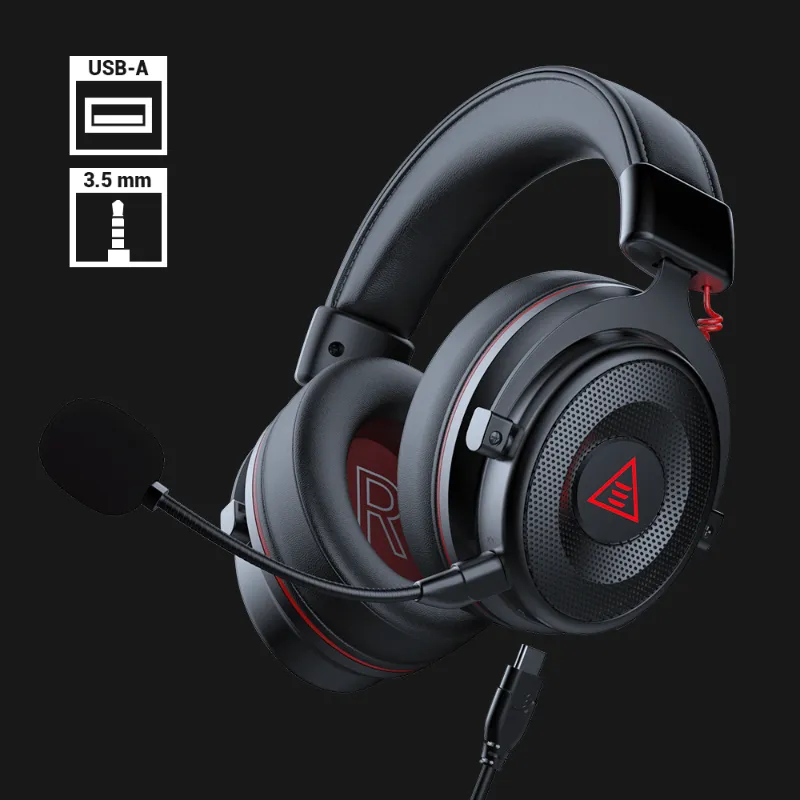
How to Fix Common Audio Issues with EKSA Gaming Headsets
Gaming headsets from EKSA deliver solid performance at an accessible price, but like any audio gear, they can run into occasional hiccups. We've tested the EKSA E900, EKSA E900 Pro, and EKSA E1000 extensively, and we know the most common audio issues and how to fix them fast. Most problems boil down to connection type, driver settings, or cable configuration.
No Sound from Your EKSA Headset
When your headset goes silent, start with the basics before diving into software settings.
Check your cable and connection type. The EKSA E1000 and E900 series use either a TRRS audio plug (single 3.5mm jack with four contacts) or a TRS cable split into separate headphone and mic connectors. If you're plugging a TRRS plug into a PC with separate ports, you'll need a splitter adapter. Conversely, if your headset has a split cable and you're connecting to a laptop with a combo jack, you need a TRRS adapter to merge the signals.
Set your default playback device. Windows often defaults to speakers or a different output when you connect new hardware.
- Right-click the volume icon in your system tray
- Select "Sound settings" or "Open Sound settings"
- Under Output, choose your EKSA headset from the dropdown
- Test audio with a YouTube video or game
Update or reinstall audio drivers. Outdated Realtek or motherboard audio drivers cause more silent headset issues than faulty hardware. Visit your motherboard manufacturer's support page and download the latest audio drivers, or use Device Manager to uninstall and reinstall your current audio device. This forces Windows to re-detect your gaming headsets properly.
Check volume mixer levels. Windows lets apps control their own volume independently. Open the volume mixer (right-click the volume icon and select "Open Volume mixer") and confirm your game or browser isn't muted or set to zero while system volume is up.
Microphone Not Working or Too Quiet
Microphone problems are the second-most-common complaint we hear from EKSA owners, especially on the EKSA E900 Pro.
Select the correct input device. Just like output, Windows needs to know which mic to use.
- Open Sound settings and navigate to Input
- Choose your EKSA headset mic from the list
- Speak into the mic and watch the blue "Test your microphone" bar for movement
- If the bar doesn't move, the mic isn't being detected
Boost microphone gain. Many EKSA models ship with conservative mic sensitivity to reduce background noise.
- Right-click the volume icon and open Sound settings
- Click "Device properties" under your input device
- Adjust the volume slider to 80-100%
- If available, navigate to "Additional device properties" and check the Levels tab for a "+10 dB" or "+20 dB" boost option
Disable exclusive mode and enhancements. Some games or apps take exclusive control of your mic, blocking other programs.
- In Sound settings, click "Device properties" then "Additional device properties"
- Under the Advanced tab, uncheck "Allow applications to take exclusive control"
- Under Enhancements (if present), check "Disable all sound effects"
Check for physical mute switches. The E900 Pro and E1000 both have inline controls with mute toggles. Run your hand along the cable and confirm the switch is in the unmuted position. We've seen this overlooked more times than we'd like to admit.
If you're still stuck, grab the latest discount code and consider upgrading to a model with USB connectivity, which bypasses many of these analog quirks.
One-Sided or Imbalanced Audio
Hearing sound in only one ear or noticing one side much quieter than the other usually points to cable damage or balance settings.
Test the cable and connectors. Gently wiggle the TRS cable or TRRS audio plug while audio is playing. If sound cuts in and out or shifts between ears, the cable has a break near the connector. EKSA sells replacement cables for most models; check current pricing on their store page.
Adjust stereo balance in Windows. It's easy to accidentally shift the left/right slider.
- Open Sound settings and click "Device properties" under your output
- Scroll down to find the stereo balance slider
- Center the slider so both L and R are equal
Check in-game audio settings. Some titles have their own balance or channel configuration. Games with 7.1 surround audio settings may route channels incorrectly if your headset is set to stereo. Switch the game's audio mode to "Stereo" or "Headphones" rather than "5.1" or "7.1" unless your EKSA model explicitly supports virtual surround.
Inspect the ear cup connectors. If you have a detachable cable, remove and reseat it firmly on both ends. Dirt or oxidation on the contacts can cause intermittent connections.
Crackling, Static, or Distorted Sound
Audio interference and distortion are frustrating but usually fixable without hardware replacement.
Lower the volume and gain. Driving your headset too hard causes clipping and distortion. Reduce both Windows volume and in-app volume to 70-80% and see if the crackling disappears. If it does, your source is simply too loud.
Move away from electrical interference. USB hubs, phone chargers, and RGB controllers all generate electromagnetic noise. Route your headset cable away from these devices and avoid coiling excess cable, which acts like an antenna.
Disable audio enhancements. Windows spatial sound and third-party EQ software can introduce artifacts.
- Open Sound settings, click "Device properties," then "Additional device properties"
- Under Enhancements or Spatial sound, disable all features and test again
Try a different USB port or audio jack. Front-panel jacks on PC cases are notorious for poor shielding and grounding. Connect directly to rear motherboard ports for cleaner audio. For USB models like some gaming headsets with virtual 7.1, avoid USB 3.0 ports (blue) in favor of USB 2.0 (black), which often have better compatibility with audio devices.
Update firmware and software. EKSA occasionally releases firmware updates for their headsets. Visit the support section on their site to check if your model has available updates.
According to roundups from PC Gamer and Rtings, audio driver conflicts are a leading cause of distortion across all headset brands, not just EKSA.
Wireless Connection Drops or Lag
If you own a wireless EKSA model, dropouts and latency can ruin immersion.
Keep the USB dongle close and unobstructed. Wireless range specs assume line of sight. If the dongle is behind your PC case or blocked by metal, range drops dramatically. Use a short USB extension cable to position the dongle on your desk, closer to your head.
Minimize 2.4 GHz interference. Wi-Fi routers, Bluetooth devices, and even microwaves share the 2.4 GHz band with most wireless gaming headsets. If possible, switch your Wi-Fi to 5 GHz or move your router farther from your desk.
Charge or replace the battery. Low battery triggers power-saving modes that reduce wireless range and increase latency. Keep your headset charged above 20% for consistent performance.
Re-pair the headset. Power off the headset, unplug and replug the USB dongle, then power the headset back on. Most EKSA wireless models auto-pair, but some require holding a pairing button for three seconds.
For a deeper dive into wireless performance, Tom's Hardware tests latency and range across dozens of models.
When to Contact Support or Upgrade
If you've worked through every step above and your EKSA headset still isn't cooperating, it may be time to reach out. EKSA offers a one-year warranty on most models, covering defects in materials and workmanship. Contact their support team through the product page on their site and have your order number ready.
Before you do, double-check that your issue isn't caused by a different device in the chain. Test your headset on another PC, laptop, or even a smartphone with a TRRS audio plug adapter. If it works elsewhere, the problem lies with your original device's audio hardware or drivers, not the headset.
When it's time to upgrade, compare your current model against newer options. The EKSA E1000 adds USB sound card functionality and improved mic noise cancellation over the original E900. Grab our exclusive discount code to save on your next purchase.
Frequently asked questions
Why does my EKSA headset have sound but no microphone input?
Check that your headset is selected as the default input device in Windows Sound settings. Many EKSA models also have an inline mute switch on the cable; make sure it's toggled to the unmuted position. If the mic still doesn't work, try boosting the input level to 80% or higher in device properties.
Can I replace the cable on my EKSA E900 or E1000?
Yes, most EKSA models use a detachable 3.5mm cable. You can purchase a replacement TRS or TRRS cable directly from EKSA or use any compatible aftermarket cable. Just match the connector type (single combo jack or split dual jack) to your setup.
What causes crackling or static noise in gaming headsets?
Crackling usually comes from electrical interference, overly high volume causing clipping, or faulty audio drivers. Try lowering your volume to 70%, moving the cable away from power sources and USB hubs, and disabling Windows audio enhancements. If the issue persists, test the headset on another device to rule out hardware damage.
Do I need a splitter for my EKSA headset on PC?
It depends on your cable type. If your headset has a single TRRS plug (four-contact combo jack) and your PC has separate mic and headphone ports, you need a splitter adapter. If your headset has a split cable with two TRS plugs and your laptop has only one combo jack, you need a TRRS adapter to merge them.
How do I enable 7.1 surround sound on my EKSA headset?
Most EKSA headsets with 7.1 surround require you to install the EKSA software or driver package from their website. Once installed, you can toggle virtual surround on or off. Some models like the E1000 include a USB sound card that handles surround processing automatically when connected via USB.
Why does my wireless EKSA headset keep disconnecting?
Wireless dropouts are usually caused by distance from the USB dongle, physical obstructions, or 2.4 GHz interference from Wi-Fi routers and Bluetooth devices. Position the dongle closer to your head using a USB extension cable, keep the battery charged above 20%, and minimize other wireless traffic in the area.