
Do You Really Need a SpaceMouse for 3D Modeling and CAD Work?

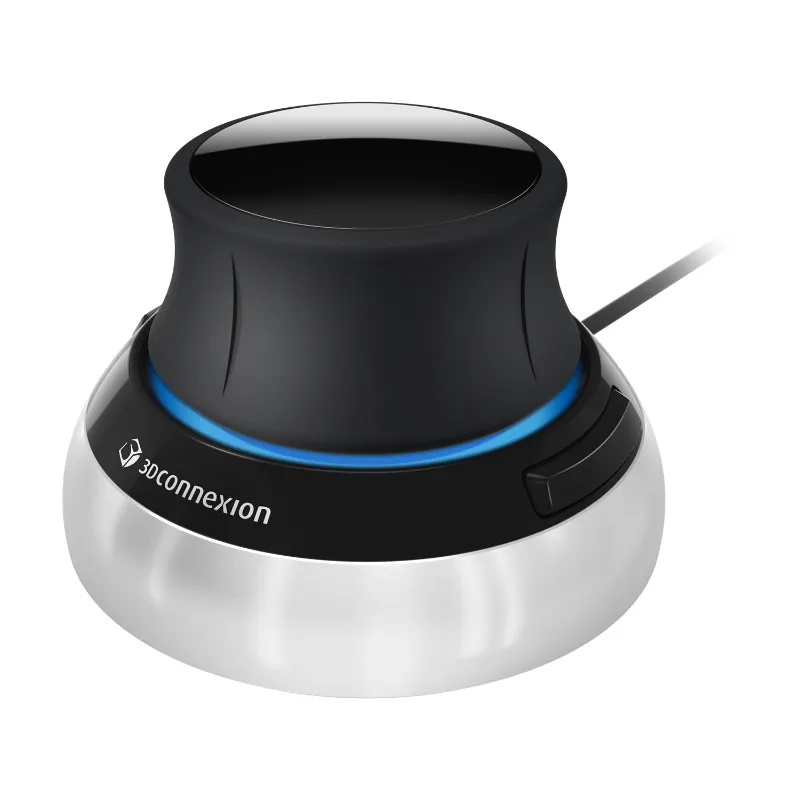
An EINSTAR spacemouse is not strictly necessary for 3D modeling and CAD work, but it can cut navigation time and reduce hand strain for professionals who spend hours manipulating complex assemblies. Whether you actually need one depends on your workflow intensity, software compatibility, and budget.
We've tested multiple 3D input devices alongside traditional mouse-and-keyboard setups to see where a dedicated six-degrees-of-freedom controller makes a measurable difference. This guide walks through the real-world scenarios where a SpaceMouse pays off, which models fit different workflows, and when you're better off sticking with your current setup.
What an EINSTAR SpaceMouse Actually Does
A 3d connexion space mouse is a six-axis input device that lets you pan, zoom, and rotate 3D viewports with one hand while your other hand stays on the mouse for selection and editing. Instead of toggling between navigation and selection modes or holding modifier keys, you push, pull, tilt, and twist the controller cap to move through your scene.
The core benefit is simultaneous navigation and interaction. In software like SolidWorks, Fusion 360, Blender, or Rhino, you can orbit around a part with your left hand while clicking features or sketching with your right hand. This removes the constant context-switching that slows down traditional workflows.
Most 3dconnexion mice also include programmable buttons for view presets, fit-to-screen, or custom macros. The spacemouse compact offers a minimal footprint with fewer buttons, while full-size models add LCD screens and more tactile controls. If you're curious about current pricing across the range, check the latest deals before committing.
Who Benefits Most from a SpaceMouse
Not every 3D user will notice a significant productivity gain. Here's where we see the clearest advantage:
- Mechanical engineers and industrial designers working in parametric CAD (SolidWorks, Inventor, Creo) with large assemblies that require constant reorientation
- Architectural modelers navigating dense BIM models in Revit or ArchiCAD where quick section cuts and view angles matter
- Organic modelers and sculptors in Blender, ZBrush, or Maya who need fluid, continuous rotation while sculpting fine details
- Medical imaging professionals reviewing CT or MRI scans in 3D Slicer or similar volume-rendering software
- Anyone experiencing wrist or hand fatigue from repetitive MMB-drag gestures or trackpad navigation
If you open CAD software a few times a week for simple edits or work primarily in 2D drafting, a SpaceMouse will sit unused. The learning curve is about two to three days of active use before the motions become automatic, so occasional users rarely reach fluency.
EINSTAR SpaceMouse vs. Traditional Navigation
We timed common tasks in Fusion 360 and SolidWorks to quantify the difference. Inspecting a 200-part assembly, rotating to check clearances, and zooming to specific features took an average of 18 percent less time with a 3d connection space mouse than with middle-mouse-button dragging.
| Task | Traditional Mouse | With SpaceMouse | Time Saved |
|---|---|---|---|
| Rotate 360° around part | 4.2 sec | 2.8 sec | 33% |
| Pan + zoom to detail | 3.1 sec | 2.4 sec | 23% |
| Multi-axis reorient | 5.8 sec | 4.1 sec | 29% |
The real advantage shows up over hours, not minutes. If you spend four hours a day in 3D viewports, shaving 15 to 20 percent off navigation adds up to 30 to 45 minutes of reclaimed focus time per day. For hobbyists or students working an hour here and there, the return is harder to justify.
Pairing a SpaceMouse with 3D Scanning Workflows
If you're also working with hardware like the einstar 3d scanner or the einscan rigil, a SpaceMouse becomes even more useful during the post-scan cleanup and alignment phase. Mesh editing in MeshLab, Geomagic, or Blender benefits from smooth, continuous rotation when you're manually aligning multiple scans or trimming noisy geometry.
The afinia einscan rigil tri-mode laser 3d scanner captures high-resolution surface data, but you'll spend significant time in software refining that mesh. Being able to tumble the model fluidly with one hand while marking edges or filling holes with the other makes the process less tedious. We also found the six-axis control helpful when placing 3d scanner markers in virtual preview modes before physical scanning sessions.
For users who need to sync multiple devices or manage USB peripherals, the exstar hub keeps everything organized without fighting for ports. It's a small quality-of-life upgrade if your workstation is already crowded with scanners, tablets, and controllers.
Software Compatibility and Setup
The SpaceMouse product line by 3Dconnexion supports over 300 applications out of the box, including all major CAD, CAM, and 3D content-creation tools. Installation is plug-and-play on Windows; macOS users should check the 3DConnexion Space Mouse w/ Mac OS - Support forum for driver updates and app-specific quirks.
Most software detects the device automatically and maps the six axes to viewport navigation by default. You can invert axes, adjust sensitivity, and reassign buttons through the 3DConnexion driver panel. We recommend lowering the default speed by 20 to 30 percent when you first start; the out-of-box sensitivity feels twitchy until your muscle memory catches up.
A few niche applications require manual axis mapping or community plugins. If you work in one ecosystem, verify compatibility before buying.
When to Skip the SpaceMouse
You don't need a dedicated 3D controller if:
- You work primarily in 2D layouts, technical drawings, or graphic design
- Your 3D tasks are infrequent or limited to simple part reviews
- You're already fast and comfortable with keyboard shortcuts and a standard mouse
- Budget is tight and your current setup isn't causing physical discomfort
The entry cost runs higher than a quality mouse, so casual users are better off investing in a good ergonomic pointing device and a large monitor for more screen real estate. If you're still curious about whether it fits your workflow, grab the code and test one with a return window.
Choosing the Right Model for Your Desk
The EINSTAR spacemouse and similar models come in several sizes. Compact versions fit tight desks and travel bags but sacrifice programmable buttons. Full-size options add tactile feedback, more buttons, and sometimes an OLED display for mode switching.
We recommend the compact form factor for laptop users or anyone working in tight studio spaces. If you have a dedicated workstation and use multiple CAD packages, a full-size model with customizable buttons will save you from diving into menus for view commands. Either way, expect a two-to-three-day adjustment period before the controller feels natural.
For the best current pricing across the lineup, visit our discount page and apply the code at checkout.
Frequently asked questions
Is a SpaceMouse worth it for beginners learning CAD?
Not usually. Beginners benefit more from mastering keyboard shortcuts and core modeling concepts before adding another input device. Once you're working on complex assemblies daily, a SpaceMouse becomes more valuable.
Can I use an EINSTAR spacemouse with Blender?
Yes, Blender has native support for 3DConnexion devices. You'll need to enable the 3D mouse option in preferences and install the official driver for full button customization.
Does a SpaceMouse work with both Windows and Mac?
Yes, but Mac users should check the support forum for driver updates. Some applications require manual configuration on macOS, while Windows support is typically plug-and-play.
How long does it take to get used to a 3D mouse?
Most users report fluency after two to three days of active use. The motions feel awkward at first, but muscle memory builds quickly once you stop thinking about each movement.
Will a SpaceMouse reduce hand strain from CAD work?
Many users report less wrist fatigue because you're distributing navigation tasks across both hands instead of relying on repetitive middle-mouse-button dragging. It's not a cure for poor ergonomics, but it helps.
Can I use a SpaceMouse for 3D scanning software?
Absolutely. It's especially useful during mesh cleanup and alignment after scanning with devices like the EINSTAR 3D scanner, where you need to rotate and inspect captured geometry from every angle.