
How to Use Marker Stickers with Your 3D Scanner for Accurate Scans

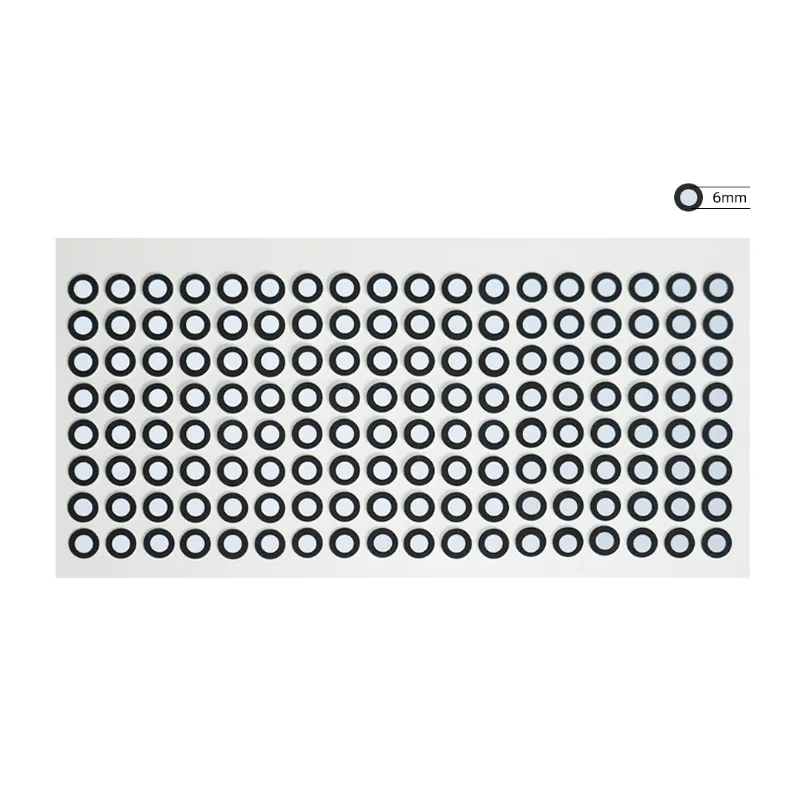
The einstar 3d scanner uses marker stickers to track position and reconstruct featureless surfaces with precision. When you scan objects that lack geometric detail or have repetitive patterns, markers give the scanner fixed reference points that prevent drift and misalignment. We tested marker workflows across several models and found that proper placement makes the difference between a clean scan and a messy point cloud.
Why Your 3D Scanner Needs Markers
Most structured-light and laser scanners rely on geometric features to register consecutive frames. When you scan a flat wall, a glossy car panel, or a cylindrical pipe, the software struggles to distinguish one section from another. 3d scanner markers solve this by providing high-contrast targets the camera can lock onto frame after frame.
Markers also help when scanning large objects that require you to move around them. The einstar 3d scanner software uses markers to stitch together multiple scan passes without losing spatial alignment. Without markers, the software may create duplicate geometry or introduce gaps where overlapping scans fail to merge.
You will also need markers when scanning objects in motion or when working with transparent, reflective, or monochromatic surfaces. Black rubber parts, white plaster models, and clear acrylic sheets all benefit from marker placement.
How to Place Markers for the Best Tracking
Start by cleaning the surface so markers adhere flat without bubbles or wrinkles. Peel each marker from the backing sheet and press it firmly onto the object. Space markers roughly 50 to 100 mm apart depending on object size. Smaller objects need tighter spacing, while large items like car hoods can tolerate wider gaps.
- Distribute markers unevenly across the surface so no two markers form a straight line
- Place at least three markers in the scanner's field of view at all times during the scan
- Avoid clustering markers in one area; spread them across all visible faces
- For cylindrical or curved surfaces, wrap markers around the contour so they remain visible as you rotate the object
- Stick extra markers on the turntable or work surface if the object itself lacks enough real estate
The EINSTAR Wiki recommends capturing a full 360-degree marker map before scanning feature-rich details. This gives the software a robust skeleton to anchor geometry as you fill in fine surface data.
Using Feature Mode vs. Marker Mode
The einstar 3d scanner software offers both feature-tracking and marker-tracking modes. Feature mode works well on objects with natural texture and geometry, like sculpted clay, mechanical assemblies, or human faces. Switch to marker mode when the software loses tracking or when you see registration errors.
In marker mode the scanner ignores surface texture and locks exclusively onto the circular targets. This mode shines when scanning:
- Flat panels and sheet materials
- Monochrome objects without texture variation
- Reflective metal or glossy painted surfaces
- Large-scale items that exceed the scanner's single-pass field of view
Some workflows combine both modes. Scan the object in feature mode to capture fine detail, then scan again in marker mode to anchor the global position. Merge the two datasets in post-processing for a best-of-both result.
Marker Placement for Different Object Types
Flat or low-relief surfaces: Place markers in a random grid across the entire plane. Ensure at least four markers are visible in each frame as you sweep the scanner.
Cylindrical objects: Wrap markers in a spiral pattern around the diameter so the scanner always sees three or more targets regardless of rotation angle.
Complex assemblies: Attach markers to stable, non-moving parts. If scanning a hinged mechanism, place markers on both the fixed base and the moving arm so the software can track relative motion.
Turntable scans: Stick markers directly on the turntable surface around the object. The einscan rigil and similar models use these to compensate for turntable wobble or speed variation.
For more context on scanner capabilities, the Einstar 3D Scanner announcement explains the hardware's tracking system.
Common Marker Mistakes and How to Fix Them
Too few markers in frame: The scanner loses tracking mid-scan and the mesh tears or duplicates. Solution: pause, add more markers, and restart the scan pass.
Markers in shadow or out of focus: The camera cannot detect faint or blurry targets. Solution: adjust lighting and move the scanner closer so markers appear crisp in the preview window.
Markers placed in a grid or line: The software cannot distinguish rotation because the pattern is symmetrical. Solution: randomize placement so each camera view shows a unique constellation.
Reflective surfaces causing glare: Glossy markers or shiny object surfaces wash out the camera sensor. Solution: apply matte spray or powder to the object, or use non-reflective marker material.
If you are working with accessories like the 3d connexion space mouse, you can pause mid-scan to reposition markers without disturbing your navigation flow. The spacemouse compact also pairs well for fine control during manual scanning passes.
Tips for Removing Markers After Scanning
Most 3d scanner markers use low-tack adhesive that peels off without residue. For delicate surfaces, warm the marker slightly with a hairdryer to soften the glue, then peel slowly at a shallow angle. Any remaining adhesive comes off with isopropyl alcohol on a microfiber cloth.
In the einstar 3d scanner software, use the marker-removal filter to automatically delete marker geometry from the final mesh. The software recognizes the circular pattern and excludes those polygons during export. Check the processed mesh in wireframe view to confirm no marker discs remain.
For current pricing on markers and scanner bundles, grab the latest code before checkout.
Pairing Markers with the Right Scanner Workflow
If you are comparing models, the afinia einscan rigil tri-mode laser 3d scanner offers dedicated marker templates and automated marker detection that works across laser, structured-light, and photogrammetry modes. The einstar 3d scanner review data we have seen shows similar marker performance across both handheld and turntable setups.
When you plan a marker-heavy project, order extra sheets so you can experiment with density and placement patterns. Check the latest price and stock availability on the store page. Markers are consumable, and having spares on hand prevents delays mid-project.
For deeper tutorials on einstar 3d scanner software and marker calibration, the EINSTAR Academy guide covers setup steps and best practices for different object types.
Frequently asked questions
How many marker stickers do I need for the einstar 3d scanner?
You need at least three markers visible in every frame during the scan. For most objects, 10 to 20 markers distributed across the surface provides reliable tracking without overcrowding.
Can I reuse 3d scanner markers after peeling them off?
Markers lose adhesive strength after the first use and may not stick flat the second time. We recommend using fresh markers for each project to avoid tracking errors caused by curled or loose edges.
Do I need markers if my object has a lot of texture?
Textured objects typically scan well in feature mode without markers. Use markers only when the scanner loses tracking or when scanning large areas where the software needs anchor points to prevent drift.
Will markers damage delicate surfaces like antiques or painted models?
Most scanner markers use repositionable adhesive safe for painted and varnished surfaces. Test one marker on an inconspicuous area first, and warm the marker slightly before peeling to minimize stress on fragile finishes.
Can I scan an object on a turntable without placing markers on the object itself?
Yes, you can place markers on the turntable surface around the object. The scanner will track the markers to maintain alignment as the turntable rotates, though adding a few markers to the object improves accuracy on featureless surfaces.
How do I remove marker dots from the final 3D model?
The einstar 3d scanner software includes a marker-removal filter that automatically detects and deletes marker geometry from the mesh. Enable it in the post-processing menu before exporting your model.