

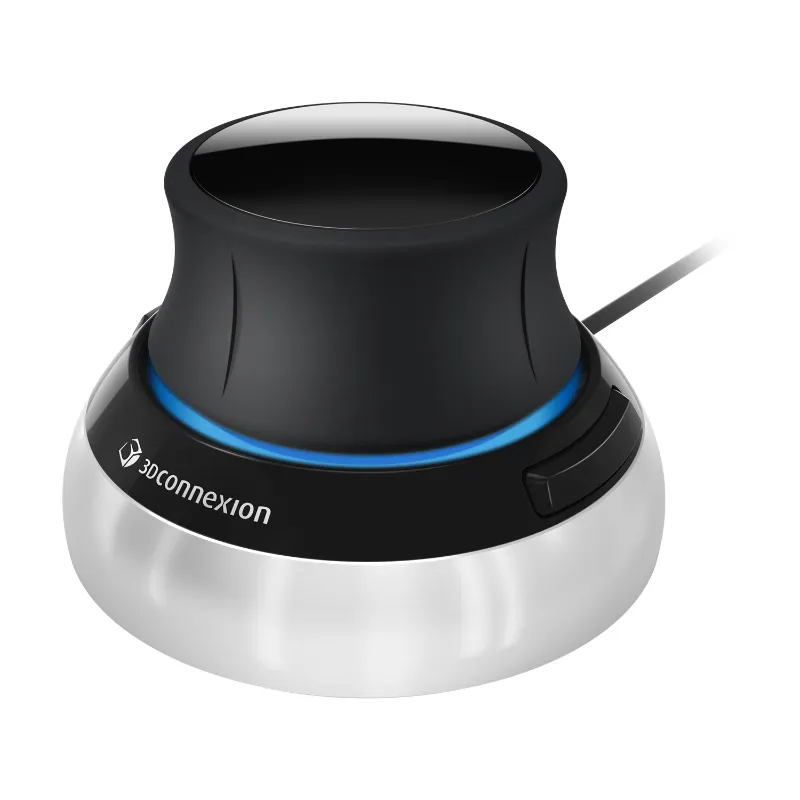
Setting up the 3dconnexion spacemouse compact takes about five minutes: install the 3DxWare driver, plug the mouse into a USB port, then tune the sensitivity and button assignments for whatever modeling app you use. After that, you get true six-degrees-of-freedom navigation, so you can orbit, pan, and zoom one-handed while your other hand stays on a regular mouse or stylus. Here is the full process we use in our own scan-to-print workflow, plus the mistakes that make people give up on a 3D mouse too early.
What the 3Dconnexion SpaceMouse Compact Actually Does
A standard mouse moves a pointer on a 2D plane. The SpaceMouse Compact uses a spring-loaded puck that reads push, pull, twist, and tilt in all six axes at once. In practice, that means you rotate a model by nudging the cap rather than hunting for a hotkey or holding down a mouse button.
The compact version is the wired, entry-level model in the lineup. It has two programmable buttons, no wireless radio, and no display. That simplicity is the point: it is the version we recommend to people who are new to 3Dconnexion space mouse hardware and do not yet know which buttons they want under their thumb.
- Best for: CAD, mesh cleanup, sculpting, and scan review
- Works alongside: your existing mouse or pen, not instead of it
- Setup friction: low, once 3DxWare is installed
- Learning curve: roughly a day of muscle memory, not a week
Setup in Five Steps
- Install 3DxWare first, before plugging anything in. Download the current driver from 3Dconnexion's site for your operating system. Installing after the fact usually works too, but driver-first avoids a generic HID fallback that ignores your profiles.
- Close your modeling software. Profiles are read at launch, so a running app may not pick up new mappings until you restart it.
- Plug the cable into a direct USB port. Skip unpowered hubs and monitor USB passthroughs. Intermittent dropouts on a 3D mouse are almost always a power or hub issue, not a faulty device.
- Open the 3Dconnexion settings panel and confirm the device is listed. You should see the SpaceMouse Compact with a live readout when you nudge the cap.
- Run the calibration/axis check. Push the cap forward and confirm the view tilts the way you expect. If forward tilts the model toward you instead, flip the axis direction in the settings rather than relearning your instincts.
Then open your modeling app and create a profile for it. This is the single step most people skip, and it is why so many 3D mice end up in a drawer.
Tuning Sensitivity and Button Mapping Per App
Default settings are conservative. Nobody models comfortably at default for long.
- Speed: raise overall navigation speed until a full push rotates the view about 90 degrees. That is usually a comfortable working range.
- Zoom direction: decide early whether pushing forward zooms in or out, and keep it consistent across every app you use.
- Dominant axis: if you tend to twist rather than tilt, enable the dominant-axis filter so diagonal inputs snap to the axis you meant.
- Buttons: map them to the two actions you reach for constantly. Fit-to-view and undo are the safe starting pair. In sculpting or mesh repair, "fit" plus a snapping toggle works better.
If a program feels jerky, the problem is usually the app's viewport settings, not the mouse. Reduce the app's own rotation smoothing before you blame the hardware.
Pairing It With a Handheld 3D Scanner Workflow
This is where the SpaceMouse earns its place in a scan-to-print shop. Handheld 3D scanner basics are simple, but review is where time disappears: you rotate a dense mesh, hunt for a hole, rotate again. With a 3D mouse, orbiting a scanned model becomes continuous instead of click-and-drag.
Our recommended order of operations:
- Capture the scan, paying attention to scan accuracy and detail settings rather than capture speed.
- Open the included scanning software and switch to the mesh review view.
- Use the SpaceMouse Compact to orbit while your other hand marks holes and trims noise.
- Send the cleaned mesh to your 3d slicer and check for non-manifold edges before committing to a print.
The puck helps most on two extremes. When scanning small objects, you need constant close-in rotation to catch thin features, and the puck gives you fine control at low speed settings. When scanning large objects, you need fast, sweeping orbits to keep the whole form in your head. Set two speed presets in your profile and you can flip between those modes without touching a slider.
One caveat: the SpaceMouse does not replace your scanner's own calibration or the included scanning software's alignment tools. It only makes the review stage faster.
SpaceMouse Compact vs the Wireless 3D Mouse
Both read six axes. The differences are about where and how you work.
| Feature | SpaceMouse Compact | 3Dconnexion SpaceMouse Wireless |
|---|---|---|
| Connection | Wired USB | Wireless plus USB cable |
| Programmable buttons | Two | Two |
| Best for | Fixed desk, CAD and mesh review | Shared desks, laptops, travel |
| Typical buyer | First 3D mouse, scan review station | Frequent traveler or multi-machine user |
If your scanner and workstation live in one spot, the compact is the better value. If you move between a desk and a laptop on-site, pay for the wireless version. You can check both models and current pricing on our store page before deciding.
Printing What You Model
Once the mesh looks right, the rest of the chain matters just as much. A bambu labs 3d printer handles the slicing handoff cleanly, and if you are printing larger assemblies or need a bigger build volume, the bambu lab h2d pro 3d printer is the step up. The 3D mouse shortens the review loop before slicing and does nothing during the print itself, so do not expect it to fix a bad mesh.
- Keep the profile for your slicer too, even if all you do is orbit the plate preview.
- Do not run the SpaceMouse as your only input device. Two-handed work is the whole point.
- Save a separate profile for your CAD app and your slicer. Mappings that feel right in one rarely feel right in the other.
Care, Warranty, and Where to Buy
The puck mechanism is the only wear part. Keep the base clean, avoid pressing the cap while it is unplugged, and never rest a heavy object on it. Cables are the common failure point, so route the lead so it is not bending against a desk edge.
Before you buy, confirm the return window and warranty terms for your region, since these vary by seller. Shipping and delivery times matter if you are buying it as a gift for someone building their first setup. On our side, the current offer is $50 off all orders, so it is worth grabbing the code before you check out, and again when you add accessories and mounts later.
If you want the exact unit we use, the 3dconnexion spacemouse compact page lists what is in the box. Do not forget that it ships with a cable only, so there is nothing else to buy for a standard desk setup.
Who It Suits, and Who Should Skip It
Buy it if you spend more than an hour a day looking at 3D geometry: modeling, mesh cleanup, scan review, or print prep. Buy it if wrist strain from middle-click dragging is slowing you down.
Skip it if your work is mostly 2D layout, if you model only occasionally, or if you have not yet settled on one primary modeling application. A 3D mouse rewards repetition. Set it up properly, and it stops being a gadget and becomes part of the desk.
 Shopping at EINSTAR? See today's verified EINSTAR discount code
Frequently asked questions
Do I need to install software for the 3Dconnexion SpaceMouse Compact?
Yes. Install 3DxWare before or right after plugging it in, otherwise the device may run as a generic input and ignore per-app profiles. The driver is free from 3Dconnexion and is where you set speed, axis direction, and button mappings.
Can the 3dconnexion spacemouse compact replace my regular mouse?
No, and it is not designed to. It handles navigation in 3D space while a standard mouse or pen handles selection and editing, which is why the two-device setup is faster than either one alone.
Will the SpaceMouse work with my 3D scanner's included scanning software?
It works in any application that supports 3D navigation, but the level of built-in support varies. Most users get the most value in mesh review and in their CAD or slicer software, where profiles are already provided.
How long does it take to get used to a 3D mouse?
Most people adjust within a day of regular use. Start with a slower navigation speed and raise it once you stop overshooting, and avoid switching the axis directions back and forth while you are still learning.
Is the wired Compact model enough, or should I get the wireless 3D mouse?
If the mouse stays at one workstation, the wired Compact is the sensible choice. Choose the wireless version if you move between a desktop and a laptop or work on site with a scanner.