
How to Set Up and Configure Maono Link Software for Your Microphone

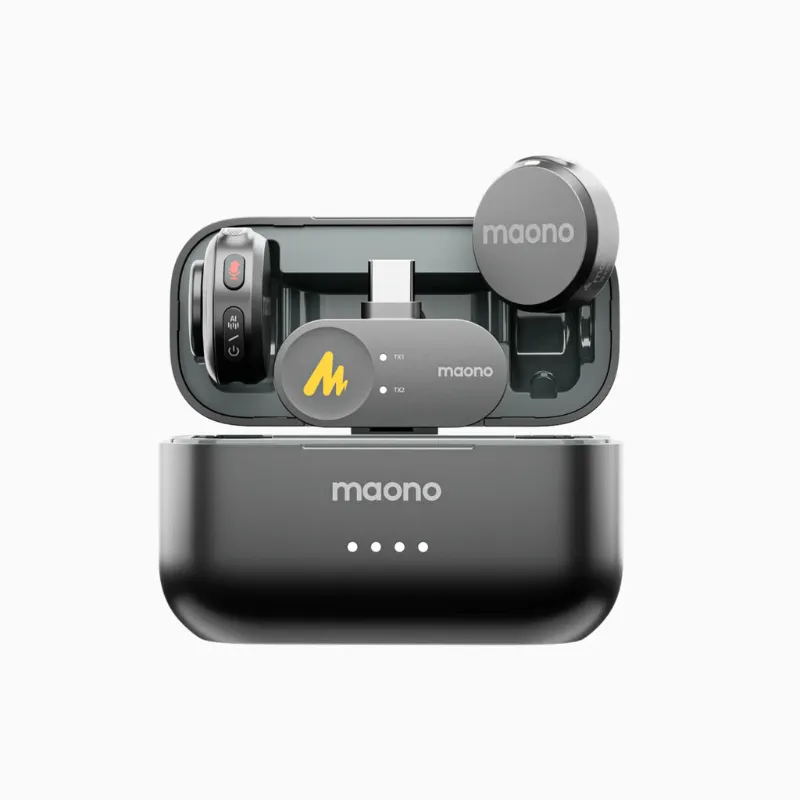
Setting up your maono microphone with the companion software unlocks professional-grade audio control, custom presets, and real-time monitoring capabilities. The maono link desktop application transforms compatible USB microphones into studio-grade tools by giving you granular control over gain, EQ, compression, and effects that hardware controls alone can't provide.
We tested the setup process across Windows and Mac with multiple Maono models to show you exactly how to get the software running and dialed in for podcasting, streaming, or recording.
Download and Install Maono Link Software
The maono software package works with most modern USB microphones in the Maono lineup, including the maono pd200x, maono pd400x, and maono pd300x. Start by downloading the installer directly from the official Maono support page or product documentation included with your device.
Installation steps:
- Connect your Maono microphone to an available USB port before launching the installer
- Run the downloaded .exe (Windows) or .dmg (Mac) file with administrator privileges
- Follow the on-screen prompts and restart your computer when prompted
- Launch Maono Link from your applications folder or Start menu
- The software will automatically detect compatible devices connected to your system
Most users see their device recognized immediately, but if your microphone doesn't appear, check that you're using a USB data cable (not charge-only) and that any physical mute switches are disengaged. For the latest maono microphone driver updates, revisit the download page quarterly or enable auto-update in the software preferences.
Configure Audio Input Settings
Once Maono Link recognizes your device, the main dashboard displays real-time input levels and your current preset. The software organizes controls into logical tabs: Input, EQ, Effects, and Monitor.
Input tab essentials:
- Gain control: Start at 50% and adjust upward while speaking at your normal volume until the meter peaks around -12 dB to -6 dB
- Sample rate: Set to 48 kHz for video work or streaming; use 44.1 kHz for music production
- Bit depth: Choose 24-bit for maximum dynamic range and headroom
- Polar pattern (on models like the maono pd400x): Select cardioid for solo recording, figure-8 for interviews, or omnidirectional for room ambience
The maono pd200x microphone and similar XLR-USB hybrid models offer a hardware gain knob that works in tandem with software gain. We recommend setting hardware gain to your baseline and using software for fine adjustments, which reduces the chance of introducing noise.
If you're planning to pair your microphone with a mixer, the maonocaster g1 neo audio mixer or maono caster e2 integrate seamlessly with Maono Link for layered control over multiple sources.
Apply EQ and Audio Effects
The EQ tab gives you a five-band parametric equalizer with visual frequency response. This is where you shape your voice or instrument to cut through a mix or remove problem frequencies.
Quick EQ starting points:
- Podcasting/voiceover: Reduce 100-200 Hz by 2-3 dB to minimize rumble, boost 3-5 kHz by 2 dB for clarity
- Streaming: Add a high-pass filter at 80 Hz, gently boost presence around 4 kHz
- Music vocals: Cut muddiness around 250 Hz, enhance air and sparkle at 10 kHz
The Effects tab includes a compressor, noise gate, limiter, and de-esser. The compressor is the most impactful for consistent levels—set a ratio of 3:1 with a threshold that catches your louder phrases, then apply 2-4 dB of makeup gain. The noise gate silences background hum when you're not speaking; start with a threshold 10 dB below your speaking level.
For users working with the maono dm40 or maono wave t5, the effects stack applies uniformly, so save separate presets for different use cases rather than toggling effects on and off mid-session.
Set Up Monitoring and Presets
Real-time monitoring lets you hear yourself through headphones with zero or near-zero latency. In the Monitor tab, enable direct monitoring and adjust the mix slider between 0% (only your computer's output) and 100% (only your microphone input).
Monitoring best practices:
- Use 50-70% mix when recording over backing tracks or during live calls
- Enable the metronome or click track passthrough if your DAW supports it
- Lower monitoring volume to prevent feedback if using open-back headphones in a small space
Once you've dialed in gain, EQ, and effects for a specific scenario, save it as a preset. Click the preset dropdown, choose "Save As," and name it descriptively (Podcast, Gaming Stream, Acoustic Guitar). Maono Link lets you store unlimited presets and switch between them with one click, which is invaluable if you use the same microphone for multiple content types.
The maono caster g1 neo hardware mixer also stores presets independently, so coordinate naming conventions between your software and hardware if you use both.
Integrate With DAWs and Streaming Software
Maono Link processes audio before it reaches your recording or streaming application, so it appears as a standard input device in OBS Studio, Streamlabs, Audacity, Adobe Audition, or any DAW. Select "Maono Link" (or your specific model name) as the microphone input in your application's audio settings.
Integration checklist:
- Set the sample rate in your DAW or streaming software to match Maono Link (typically 48 kHz)
- Disable any additional noise suppression or EQ in the destination app to avoid double-processing
- Route Maono Link to a dedicated track if recording multitrack sessions
- Test latency with a clap or snap; if you hear an echo, disable software monitoring in your DAW and use Maono Link's direct monitor instead
If you're shopping for a new setup or want to check the latest price on compatible models, our Maono discount code page includes current offers. We've seen consistent 10% sitewide discounts that apply to both microphones and accessories.
Troubleshooting Common Setup Issues
Even with straightforward maono microphone setup, a few hiccups show up regularly. Here's how we resolved them during testing.
Device not detected:
- Unplug the microphone, close Maono Link, reconnect the device, then relaunch the software
- Try a different USB port, preferably one directly on your motherboard rather than a front-panel or hub connection
- On Mac, grant microphone permissions in System Preferences > Security & Privacy > Microphone
Crackling or distortion:
- Lower gain in both hardware and software until distortion disappears
- Increase your computer's USB power management settings (disable USB selective suspend on Windows)
- Update your operating system and Maono Link to the latest versions
No sound in headphones:
- Verify that your headphones are plugged into the microphone's 3.5mm jack, not your computer
- Raise the monitoring mix slider above 0% in Maono Link
- Check that the microphone itself isn't muted via a physical button or switch
For deeper dives into Maono Microphone features and comparisons, independent reviews offer side-by-side audio tests that complement the official documentation.
When you're ready to grab the code and complete your audio setup, pairing quality software configuration with the right hardware makes the difference between hobbyist and professional sound. We recommend starting with presets, then tweaking as you get comfortable with each control—most users land on a refined sound within 15 minutes of experimentation.
Frequently asked questions
Does Maono Link software work with all Maono microphones?
Maono Link supports most USB models including the PD200X, PD400X, PD300X, and similar devices. Older analog-only or basic USB microphones may not be compatible, so check the product page or included documentation for software compatibility before purchasing.
Can I use Maono microphones without installing the software?
Yes, Maono USB microphones function as plug-and-play devices without software. However, you'll lose access to EQ, compression, presets, and other advanced controls that dramatically improve sound quality.
How do I update Maono Link to the latest version?
Open Maono Link, navigate to Settings or Preferences, and look for a "Check for Updates" option. Alternatively, download the newest installer from the official Maono support page and run it over your existing installation.
Why does my microphone sound different in Zoom or Discord?
Zoom, Discord, and similar apps apply their own noise suppression and auto-gain by default. Disable those features in the app's audio settings so Maono Link handles all processing, or your voice will be compressed twice and sound unnatural.
Can I save different presets for gaming and podcasting?
Absolutely. Maono Link allows unlimited custom presets. Create one with heavier compression and a noise gate for gaming, and another with natural EQ for podcasting, then switch between them with a single click.
What sample rate should I use for streaming on Twitch?
Use 48 kHz at 24-bit, which matches most streaming platforms' native audio format. This setting ensures compatibility and prevents unnecessary resampling that can degrade quality.