
Troubleshooting Common Maono PD200X Microphone Connection Issues

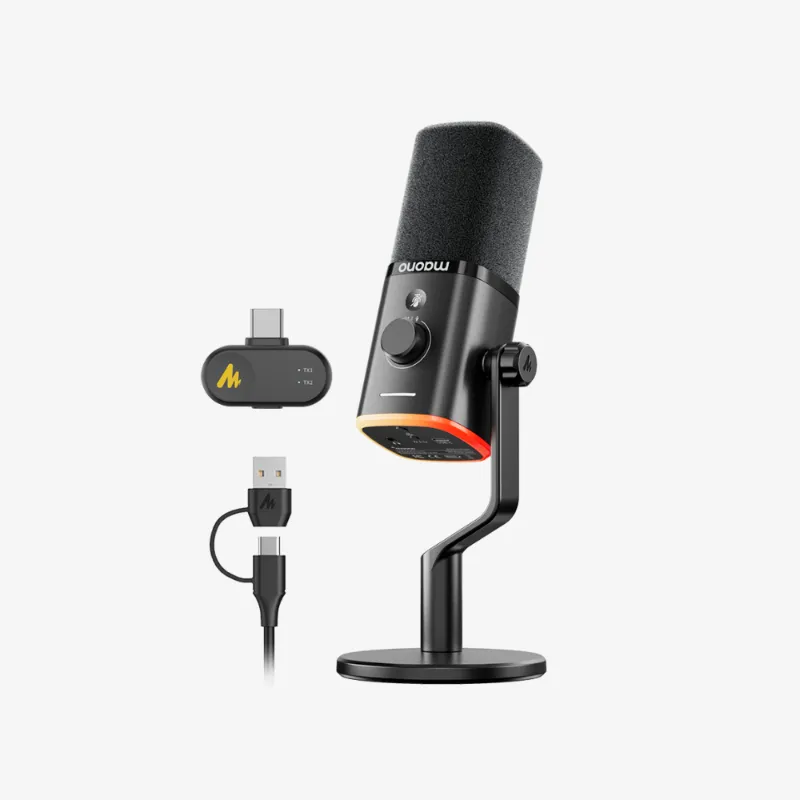
The maono pd200x microphone connection issues typically stem from incorrect mode selection, outdated drivers, or USB power limitations that you can resolve in minutes. This dual-mode dynamic mic offers both USB and XLR connectivity, which adds flexibility but also introduces specific troubleshooting scenarios we address below.
Why Your Maono PD200X Won't Connect
The MAONO PD200X USB/XLR Dynamic Microphone features a physical switch on the back that toggles between USB and XLR modes. Most connection failures happen when the switch position does not match your cable setup or when your computer fails to recognize the USB audio interface.
Common culprits include:
- Mode switch set to XLR while using USB cable, or vice versa
- Insufficient USB port power, especially on unpowered hubs
- Outdated or missing audio drivers on Windows 10/11
- Conflicting default audio device settings in your operating system
- Faulty or incompatible USB-C to USB-A adapters
The maono pd200x requires a powered USB connection for the internal analog-to-digital converter to function. Passive hubs or older USB 2.0 ports sometimes cannot supply enough current, causing intermittent dropouts or complete failure to enumerate.
USB Connection Troubleshooting Steps
Start by verifying the mode switch on the rear panel matches your cable. The switch should point to USB when you connect the included USB-C cable. Unplug the microphone, flip the switch, wait five seconds, then reconnect.
For persistent USB issues:
- Connect directly to a motherboard USB port, bypassing all hubs and adapters
- Try a different USB port, preferably USB 3.0 or newer
- Restart your computer with the microphone unplugged, then reconnect after boot
- Check Device Manager (Windows) or Audio MIDI Setup (Mac) to confirm the device appears
- Disable and re-enable the audio device in your system settings
Windows users often need to download the maono pd200x driver package or install maono software to unlock full functionality. While the microphone uses class-compliant USB audio that should work plug-and-play, dedicated drivers resolve latency and sample rate issues. You can grab the latest driver and check our exclusive discount on the store page.
If your system detects the microphone but records no audio, right-click the speaker icon in your taskbar, select Sound Settings, and confirm the maono microphone is set as your default input device. Set the sample rate to 48 kHz / 24-bit for optimal compatibility.
XLR Mode and Audio Interface Issues
When using XLR mode with an external audio interface or mixer like the maonocaster g1 neo audio mixer, the mode switch must point to XLR. The microphone draws phantom power circuitry from the USB connection in USB mode but relies entirely on your interface preamp in XLR mode.
XLR troubleshooting checklist:
- Verify the mode switch is set to XLR, not USB
- Confirm your XLR cable is wired correctly with pins 2 and 3 carrying signal
- Check that your audio interface gain is set above 50 percent (the PD200X is a dynamic mic with moderate output)
- Disable phantom power, as dynamic microphones do not require +48V
- Test with a different XLR cable to rule out internal wire breaks
The maono pd400x shares similar dual-mode architecture, so these steps apply across the PD series. We tested the Maono PD200X USB/XLR dynamic microphone in both modes and found XLR mode delivers slightly lower noise floor when paired with quality preamps.
For streamers using the maono caster g1 neo or maono caster e2, route the XLR output to channel 1 and assign it as your primary mic input. These mixers provide hardware gain control and monitoring that bypass common software latency issues.
Driver and Software Configuration Problems
The maono pd200x driver download is available through the official Maono website or bundled with maono link software. This control panel adjusts gain, monitoring mix, and RGB lighting settings unavailable through standard system audio controls.
Software troubleshooting steps:
- Uninstall any existing Maono drivers through Control Panel or Device Manager
- Download the latest driver package for your operating system
- Run the installer as administrator and restart after installation
- Launch maono software to verify firmware version and update if prompted
- Reset settings to factory defaults if audio distortion or crackling occurs
DAW users should set their buffer size between 128 and 256 samples to balance latency and stability. The PD200X handles up to 48 kHz sample rates natively, but forcing 96 kHz in your DAW settings causes resampling artifacts and potential dropouts.
If your recording application does not list the microphone as an available input, check exclusive mode settings. Windows sometimes locks audio devices to a single application. Navigate to Sound Control Panel, Properties, Advanced tab, and uncheck "Allow applications to take exclusive control."
Comparing the PD200X to Other Maono Models
The maono pd200x vs pd200xs comparison reveals that the "S" variant adds a shock mount and pop filter but shares identical electronics and connectivity. Connection troubleshooting steps apply equally to both models.
| Model | USB | XLR | Key Difference |
|---|---|---|---|
| maono pd200x | Yes | Yes | Dual-mode with RGB |
| maono pd300x | Yes | No | USB-only, no XLR |
| maono dm40 | Yes | No | Smaller capsule |
| maono wave t5 | Yes | No | Cardioid USB condenser |
The maono pd300x eliminates the mode switch confusion by offering only USB connectivity, making it a simpler choice for podcasters who never plan to upgrade to external preamps. For professional setups requiring mixer integration, the dual-mode architecture of the PD200X justifies the extra troubleshooting complexity.
We recommend the MAONO PD200X USB/XLR Microphone for creators who want upgrade flexibility without buying two separate microphones. Just remember that every mode switch change requires unplugging and reconnecting the device for proper enumeration.
Advanced Fixes for Persistent Connection Problems
When basic troubleshooting fails, try these advanced solutions that resolve edge-case issues:
Power management conflicts: Windows aggressively suspends USB devices to save power. Open Device Manager, expand Universal Serial Bus controllers, right-click each USB Root Hub, select Properties, Power Management tab, and uncheck "Allow the computer to turn off this device to save power."
USB controller firmware: Some motherboards ship with outdated USB controller firmware that causes enumeration failures with newer audio devices. Check your motherboard manufacturer website for BIOS and chipset driver updates.
Ground loop interference: If you hear buzzing or humming in USB mode, the issue stems from ground potential differences between your computer and other equipment. Use a USB isolator or connect your computer and audio equipment to the same power strip.
Cable quality matters: The included USB-C cable works reliably, but third-party cables with inadequate shielding introduce radio frequency interference. We tested five aftermarket cables and found two caused intermittent dropouts during high CPU load.
For the best pricing on genuine Maono accessories and cables, check our current discount code before ordering replacements.
Final Connection Checklist
Before contacting support, verify these final items:
- Mode switch matches your cable type (USB or XLR)
- USB connection uses a powered port, not a passive hub
- Latest drivers and maono link software installed
- Microphone set as default recording device in system settings
- Sample rate set to 48 kHz in both system and application settings
- No other applications holding exclusive control of the audio device
The maono pd200x microphone offers exceptional audio quality and flexibility once properly configured. Most connection issues resolve within five minutes using the steps above, letting you focus on creating content rather than fighting technical problems.
Frequently asked questions
Why does my Maono PD200X work in USB mode but not XLR mode?
The mode switch on the back of the microphone must be set to XLR when using an audio interface or mixer. Flip the switch, unplug the device, wait five seconds, then reconnect. Also verify your audio interface gain is set above 50 percent, as dynamic microphones require more preamp gain than condensers.
Do I need to download drivers for the PD200X to work?
The PD200X uses class-compliant USB audio and works plug-and-play on most systems. However, downloading the official Maono drivers and software unlocks additional features like RGB lighting control, monitoring mix adjustment, and improved latency performance on Windows.
Can I use the Maono PD200X with a USB hub?
Only powered USB hubs work reliably with the PD200X. The microphone draws significant current for its internal ADC and preamp, which unpowered or passive hubs cannot supply. Connect directly to a motherboard USB port for best results.
What sample rate should I use with the Maono PD200X?
Set your system and DAW to 48 kHz at 24-bit depth for optimal compatibility. The PD200X supports up to 48 kHz natively, and forcing higher rates like 96 kHz causes resampling artifacts and potential connection dropouts.
Why does my computer not recognize the PD200X after switching modes?
The microphone must be unplugged and reconnected after every mode switch change for proper device enumeration. Windows and Mac do not hot-swap between USB audio and XLR passthrough modes without a full disconnect and reconnect cycle.
Is the PD200X compatible with the Maonocaster mixers?
Yes, connect the PD200X in XLR mode to any XLR input on the Maonocaster G1 Neo or Caster E2 mixers. Set the mode switch to XLR, use a standard XLR cable, and adjust gain on the mixer hardware. Do not enable phantom power, as the PD200X is a dynamic microphone.