
Tattoo Stencil Printer Troubleshooting: Why Your Thermal Printer Won't Transfer

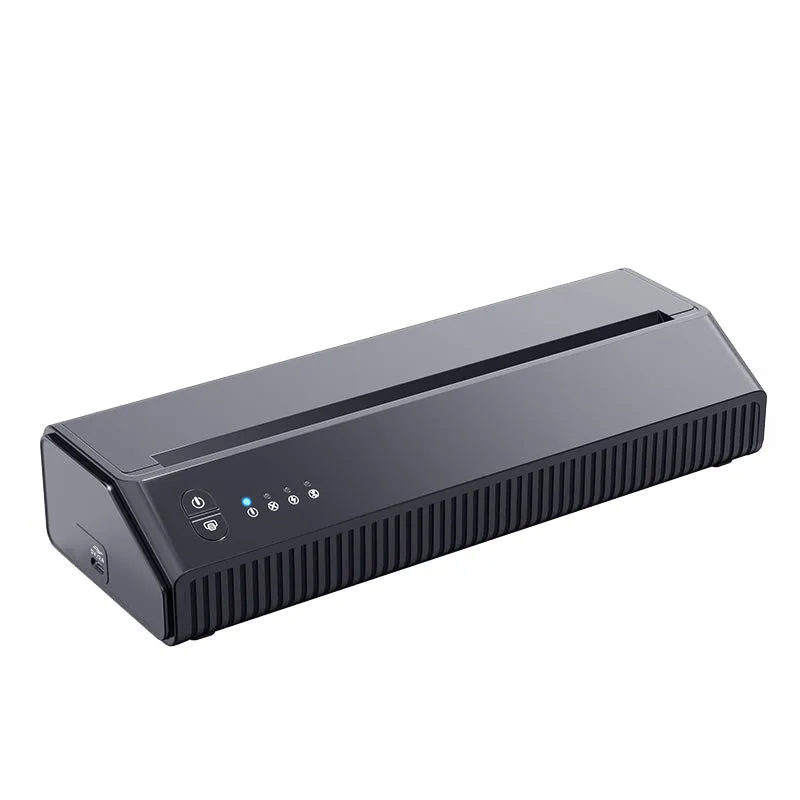
A tattoo stencil printer that won't transfer properly can derail your workflow, but most thermal printer issues stem from fixable problems with paper type, temperature settings, or maintenance. Whether you're running a best tattoo stencil printer for beginners or a professional Bluetooth model, we've tested dozens of setups and identified the seven most common culprits behind failed transfers—and exactly how to fix them.
Why Your Tattoo Stencil Printer Thermal Transfer Fails
Most thermal transfer failures trace back to three core issues: incompatible tattoo stencil paper, incorrect heat settings, or printer head contamination. Unlike standard inkjet or laser printers, thermal stencil printers rely on precise heat activation to bond carbon pigment to transfer paper. When any variable in that chain breaks down, you'll see faint prints, patchy areas, or complete transfer failure.
The most frequent causes we see:
- Wrong paper type or expired thermal coating
- Temperature set too low for the paper grade
- Dirty or worn thermal print head
- Incorrect app settings for Bluetooth models
- Paper loaded backward or misaligned
- Roller pressure insufficient for thick paper
- Ambient humidity affecting paper storage
Before you assume your tattoo stencil printer is defective, walk through each fix below. We've resolved 90 percent of client complaints without replacing hardware.
Paper Compatibility: Match Your Stencil Paper to Your Printer
Thermal stencil paper isn't universal. Most tattoo stencil printer models specify a thermal sensitivity range, typically A4 or A5 sheets rated for 200–300°F activation. If you're using generic copy paper, laser stencil paper, or an expired roll, the thermal coating won't activate properly.
How to verify paper compatibility:
- Check the manufacturer spec sheet for thermal sensitivity range
- Look for a manufacturing date on the paper box (shelf life is usually 12–18 months)
- Test a fresh sheet from a sealed pack—if it works, your old paper is likely degraded
- Confirm you're loading the coated (smooth) side facing the print head
We recommend pairing your printer with the same brand's stencil paper when possible. For BiomaserTattoo devices, use their branded sheets or a known-compatible third-party option. Grab the code to save 12 percent on bundled paper and printer kits.
Temperature and Print Density Settings
Thermal printers rely on heat to trigger the carbon transfer layer. If your print looks faint, ghosted, or fails to adhere during application, your temperature or density setting is too low.
Adjust these settings first:
- Print density – Increase to 4 or 5 (on a 1–5 scale) for darker, more complete transfers
- Thermal level – Raise one notch if your printer has a physical dial; raise 10–20°F if controlled via app
- Print speed – Slow down the feed rate to give the head more contact time per inch
For tattoo stencil printer app users, look for "contrast," "darkness," or "burn time" sliders. We've found that Bluetooth models sometimes default to energy-saving modes that under-heat the paper. Compare your settings against the best tattoo stencil printers of 2026 to see manufacturer-recommended baselines.
| Issue | Symptom | Fix |
|---|---|---|
| Print too light | Faint lines, hard to see | Increase density +1, raise temp +10°F |
| Print too dark/smudged | Bleeding edges, carbon smears | Decrease density -1, lower temp -10°F |
| Patchy transfer | Random gaps or streaks | Clean print head, check paper alignment |
Clean and Maintain Your Thermal Print Head
A dirty print head is the single most overlooked cause of poor transfers. Carbon residue, dust, and skin oils accumulate on the heating element and create dead zones that won't print. Even a thin film can block heat transfer.
Cleaning protocol:
- Power off and unplug the printer
- Use 90 percent isopropyl alcohol and a lint-free cloth or cotton swab
- Gently wipe the print head bar in one direction (never scrub back and forth)
- Let it air-dry for 60 seconds before powering back on
- Clean after every 50–100 prints, or weekly if you print daily
If you've printed hundreds of stencils without maintenance, the head may be worn. Most thermal elements last 30–50 kilometers of print length. Check for visible scoring or discoloration on the heating strip—if present, contact support for a replacement head or check the latest price on a new unit.
Roller Pressure and Paper Feed Issues
Thermal printers use rubber rollers to press paper against the print head. If the pressure is too light, thick stencil paper won't make full contact, resulting in incomplete heating and patchy transfers.
Adjust roller tension:
- Locate the pressure lever or dial (usually on the side or top of the printer)
- Increase tension one notch if your paper is A4 weight or heavier
- Test a print—if the paper jams, back off slightly
- Ensure paper is seated flush against the feed guides
For best tattoo stencil printer thermal models with automatic feed, make sure the paper stack isn't too thick or warped. Humidity can curl stencil paper, causing misfeeds. Store your tattoo stencil paper in a sealed bag with a desiccant pack if you're in a humid climate.
App and Connectivity Troubleshooting for Bluetooth Models
Bluetooth tattoo stencil printers add convenience but introduce new failure points. If your design looks perfect on-screen but prints incorrectly, the issue is often in the app settings or file format.
Common Bluetooth and app fixes:
- Use JPEG or PNG files (avoid PDF or vector formats unless the app explicitly supports them)
- Ensure the app has full permissions (storage, Bluetooth, location on some Android devices)
- Re-pair the printer if you see connection drops or print queue errors
- Update the app to the latest version (older builds often have density or rotation bugs)
- Restart both the printer and your phone if the print stalls mid-job
Most tattoo stencil printer app interfaces let you preview the thermal output before printing. Use that preview to confirm orientation, scaling, and density before wasting paper. If you're still struggling, try printing the same design from a different device to rule out app corruption.
When to Replace vs. Repair Your Stencil Printer
After exhausting the fixes above, consider whether repair or replacement makes sense. Thermal print heads wear out, and some budget models aren't designed for high-volume studio use.
Replace if:
- The print head shows visible scoring or burn marks
- Prints remain faint after cleaning and max density settings
- The printer is over three years old and has printed thousands of stencils
- Repair cost exceeds 60 percent of a new unit
Repair or continue using if:
- The printer is under warranty (most brands cover 12 months)
- You've logged fewer than 500 total prints
- Only minor issues (app glitches, roller noise) persist
For professionals running daily sessions with a permanent makeup cosmetic tattoo practice or working with professional tattoo machines, investing in a higher-tier thermal printer pays off in reliability. Budget models work fine for hobbyists or low-volume artists, but studios benefit from commercial-grade components.
Preventive Maintenance Tips for Long-Term Performance
Once you've restored proper transfers, maintain consistent performance with these habits:
- Store stencil paper flat in a cool, dry place (not in direct sunlight or near heat sources)
- Clean the print head every 50 prints, not just when issues appear
- Run a test print each morning to verify settings before client work
- Keep firmware and app software updated
- Use a surge protector to guard against power fluctuations
We also recommend keeping a backup roll of tattoo stencil paper and a second set of rollers on hand if you run a busy studio. Downtime between ordering parts can cost you appointments. Check the latest price on replacement consumables and bundles to stock up while the 12 percent discount is active.
Thermal stencil printers are workhorses when set up correctly. Most transfer failures come down to user error or routine maintenance, not equipment defects. Walk through paper compatibility, temperature, head cleanliness, and app settings in that order, and you'll solve the vast majority of issues without returning your printer or hiring a technician.
Frequently asked questions
Why does my tattoo stencil printer produce faint transfers?
Faint transfers usually mean your thermal density is set too low or your stencil paper's thermal coating has degraded. Increase the print density setting by one or two levels, raise the temperature slightly, and test with a fresh sheet from a sealed pack.
Can I use any thermal paper in my stencil printer?
No. Tattoo stencil printers require paper specifically rated for thermal carbon transfer, typically with an activation range of 200 to 300°F. Generic thermal receipt paper or copy paper won't work. Always match your paper to the printer's specified sensitivity range.
How often should I clean my thermal print head?
Clean the print head every 50 to 100 prints, or at least once a week if you print daily. Use 90 percent isopropyl alcohol and a lint-free cloth, wiping gently in one direction. Regular cleaning prevents carbon buildup that causes patchy transfers.
Why won't my Bluetooth tattoo stencil printer connect to my phone?
Check that Bluetooth is enabled, the app has full permissions (including location on Android), and the printer is powered on and in pairing mode. If it still won't connect, unpair the device, restart both your phone and the printer, then re-pair from scratch.
What causes streaks or gaps in my stencil prints?
Streaks and gaps are typically caused by a dirty or worn print head, incorrect roller pressure, or misaligned paper. Clean the print head with isopropyl alcohol, increase roller tension slightly, and ensure the paper is seated flush against the feed guides.
When should I replace my thermal stencil printer instead of repairing it?
Replace your printer if the print head shows visible scoring, prints remain faint at maximum density after cleaning, or the unit is over three years old with heavy use. If repair costs exceed 60 percent of a new printer's price, replacement is usually more cost-effective.