

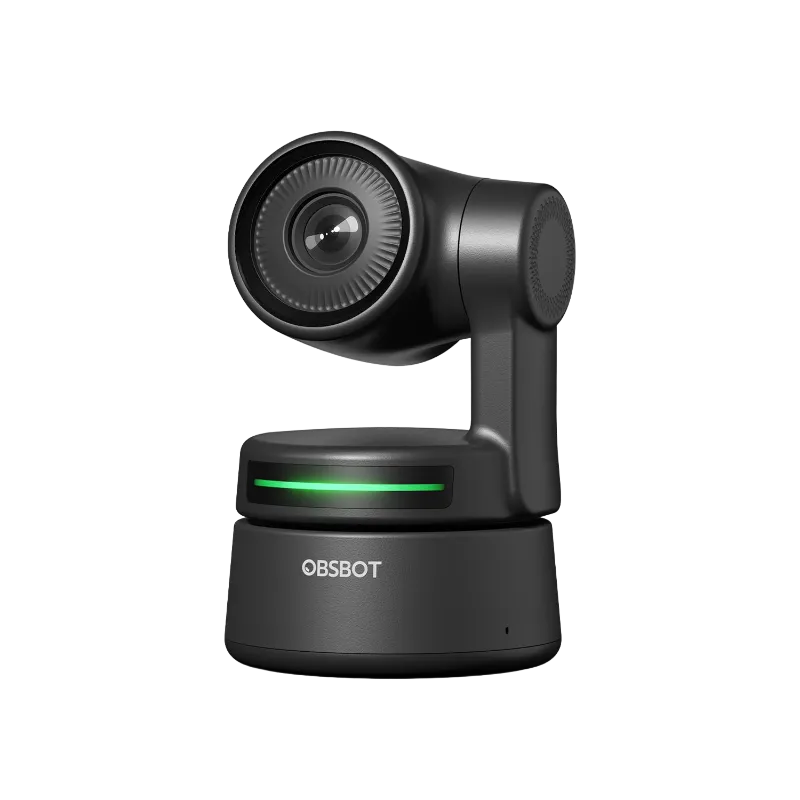
If the obsbot tiny 3 software will not find your camera, the cause is almost always physical or permission based rather than a dead webcam. In our testing the usual suspects are a charge-only USB cable, a hub that cannot pass data, a camera still held by another app, or a privacy setting blocking access in Windows or macOS. Work down this checklist in order and you will normally be back on camera in under ten minutes.
The Six-Step Fix for obsbot tiny 3 software
Start here before you reinstall anything. Each step rules out one layer of the chain between the camera and the app.
- Close every app that can claim the camera. Zoom, Teams, OBS Studio, Skype, browser tabs with a call open, and any virtual camera tool all compete for the same device. Quit them fully, not just minimized, then reopen the app.
- Swap to a cable you know carries data. Many USB-C cables in a drawer are charge-only. Use the cable that shipped with the camera, or one you have already used to transfer files.
- Plug straight into the machine. Skip the dock, the monitor hub, and the unpowered USB splitter. A direct port on the laptop or desktop removes most "device not found" errors in one move.
- Grant camera permission. On Windows, go to Settings, Privacy and security, Camera, and make sure desktop app access is on. On macOS, open System Settings, Privacy and Security, Camera, and tick the app.
- Reinstall in the right order. Uninstall the app, restart the computer, install the current build from OBSBOT, then connect the camera.
- Update the firmware while the camera is connected. Use the in-app updater and never unplug during a flash, even if the progress bar stalls.
Cable, Port, and the Remote Controller
If the app sees nothing at all, test the hardware path first. It takes two minutes and saves an hour of software guessing.
- Try a second USB port on the opposite side of the laptop. Ports on one side often share a controller.
- Try a second computer or a phone with a USB adapter. If the camera appears there, your machine is the problem, not the unit.
- Watch for the camera light or LED behaviour. A light that never comes on points to power delivery, not the app.
- Shorten the cable run. Long passive extensions drop data before they drop power.
- If you use the remote controller and its buttons respond, the camera is powered and connected. That means the fault sits in the app or in permissions, not in the hardware.
Which OBSBOT Camera Are You Connecting?
The OBSBOT product lineup shares one desktop control app, but each model appears differently in device lists. Confirm you are looking for the right name before you assume the camera is missing.
| Model | What it is | Where it fits |
|---|---|---|
| obsbot tiny 2 | Compact AI tracking webcam | Desk setups, solo streaming, calls on the move |
| obsbot meet 2 | Meeting and streaming webcam | Fixed desk rigs for calls, webinars, and recording |
| obsbot tail 2 | PTZ camera | Rooms, stages, and shoots where the camera has to move |
| obsbot tiny 3 software | Desktop control app | Firmware, framing, tracking, and image settings |
If you have more than one OBSBOT camera plugged in at the same time, the app may open the wrong one. Unplug the others, connect just the camera you want, and check the device list again.
Firmware, Drivers, and Permissions: The Deeper Checks
Once the camera shows up in the app but not in your streaming software, you are dealing with a second-app problem, not a hardware one.
- OBSBOT cameras present as standard USB video devices. You should not need a third-party driver on Windows or macOS. If Device Manager shows an unknown device with a warning triangle, go back to the cable and port steps.
- Add the camera manually in OBS Studio as a Video Capture Device, then pick it from the dropdown instead of relying on the default.
- Check for virtual camera overlap. A leftover virtual camera from another install can sit on top of the real one and steal the feed.
- Stay off beta operating systems during a shoot. Major OS updates regularly break camera handshakes for a week or two.
- Reset the app's device preferences. Most camera apps cache the last device they saw. Removing that cache, or reinstalling, forces a fresh scan.
If the firmware update fails halfway, the camera may drop off the bus entirely. Unplug it, wait ten seconds, reconnect, and rerun the updater. Do not try a second flash until the first connection is stable.
Buying, Codes, and Support if the Unit Is Faulty
A camera that fails on two different computers, with two different cables, is a warranty case, not a settings problem. Before you file anything, confirm you bought from a seller you can trace, because returns and refunds depend on that paper trail.
The same applies when you are shopping rather than troubleshooting. Stick to genuine discount sources and check the store page for the current offer rather than trusting random coupon aggregators.
- Grab the code before checkout, and confirm it is applied before you pay.
- Applying a code at checkout is usually a single field on the payment page. If it fails, check the expiry and whether the item is excluded.
- Seasonal sales and offers often beat standing codes on bundles, so compare both.
- Student and bulk discounts are worth asking about if you are kitting out a classroom or a team.
- Payment methods and shipping regions and delivery times are listed on the store page, along with order tracking once the parcel moves.
We link the current price and offer rather than quoting numbers that change, and our code takes 5% off when it applies. If a camera arrives faulty, contact support with your order number and a short video of the failure. That single clip speeds up warranty and customer support decisions more than any written description.
Who This Checklist Suits
This guide is for anyone running an OBSBOT camera on a laptop, desktop, or mini PC who suddenly cannot see the device in the control app. It covers the obsbot tiny 2, the obsbot meet 2, and the obsbot tail 2 equally, because the troubleshooting order is the same across the range. Start with the cable, then the port, then permissions, then firmware. In our experience that sequence solves the large majority of "camera not found" reports without a support ticket. When it does not, the fault is real and the warranty conversation is the right next step.
 Shopping at OBSBOT? See today's verified OBSBOT discount code
Frequently asked questions
Why does the obsbot tiny 3 software not detect my camera even though the light is on?
A lit camera means power is reaching it, so the break is in data or permission. Try a different data cable, plug directly into the machine instead of a hub, and confirm camera access is allowed for the app in your system privacy settings.
Do I need to install a separate driver for OBSBOT cameras on Windows?
No. OBSBOT cameras show up as standard USB video devices, so Windows and macOS handle them without a third-party driver. If Device Manager reports an unknown device, treat it as a cable, port, or power issue.
Will my remote controller still work if the app cannot find the camera?
Usually yes. The remote controller talks to the camera directly, so responding buttons tell you the camera is powered and paired. That narrows the problem to the app, its permissions, or another program holding the feed.
Can I use the same app with an OBSBOT Tiny 2, Meet 2, or Tail 2?
The OBSBOT Center app covers several models in the lineup, but support varies by model and firmware version. Check the supported device list inside the app before assuming a specific camera will appear.
Does a USB hub cause the camera to disappear from the device list?
It can. Unpowered hubs and monitor docks often fail to carry enough data for a camera stream. Plugging straight into a port on the computer is the fastest way to rule this out.
Where do I find a genuine discount on an OBSBOT camera?
Use the store page for the current offer rather than third-party coupon sites, which often list expired codes. Applying a code at checkout takes one field, and it is worth comparing against seasonal sales before you buy.