

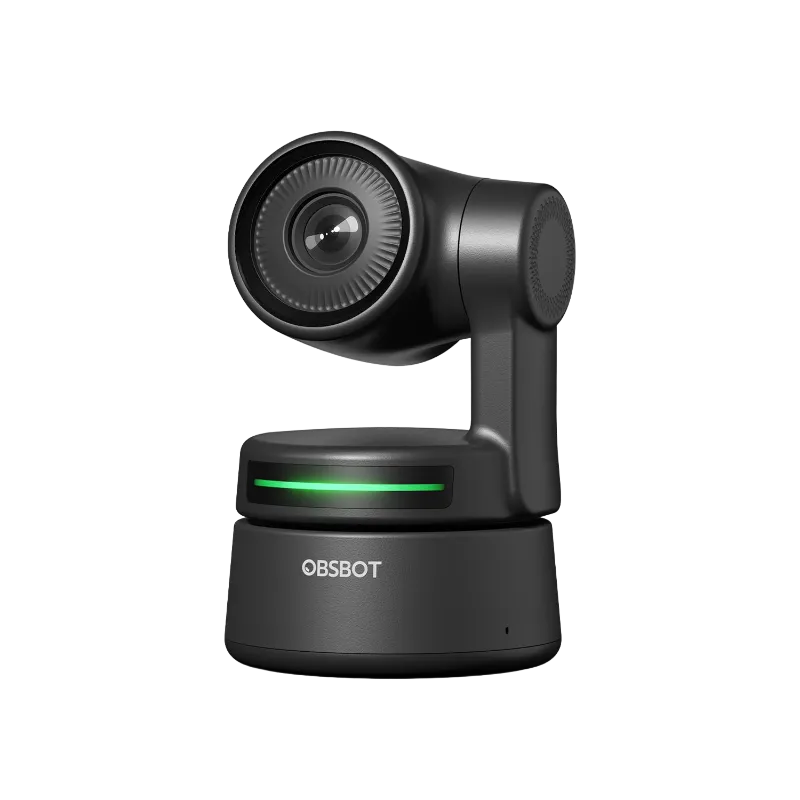
You can use the OBSBOT Tiny 2 as a live streaming webcam in about five minutes: plug it in over USB-C, add it as a video capture source in OBS or your streaming app, and switch on the AI tracking mode that matches your shot. The obsbot tiny 2 is a gimbal-stabilised 4K webcam, so the picture stays level and follows you around the room instead of sitting locked in one fixed frame. Below is the exact setup we run, plus how it compares with the rest of the OBSBOT lineup.
Why the OBSBOT Tiny 2 Suits Live Streaming
Most webcams give you a fixed rectangle and a crop. The Tiny 2 gives you movement, and movement is what separates a stream that looks produced from one that looks like a laptop call.
- Two-axis gimbal: the head physically pans and tilts, so tracking looks smooth rather than a digital crop jittering across the frame.
- AI subject tracking: you can lock onto a person and let the camera follow. Useful for IRL-style streams, cooking, teaching, or product demos.
- Gesture control: you can start and stop tracking with a hand gesture instead of alt-tabbing to an app mid-stream.
- 4K capture: you can stream at 1080p and still have headroom if you want to punch in for a close-up.
- Standard USB webcam behaviour: no capture card, no HDMI chain, no drivers required on most systems.
If you stream from a desk and mostly sit still, it is more camera than you strictly need. If you stand up, demo things, or stream from more than one seat, it earns its place.
Step-by-Step: Set Up the OBSBOT Tiny 2 in OBS Studio
- Mount it. Set the camera on a monitor or a tripod at roughly eye level. The gimbal needs clearance to pan, so avoid tucking it against a wall.
- Connect over USB-C. Use the cable in the box and a port that delivers full power. Front-panel USB hubs are the usual cause of dropped frames.
- Install the OBSBOT software. Grab the current build from the OBSBOT download page and let it update the firmware once. This is where you set tracking speed, framing zones, and gesture behaviour.
- Add the source in OBS. Under Sources, add a Video Capture Device, then pick the OBSBOT camera. Set resolution to 1920x1080 and frame rate to match your stream (30 or 60).
- Turn on tracking. Enable AI tracking in the OBSBOT app and choose your subject. Test a walk to the edge of frame and watch whether the pan feels natural.
- Set your audio separately. The camera microphone is fine for a quick call but a dedicated mic or interface will beat it for a stream with music or a co-host.
- Do a private test stream. Record locally for two minutes before you go live, then watch it back. Framing problems are obvious on playback and invisible in the moment.
Settings That Matter for a Clean Stream
| Setting | What to use | Why |
|---|---|---|
| Resolution | 1080p for the stream, 4K only if you crop | Keeps CPU and upload headroom |
| Frame rate | 30 fps for talking, 60 fps for movement | Smoother pans, more bandwidth |
| Tracking mode | Subject or group, not always "auto" | Stops the camera hunting during cuts |
| White balance | Locked manually | Prevents colour drift when you move |
Two things we would not skip: lock exposure and white balance once your lighting is set, and give the gimbal a little breathing room. A camera that keeps re-balancing mid-sentence is more distracting than a static one.
Also check whether your lighting is doing the work. The Tiny 2 handles mixed lighting better than a typical laptop camera, but a single soft source in front of you still beats any amount of sensor quality.
OBSBOT Tiny 2 vs OBSBOT Meet 2 vs OBSBOT Tail 2
| Camera | Best for | Streaming note |
|---|---|---|
| obsbot tiny 2 | Solo streamers who move around | Gimbal tracking without a camera operator |
| obsbot meet 2 | Desk setups and calls | Small, simple, no moving parts |
| obsbot tail 2 | Multi-camera or studio work | PTZ handling for bigger productions |
The short version: if you want tracking, take the Tiny 2. If you sit in one place and want a clean, small camera, the obsbot meet 2 does that job with less to configure. If you are running a proper multi-camera production with a switcher, the obsbot tail 2 is the PTZ tool in the range.
Hands-Free Control With the OBSBOT Remote Controller
Mid-stream, you do not want to reach for a mouse. The remote controller lets you pan, tilt, zoom, and trigger presets from your desk or from across the room, which is the difference between a smooth camera move and an awkward cut to a menu.
We use it for three things:
- Jumping between saved framings (wide shot, close-up, product tray)
- Nudging the framing when a guest leans in
- Grabbing the shot back quickly when tracking loses the subject
It is not essential for a first stream. It becomes close to essential once you are streaming weekly and tired of breaking flow to adjust framing.
Keep the OBSBOT Tiny 3 Software and Firmware Updated
The camera improves with updates, and tracking behaviour is the thing that changes most. Check the obsbot tiny 3 software build your machine is running before a big stream, and update firmware when a new release lands rather than the night before a shoot.
A few habits worth keeping:
- Update on a day off, never 20 minutes before going live
- Save your tracking presets after each update in case defaults reset
- Keep the previous installer in case a new build misbehaves
Buying, Codes, and After-Sales
Buy from a seller that honours the manufacturer warranty, and check the offer before you pay. Our OBSBOT discount code page carries the current promotion, and you apply the code at checkout before you confirm payment. If you are buying for a team or a classroom, ask about student and bulk discounts, and check whether seasonal sales are close before ordering a large batch.
A few practical notes before you order:
- Check shipping regions and delivery windows for your country
- Look at payment methods if you need an invoice or a business card
- Keep the order tracking link, since delivery estimates shift in peak periods
- Read the returns and refunds policy while you are still inside the window
- Register the camera so warranty and customer support claims are straightforward
- Stick to genuine discount sources, and treat reseller "deals" on auction sites with suspicion
For current pricing and the 5% offer, check the latest price before you buy, and compare against the bundle price if you are adding the remote controller. If you want the wider picture of where each camera sits, our rundown of the OBSBOT product lineup pairs well with this setup guide.
Who This Setup Suits
The OBSBOT Tiny 2 is the right streaming camera if you move during your stream, if you present products on camera, or if you stream from more than one position in a room. It is overkill if you sit still in one chair and mainly take calls. Either way, install the software first, lock your exposure and white balance, and test locally before you go live. That sequence fixes most of the problems people blame on the camera.
 Shopping at OBSBOT? See today's verified OBSBOT discount code
Frequently asked questions
Do I need a capture card to use the OBSBOT Tiny 2 as a webcam?
No. It connects over USB-C and appears as a standard video capture device in OBS, Zoom, and most streaming apps, so no capture card or HDMI chain is needed.
Can the OBSBOT Tiny 2 track me while I stream to OBS?
Yes. Enable AI tracking in the OBSBOT software and it will pan and tilt to follow your subject while OBS sees it as a normal camera source. Lock your white balance first so colour does not drift as the camera moves.
Is the remote controller worth adding to the Tiny 2?
It is optional for a first stream but useful if you switch between framings often. Presets and manual pan or tilt keep you from breaking flow to click around in software mid-broadcast.
How do I apply a discount code at checkout?
Add the camera to your cart, enter the code in the discount field before confirming payment, and check that the total updates. Our OBSBOT discount code page lists the current offer.
What is the difference between the OBSBOT Tiny 2 and OBSBOT Meet 2?
The Tiny 2 adds a two-axis gimbal with AI tracking, so it follows you around. The Meet 2 is a fixed, compact webcam that suits desk setups and calls where nobody needs to move.
How often should I update the OBSBOT Tiny 3 software?
Update when a new release lands, but do it on a day you are not streaming so you have time to re-save presets and test tracking before going live.