
DisplayPort 2.1B and 8K Monitor Buying Guide: What Shoppers Should Know Before Upgrading

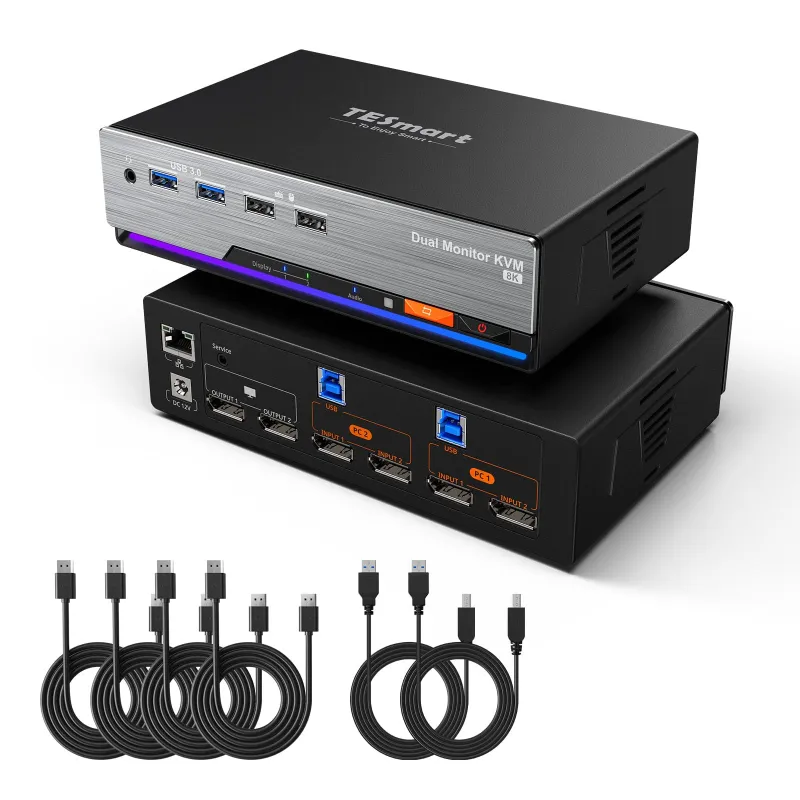
An 8k monitor upgrade only makes sense if your display, cable standard, computer, and switching hardware all support the experience you expect. For TESmart shoppers, the key question is not just “can my screen show 8K?” but “can my KVM, HDMI gear, USB devices, and workstation stay stable at that resolution?” We would start with the actual display path, then decide whether a TESmart kvm, HDMI switching, USB accessories, or a Thunderbolt setup belongs in the cart.
What DisplayPort 2.1B Changes For An 8k monitor Setup
DisplayPort 2.1B matters because it gives display makers and accessory brands a clearer path for high-bandwidth monitors, especially where 8k resolution, high refresh rates, HDR, and professional color workflows overlap. It does not magically upgrade older gear, so the whole chain still matters.
Before buying, check these four points:
- Graphics output: Your GPU or workstation must support the resolution and refresh rate you want.
- Monitor input: The screen has to accept that signal over the port you plan to use.
- Cable rating: A weak cable can cause flicker, black screens, or lower fallback settings.
- Middle devices: A KVM switch switch, dock, HDMI switch, or adapter can become the bottleneck.
This is why we treat DisplayPort 2.1B as part of a system, not a single feature badge. If you are comparing professional displays, manufacturer pages such as the ASUS ProArt Display 8K PA32KCX are useful because they show how premium panels pair resolution with color, connectivity, and creator-focused features.
Choose The Right TESmart Gear Before You Buy
TESmart is most useful when you need multiple computers, one desk, and fewer cable swaps. A KVM can clean up a workstation, but only if it supports the exact display and USB requirements of your setup.
Use this quick comparison before you buy:
| Setup need | TESmart-style solution | What to verify |
|---|---|---|
| Two PCs, one display, shared keyboard and mouse | KVM | Resolution, refresh rate, USB generation, input type |
| Multiple HDMI sources into one screen | hdmi switch | HDMI version, audio support, remote control needs |
| Workstation plus laptop dock | KVM or dock path | Display mode, USB devices, power and cabling |
| AV receiver or soundbar setup | HDMI accessory path | ARC or hdmi earc compatibility |
For creators, developers, streamers, and hybrid office setups, the KVM decision is often more important than the monitor decision. If the switching device cannot pass the signal cleanly, the display may run below its potential. Before placing an order, use our TESmart coupon page to check the latest price and confirm the current code details.
Gaming Claims: 8k monitor Gaming, 144Hz, 240Hz, And Beyond
Searches for 8k monitor gaming, 8k monitor 144hz, 8k monitor 240hz, and even 8k gaming monitor 360hz are common because shoppers want a future-proof screen. The reality is more practical: resolution, refresh rate, GPU power, cable bandwidth, and game support all have to line up.
Here is how we would read those claims:
- 8K at modest refresh rates: Better for photo editing, video timelines, CAD, maps, spreadsheets, and dense desktop space.
- 8K with high refresh: Interesting for future gaming, but it demands top-tier hardware and careful compatibility checks.
- 4K high refresh vs. 8K detail: Many gamers will still prefer smooth frame rates over maximum pixel count.
- Professional use: Text clarity, canvas size, and image review can matter more than competitive refresh rates.
Do not buy a display because a forum thread says it is the best 8k monitor for everyone. 8k monitor reddit discussions can be helpful for real owner issues, but they are not a replacement for checking ports, return policy, desk fit, and your GPU’s output limits.
USB, Thunderbolt, RS232, And The Small Ports That Matter
High-resolution video gets the attention, but the accessory side decides how pleasant the setup feels every day. A workstation with a camera, headset, keyboard, mouse, storage drive, drawing tablet, and scanner can overload a poorly planned chain.
Think through these connections:
- usb 3.0 and usb 3: Useful for faster peripherals such as webcams, capture gear, external drives, and some docking setups.
- usb 2.0: Still fine for basic keyboards, mice, and simple control devices.
- thunderbolt port: Important for many laptops, docks, storage workflows, and single-cable desk setups.
- rs232: Still relevant in some industrial, control-room, lab, and legacy AV environments.
- lg displays lsm100w lg white mouse scanner: A niche device name, but it is a good reminder that unusual peripherals need driver and USB compatibility checks.
If you use a KVM, list every connected device before buying. Some shoppers focus only on the screen and later discover their webcam, storage, or specialty input device behaves differently through a switch. That is avoidable if you match the KVM’s USB support to your actual desk.
HDMI, eARC, And When A Switch Beats A Full KVM
A full KVM is best when you need to control multiple computers with one keyboard, mouse, and display. An HDMI switch is simpler: it changes video sources, usually without sharing USB control. That can be the better choice for consoles, streaming boxes, media players, and occasional laptop inputs.
Choose a switch-first setup if:
- You only need to change the screen source.
- You do not need to share keyboard and mouse control.
- Your devices are mostly HDMI-based.
- Your audio setup depends on receiver, soundbar, ARC, or hdmi earc behavior.
Choose a KVM-first setup if:
- You move between a work PC and personal PC throughout the day.
- You need one keyboard, mouse, webcam, or headset shared across systems.
- You want fewer cable swaps and a cleaner desk.
- You can verify the video spec supports your target screen mode.
For mixed AV and computer desks, keep the signal path simple. Every adapter, splitter, switch, dock, and converter adds one more compatibility point. If you need the current TESmart promo before building the cart, grab the code after you confirm the hardware path.
How To Judge 8k monitor Price And Real Value
We do not recommend chasing the lowest 8k monitor price without checking the total upgrade cost. The display may require a stronger graphics card, certified cables, a capable KVM, better desk space, and sometimes new USB or Thunderbolt accessories.
Use this buyer checklist:
- Start with use case: Editing, coding, trading, design, medical review, gaming, or command-center work all value different features.
- Check the real input spec: Do not assume every port supports the same resolution and refresh rate.
- Confirm operating system scaling: Tiny UI elements can ruin an otherwise impressive panel.
- Budget for the chain: Include cables, switch gear, mounts, docks, and adapters.
- Read owner feedback carefully: Look for reports on wake-from-sleep, flicker, scaling, and KVM compatibility.
The 8k monitor category is still specialized, so buying timing matters. If your current 4K or 5K setup already fits your work, it may be smarter to upgrade the switching, USB, or desk ergonomics first. If you are ready for the screen, compare the display and accessories together, then check the TESmart discount code before checkout.
Who Should Upgrade Now, And Who Should Wait
Upgrade now if you work with very high-resolution images, large video timelines, detailed technical drawings, complex dashboards, or multi-window workflows where extra pixels save real time. An 8k resolution setup can be excellent when the panel, GPU, KVM, and ports are planned as one system.
Wait if your main goal is competitive gaming, if your GPU is already stretched, or if your desk relies on older switches and adapters. You may get a better experience from a high-quality 4K high-refresh display, a cleaner KVM path, or a faster USB and Thunderbolt setup.
Our practical rule: buy the display only when the full route from computer to screen is ready. That includes video bandwidth, USB behavior, audio needs, cable quality, and the way you actually switch between devices every day.
Frequently asked questions
Do I need DisplayPort 2.1B for an 8k monitor?
Not always, but it matters if you want the cleanest path for very high resolution, refresh rate, and color depth. Check the monitor input, graphics card output, and any KVM or switch in between before buying.
Can a TESmart kvm work with high-resolution displays?
A TESmart kvm can be a good fit if the model supports the resolution, refresh rate, USB needs, and input type you plan to use. Match the exact spec sheet to your monitor and computer outputs before ordering.
Is HDMI better than DisplayPort for 8K?
Neither is automatically better in every setup. DisplayPort is common on workstations and gaming PCs, while HDMI is often useful for TVs, consoles, and AV gear, so choose based on your devices and supported standards.
Should I buy an 8K display for gaming now?
Buy for gaming only if your GPU, games, desk setup, and refresh-rate expectations make sense together. Many shoppers are better served by checking real-world tests and prioritizing smooth performance over resolution alone.
What USB speed should I look for with a KVM setup?
For keyboards and mice, basic USB is usually enough, but webcams, capture devices, drives, and docks benefit from faster USB support. Make sure the KVM lists the USB generation you need, not just video compatibility.