
USB 2.0 vs USB 3.0 vs USB 4.0: What to Check Before Buying TESmart USB Accessories

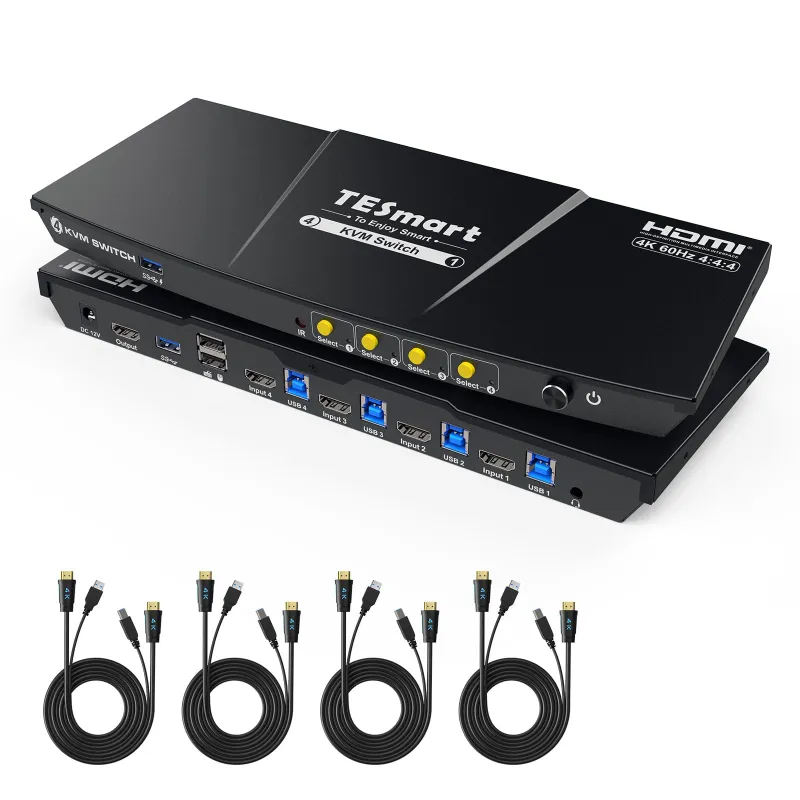
usb 3.0 is usually the safest TESmart accessory choice for shared keyboards, mice, webcams, docks, and storage, while usb 2.0 is fine for basic input devices and USB 4.0 matters most when your setup depends on a thunderbolt port or high-bandwidth display workflow. Before buying, we check the ports on the computer, the ports on the KVM or switch, the cable path, and what each connected device actually needs. For most TESmart shoppers, the practical goal is not chasing the newest label, but avoiding a bottleneck in a TESmart kvm, USB hub, or display chain.
Why usb 3.0 Is the Practical Middle Ground
The reason we often start with usb 3.0 is simple: it covers more modern accessories than usb 2.0 without forcing you into the more complex USB 4.0 and thunderbolt ecosystem. It is widely supported, backward compatible in many setups, and usually easier to match with KVM switches and USB peripherals.
A few practical checks matter more than the name on the package:
- Port shape: USB-A, USB-C, and thunderbolt-style ports can look similar across generations.
- Device type: Keyboards and mice need far less bandwidth than cameras, capture devices, or external drives.
- Switch support: A KVM can only pass the USB behavior it is built to support.
- Cable quality: A weak or mismatched cable can make a good accessory behave badly.
- Power needs: Bus-powered drives, scanners, and hubs can fail if the upstream port cannot supply enough stable power.
For background on naming and compatibility, the general USB 3.0 reference is useful, but we still recommend confirming the exact TESmart product page before buying because ports and features vary by model.
USB 2.0, USB 3, and USB 4.0 Compared for TESmart Setups
When we test or vet accessories for a TESmart desk, we start with the job each port has to do. A keyboard does not need the same connection as a webcam, and a shared external drive does not belong on the same assumptions as a basic mouse.
| Connection Type | Best Fit | What To Watch |
|---|---|---|
| usb 2.0 | Keyboards, mice, simple controllers, basic dongles | Not ideal for high-data devices |
| usb 3 | Webcams, external drives, faster hubs, mixed desk accessories | Needs matching switch, cable, and host support |
| USB 4.0 | Thunderbolt-style workflows, docks, high-end display and storage setups | Compatibility depends heavily on host and cable support |
The key buyer mistake is assuming backward compatibility means full performance. A usb 2.0 mouse may work through a newer switch, but a fast storage drive plugged into an older path will be limited by the slowest part of the chain. If you are unsure which TESmart accessory fits your desk, it is better to check the latest price and code after confirming the port type you need.
Matching a TESmart kvm to Keyboards, Mice, and Storage
A TESmart kvm is where USB labels become very practical. The switch has to carry input devices reliably, swap between computers cleanly, and sometimes support webcams, microphones, card readers, or external storage. We look for three things before recommending a KVM route:
- Keyboard and mouse reliability: If the setup is mostly typing, clicking, and hotkey switching, usb 2.0 support may be enough.
- Peripheral sharing: If you plan to share a webcam, audio interface, scanner, or drive, prioritize stronger USB support.
- Computer mix: A desktop, laptop, and docked workstation may not expose the same port generation or connector type.
- Hotkey needs: Some specialty keyboards, gaming mice, and receivers behave differently through emulated or shared USB paths.
This is also where the product wording can get confusing. A listing may mention a kvm switch switch, an hdmi switch, USB hub functions, or display support in the same product family. We separate those jobs: USB handles peripherals, HDMI handles video, and the KVM coordinates switching. If one part is underspecified, the whole setup can feel unreliable.
Display Buyers: HDMI Switches, 8K Monitors, and eARC
USB is only one half of many TESmart buying decisions. If your desk also includes an hdmi switch, an 8k monitor, 8k resolution support, or hdmi earc gear, check the display path separately from the USB path. A USB accessory can be perfectly compatible while the video side still fails to deliver the resolution, refresh behavior, audio routing, or device switching you expect.
Use this quick checklist before buying:
- For an 8k monitor: Confirm the switch, cable, source device, and display all support the target mode.
- For 8k resolution: Do not rely on a single label. Read the supported input and output details.
- For hdmi earc: Confirm whether audio return features are part of the actual switch path.
- For multi-device desks: Make sure USB switching and HDMI switching happen the way you expect.
- For laptops: Check whether video comes from HDMI, USB-C alt mode, a dock, or a thunderbolt port.
We do not recommend buying display accessories based on the cable name alone. The cleanest setup is the one where every segment, source, switch, cable, and display, supports the same intended use.
When a Thunderbolt Port or RS232 Accessory Changes the Choice
A thunderbolt port can look like a USB-C port, but it may support a wider range of data, video, and dock behavior depending on the computer and cable. That does not mean every TESmart buyer needs thunderbolt-level gear. It means you should identify whether your laptop depends on that port for docking, display output, charging, or fast data before choosing a USB accessory.
RS232 is a different case. An rs232 accessory is usually about serial communication rather than modern high-speed peripheral sharing. If you are connecting lab gear, industrial devices, older control systems, or specialty AV equipment, confirm driver support and switching behavior before assuming a standard KVM path will handle it.
For plain-language background on practical compatibility, this guide to differences between USB 2.0 and 3.0 is helpful. Then, for the TESmart-specific purchase decision, use the product page and grab the code only after the ports match your actual hardware.
Oddball Accessories: Mouse Scanners, Dongles, and Shared Desks
Some accessories are easy to underestimate. The lg displays lsm100w lg white mouse scanner, for example, is not the same buying decision as a standard mouse because scanner-style devices can depend on software, driver recognition, and steady data transfer. Wireless dongles, card readers, audio interfaces, label printers, and capture devices can also behave differently through a switch than they do when plugged directly into a computer.
Before routing a specialty device through a TESmart setup, we check:
- Driver behavior: Does the device need software running on each computer?
- Direct connection test: Does it work reliably before adding a KVM or switch?
- Power draw: Does it need more stable power than the shared port provides?
- Sleep and wake: Does it reconnect cleanly after switching computers?
- Fallback plan: Can it stay plugged into one computer if sharing causes issues?
If the accessory is mission-critical, we prefer a conservative setup over a clever one. Shared USB is convenient, but reliability matters more than reducing one cable.
Our Buying Checklist Before You Use a TESmart Code
Here is the short version we use before recommending a TESmart USB accessory or switch path:
- List every device you want to share, including keyboard, mouse, webcam, drive, scanner, and audio gear.
- Check the slowest connection in the path, including the computer port, cable, switch, hub, and accessory.
- Separate USB needs from display needs, especially if you use HDMI, an 8K display, or eARC audio.
- Confirm whether your laptop depends on USB-C or a thunderbolt port for docking and display output.
- Read the TESmart product page for the exact model rather than relying on a general USB label.
- Use our TESmart page to check current pricing once compatibility is clear.
Our bottom line: choose the connection based on the most demanding device you plan to share, not the cheapest cable or the newest buzzword. For everyday KVM desks, usb 3.0 is often the balanced pick, usb 2.0 remains useful for simple input devices, and USB 4.0 is worth considering only when your computer, dock, cable, and accessories can all benefit from it.
Frequently asked questions
Is usb 3.0 worth it for a TESmart kvm?
For most mixed desk setups, yes, usb 3.0 is the better default because it gives more room for webcams, hubs, and storage while still working with many simpler devices. For keyboards and mice only, usb 2.0 can still be enough.
Can I plug usb 2.0 devices into a newer TESmart USB setup?
Often yes, but the setup will run at the capability of the slowest part of the chain. If the device, cable, switch, or host port is limited, you should not expect newer-port performance.
Is a thunderbolt port the same as USB-C?
Not always. USB-C describes the connector shape, while thunderbolt port support depends on the computer, cable, and device. Check whether you need data, display, charging, or docking before buying.
What should I check before using a TESmart switch with an 8k monitor?
Check the display path separately from the USB path. The source device, HDMI switch, cable, and monitor all need to support the resolution and features you want.
Where should I check the current TESmart discount code?
Use the store coupon page when you are ready to buy, after confirming the exact TESmart model and port support. That page is where we point readers for the current code and latest offer details.