
TESmart KVM Switch vs HDMI Switch: Which One Do You Need for Multiple Computers and Displays?

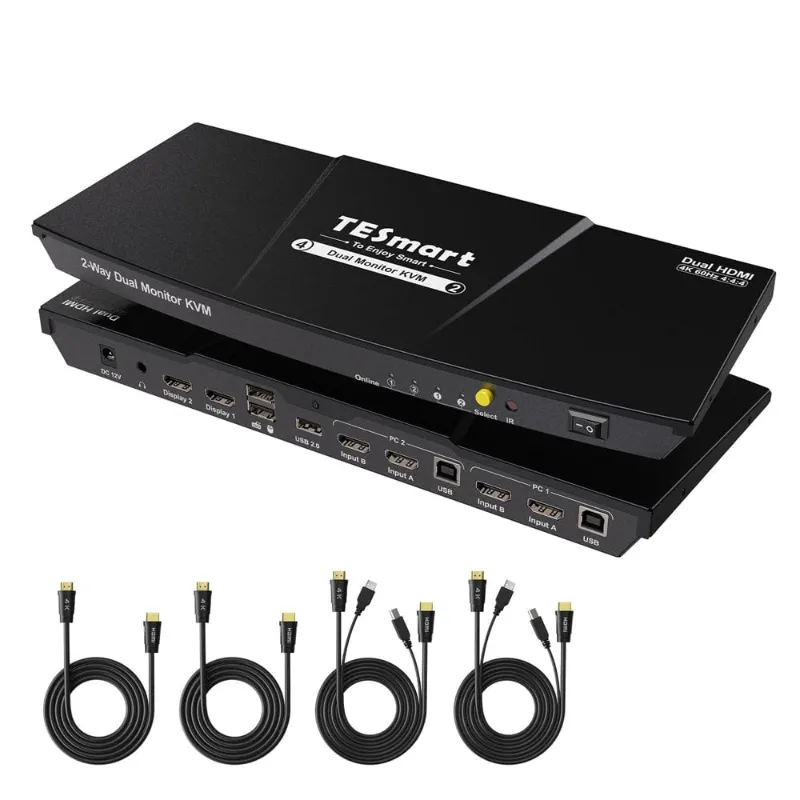
A kvm switch switch is the better choice when you want one keyboard, mouse, monitor, and USB setup to control multiple computers, while an hdmi switch is better when you only need to change which video source appears on a screen. For most dual-computer desks, a TESmart kvm is the more complete solution because it handles control and display routing together. If you are only switching a console, streamer, laptop, or media box into a TV or monitor, HDMI switching can be enough.
The practical question is not “which box is more advanced?” It is “what do you need to follow the selected device?” If the answer is video only, choose HDMI. If the answer is video plus keyboard, mouse, webcam, storage, audio, or other USB gear, choose KVM.
KVM Switch Switch vs HDMI Switch: The Core Difference
A KVM switch is named for keyboard, video, and mouse. It lets multiple computers share the same control station, so your keyboard and mouse move to the selected computer along with the display. For a broader background, this plain-language guide on what a KVM switch is explains the category well.
An HDMI switch is narrower. It takes multiple HDMI sources and sends one of them to a display. That can be perfect for home theater or simple monitor sharing, but it does not normally move USB control with the video.
| Need | Better Fit | Why |
|---|---|---|
| Two work computers, one desk | KVM switch | Shares keyboard, mouse, video, and often USB |
| Game console and streaming box to one TV | HDMI switch | Only the video input needs to change |
| Laptop plus desktop with shared webcam | KVM switch | USB devices need to follow the active system |
| Occasional source selection for a monitor | HDMI switch | Simpler and usually less cabling |
The easiest rule: if you need to type, click, or use USB accessories on more than one computer, choose KVM. If you only need to view a different source, choose HDMI.
When a TESmart KVM Makes More Sense
A TESmart KVM is for people who want a cleaner desk without constantly unplugging cables. It is especially useful if you use a work laptop and personal desktop, a Windows PC and Mac, or several machines for testing, trading, development, streaming, or support work.
Look at a KVM when you want to share:
- One or more monitors
- A keyboard and mouse
- USB devices such as a webcam, microphone, printer, card reader, or external drive
- Speakers or headset, depending on the model
- A consistent workstation layout across computers
This is where a kvm switch switch becomes less of a gadget and more of a workflow tool. You press a button or use a hotkey, and your active desk moves to another computer. That can save time if you switch devices many times a day.
Before buying, confirm the video ports, number of computers, number of displays, USB version, and resolution support. TESmart has many configurations, so we recommend using the product page for model-specific details and then checking the latest price and code before you order.
When an HDMI Switch Is the Smarter Buy
An HDMI switch is the right call when control devices do not matter. Common examples include:
- A TV shared by a console, cable box, and streaming device
- A monitor shared by a laptop dock and media player
- A projector used with multiple HDMI sources
- A secondary display where you never need keyboard and mouse sharing
The main advantage is simplicity. HDMI switches focus on video path selection, so setup is usually straightforward: sources in, display out, select the input. If your setup includes modern TVs, soundbars, or AV receivers, also pay attention to audio features such as hdmi earc support in the rest of your chain, since audio routing can be just as important as video.
Do not buy an HDMI switch expecting it to manage your keyboard, mouse, or USB devices. Some products may include extra convenience features, but HDMI switching is not the same job as KVM switching.
Ports, USB, and Display Specs to Check Before You Buy
The best switch is the one that matches your actual hardware. A powerful unit can still be a bad fit if it has the wrong ports, and a cheaper one can be perfect if your setup is simple.
USB version
USB matters when you share more than basic keyboard and mouse input. For simple peripherals, USB 2.0 can be enough. For webcams, capture devices, external storage, and higher-bandwidth accessories, look for usb 3.0 or usb 3 support where the model offers it.
Be careful with naming. “USB” on a listing does not always mean the same speed or function. Check whether the ports are intended for keyboard and mouse only, general peripheral sharing, or both.
Video resolution and refresh
If you own or plan to buy an 8k monitor, make resolution support a top priority. An 8K-capable setup may also require compatible cables, ports, graphics hardware, and display settings. Do not assume that a switch labeled for high resolution will support every refresh rate or color format you want.
For 8k resolution, verify the full chain:
- Computer GPU output
- Switch input and output capability
- Cable bandwidth
- Monitor input support
- Operating system display settings
If you are using standard office monitors, your requirements may be much easier. Match the switch to the displays you own, not to a spec you will never use.
Specialty connections
Some workstations include less common needs. An rs232 device may matter in industrial, control-room, lab, or legacy equipment settings. A thunderbolt port can matter for laptops and docking setups, although Thunderbolt does not automatically replace a KVM if you need to switch control between computers.
The buyer mistake we see often is treating adapters as a fix for every mismatch. Adapters can help, but they can also introduce signal limits, wake issues, or compatibility problems. Start with the closest native port match whenever possible.
How to Choose the Right Setup for Your Desk
Use this quick decision path before you buy:
- Count your computers or source devices.
- Count your displays and note each display input.
- Decide whether keyboard and mouse need to switch too.
- List shared USB gear, including webcam, mic, printer, storage, or scanner.
- Check resolution and refresh needs.
- Confirm cable types and lengths.
- Compare the model page, then grab the TESmart discount code if the deal is active.
For most office and creator desks, the deciding factor is USB. If you use only a monitor, an HDMI switch keeps things lean. If you use a full workstation, a KVM keeps the whole desk together.
Here is a practical comparison:
| Buyer Type | Choose | Watch For |
|---|---|---|
| Remote worker with work laptop and personal PC | TESmart KVM | USB support and monitor count |
| Console or media setup | HDMI switch | HDMI version and audio routing |
| Developer testing several machines | TESmart KVM | Hotkeys, port count, stable USB sharing |
| Display-only user | HDMI switch | Resolution and cable compatibility |
A niche device like the lg displays lsm100w lg white mouse scanner also shows why USB planning matters. If a peripheral must be available to more than one computer, do not rely on a video-only switch.
Setup Tips That Prevent Frustration
Most switching problems come from cabling, power behavior, or mismatched expectations. Set up slowly and test one layer at a time.
- Use certified or high-quality cables that match your resolution target.
- Connect keyboard and mouse first, then add extra USB devices.
- Test each computer directly with the monitor before adding the switch.
- Keep cable runs as short and tidy as practical.
- Label inputs so you know which computer is selected.
- Update computer display settings after the first successful connection.
- Avoid chaining too many adapters, docks, and converters unless necessary.
If a display does not wake correctly, test a different cable and confirm the computer is outputting a supported resolution. If USB devices drop, remove high-bandwidth accessories and add them back one by one. This isolates whether the issue is the switch, a device, a cable, or power draw.
Our Bottom Line
Buy a TESmart KVM if you want one desk to control multiple computers. Buy an HDMI switch if you only want to choose which video source appears on a display. The kvm switch switch category is best for productivity desks, hybrid work setups, multi-PC labs, and anyone tired of moving cables between machines.
Our recommendation is to map your desk first, then choose the simplest product that covers every device you actually use. Once you know the ports, USB needs, and display requirements, compare the right TESmart model and check the current offer before checkout.
Frequently asked questions
Do I need a TESmart kvm if I only want to change video sources?
If you only need to send different HDMI sources to one display, an HDMI switch is usually the simpler choice. Choose a TESmart kvm when you also want one keyboard, mouse, USB device set, or audio setup to follow the selected computer.
Can a kvm switch switch work with USB 3 devices?
Many KVM setups support USB peripherals, but the exact USB version depends on the model. If you rely on fast storage, webcams, or capture devices, check the product page for USB 3 or USB 3.0 support before buying.
Is an HDMI switch the same as a KVM switch?
No. An HDMI switch changes video input sources, while a KVM switch is built to control multiple computers with one keyboard, video display, and mouse setup.
Should I buy for 8k resolution if I do not own an 8K monitor yet?
Only if you are planning a near-term display upgrade or need the extra signal headroom for a specific setup. Otherwise, match the switch to the display and refresh needs you use today.
Will a Thunderbolt port replace the need for a KVM?
A Thunderbolt dock can simplify one computer connection, but it does not automatically switch a full workstation between multiple computers. If you need shared control across two or more computers, a KVM is still the better fit.