
Thunderbolt Port vs USB 4.0: Compatibility Questions to Ask Before Connecting Docks, Monitors, and KVM Switches

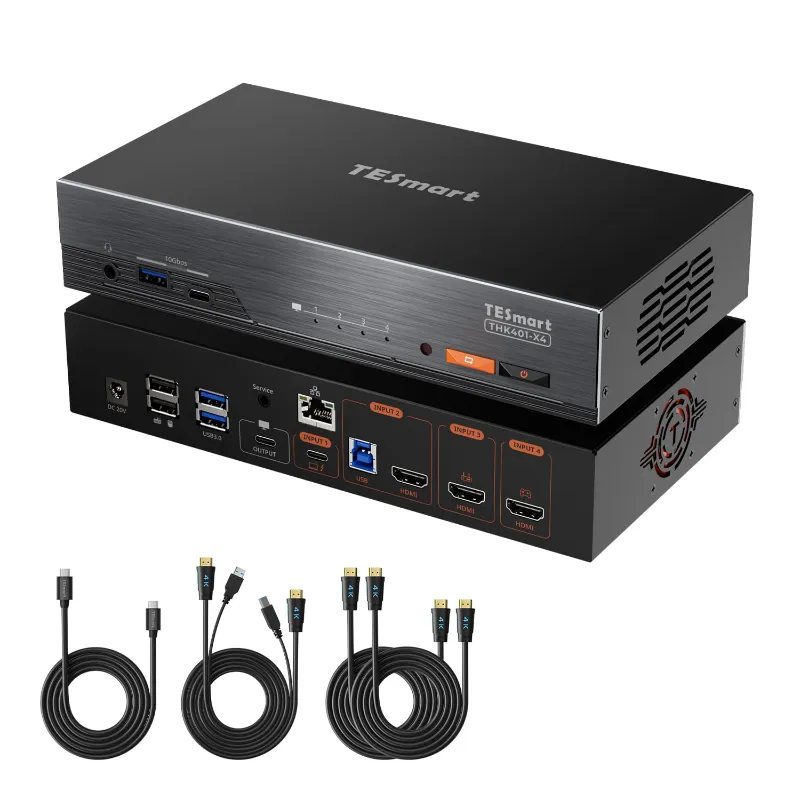
A thunderbolt port is the better starting point when you need high-bandwidth docking, display output, and fast device switching, but USB 4.0 can still work well if you verify the exact laptop, cable, monitor, and KVM requirements first. For a TESmart setup, the practical question is not just “does the plug fit?” but whether your computer, dock, TESmart kvm, display, and USB accessories all support the same video, data, and power features. Use this guide before you connect an 8k monitor, USB devices, HDMI gear, or legacy rs232 equipment so you do not chase avoidable signal problems later.
What a thunderbolt port Actually Changes
A USB-C connector can carry several different standards, so the shape alone does not confirm what it can do. If you have ever searched thunderbolt port vs usb c, this is the core distinction: USB-C is the physical connector, while Thunderbolt and USB 4.0 describe what can run through it.
In a real desk setup, that affects:
- Display support: whether the laptop can drive one or more external monitors through a dock or KVM.
- Data bandwidth: whether fast storage, capture gear, and USB hubs stay responsive.
- Power delivery: whether the same cable can charge a laptop while passing video and data.
- Device compatibility: whether USB 2.0 keyboards, usb 3.0 hubs, webcams, and adapters behave predictably.
If you are using a Mac, Apple’s guide to Adapters for the Thunderbolt or USB-C port on your Mac is worth checking because different Mac models expose different display and adapter behavior. Dell also publishes a practical Complete Guide to Thunderbolt Ports on Dell Devices that is useful when you are confirming laptop-side support before buying a dock or switch.
TESmart kvm, USB 4.0, and HDMI Switch Compatibility
A TESmart kvm is usually chosen to share monitors, keyboard, mouse, and USB peripherals between computers. That means compatibility depends on the whole chain, not just one port on one laptop.
Before you connect, ask:
- Does each computer output video over USB-C, HDMI, DisplayPort, or a dock?
- Does the KVM support the resolution and refresh rate you want?
- Are your keyboard and mouse basic USB devices, gaming peripherals, or hub-connected accessories?
- Will you need audio features such as hdmi earc, or only standard HDMI audio?
- Are you switching one display, dual displays, or an 8k monitor?
A USB 4.0 laptop may support strong data speeds and display tunneling, but not every cable, dock, or adapter exposes every feature. A Thunderbolt-certified path is usually more predictable for demanding setups, especially where high-resolution video and multiple USB devices run at the same time.
For current pricing, coupons, or where to buy with our code, use our TESmart page to check the latest price before you order.
Docks, Cables, and the thunderbolt port Monitor Checklist
The most common failure point is the cable. A cable that charges a laptop may not carry full display bandwidth. A cable that handles a monitor may not support the data rate your dock expects. If your goal is a thunderbolt port monitor setup, verify the cable rating before blaming the KVM or display.
Use this quick checklist:
| Question | Why It Matters | What To Verify |
|---|---|---|
| Does the laptop support video over USB-C? | Some ports charge or transfer data only | Laptop manual or manufacturer support page |
| Is the cable rated for the intended standard? | The connector shape is not enough | Cable labeling and seller documentation |
| Does the dock pass the needed display format? | Docks can limit resolution or refresh | Dock specs and monitor mode support |
| Does the KVM support the same video target? | Switching adds another compatibility layer | TESmart product page and setup diagram |
For an 8k monitor, you need to be extra strict. 8k resolution pushes the chain harder than a basic office display, and every link matters: GPU, operating system, dock, cable, switch, HDMI version, monitor input, and display mode. If one component falls back, the whole setup may run at a lower mode or fail to display correctly.
USB 3.0, USB 3, and USB 2.0 Devices on a KVM
Most desk setups mix fast and slow USB devices. A keyboard may be USB 2.0, a webcam may prefer usb 3, and an external drive may benefit from usb 3.0. A KVM has to keep those devices stable while switching between computers, which is a different job from simply plugging them into one laptop.
Here is how we think about USB peripherals:
- Keyboard and mouse: usually easiest, especially if they are standard wired USB 2.0 devices.
- Webcams and capture devices: more sensitive to bandwidth and hub behavior.
- External drives: best connected directly unless the KVM or dock clearly supports the required throughput.
- Printers and scanners: often fine, but driver behavior can vary when switching hosts.
- Specialty devices: dongles, security keys, and audio interfaces may need direct connection if switching causes resets.
The product name “kvm switch switch” may read awkwardly, but shoppers use terms like that when they want a box that physically switches peripherals between computers. If you are comparing a basic hdmi switch with a full KVM, remember that an HDMI-only unit usually changes video sources, while a KVM also manages USB control.
MacBook Air, Windows Laptops, and Mixed Workstations
A thunderbolt port macbook air setup can be very clean, but it still needs model-specific checking. Some MacBook Air models support fewer external displays than buyers expect, even when the cable and dock are capable. That is why we always verify the exact Mac model before recommending a monitor and KVM layout.
For mixed workstations, ask these questions before buying:
- Does the Mac support the number of external displays you want?
- Does the Windows laptop support video out on the USB-C or Thunderbolt connector?
- Does either machine require a vendor utility or driver for the dock?
- Are you using HDMI, DisplayPort, or USB-C video into the switch?
- Do you need hotkey switching, front-panel switching, or remote control?
A TESmart setup can work well for a Mac plus Windows desk, but the cleanest builds usually use matching display paths where possible. If one computer feeds HDMI directly and the other relies on a dock, test both paths before you mount cables permanently.
HDMI eARC, rs232, and Specialty Gear to Check
Not every buyer is switching only a monitor and a keyboard. Home theater desks, labs, classrooms, and control rooms may also include hdmi earc audio, serial control, or legacy hardware. A standard KVM may not replace every specialty adapter in that chain.
Watch for these edge cases:
- hdmi earc: useful in AV systems, but do not assume every HDMI switch or KVM passes every audio feature.
- rs232: still common for control systems, projectors, and industrial gear, but usually handled separately from USB-C docking.
- Mouse scanners: a niche device such as lg displays lsm100w lg white mouse scanner may require drivers and direct USB behavior.
- Capture cards: may be more bandwidth-sensitive than ordinary USB peripherals.
- High-refresh displays: may need a more specific switch than a basic office monitor setup.
If a device is business-critical, check the manufacturer’s manual and test the full workflow before final cable management. Switching, sleep wake, and reconnect behavior are where hidden compatibility issues usually appear.
Which Setup Should You Buy?
Choose the simplest setup that supports your real devices. Overbuilding can waste money, but underbuilding creates flaky video, slow USB behavior, and frustrating switching delays.
| Buyer Need | Better Fit | Notes |
|---|---|---|
| One laptop, one monitor, basic USB | USB-C dock or simple hub | Confirm video output before buying |
| Two computers sharing monitor and controls | TESmart KVM | Match the KVM to display count and resolution |
| HDMI source switching only | HDMI switch | Good when USB control is not needed |
| High-end monitor and fast peripherals | Thunderbolt or USB 4.0 dock plus compatible KVM | Cable and laptop specs matter most |
If you are building around an 8k monitor, confirm the KVM, cables, GPU output, and monitor input together. For general office switching, a TESmart KVM with the right HDMI and USB support is often the cleaner choice than juggling multiple adapters.
Before you buy, grab the code and compare the current TESmart offer with the exact product page requirements. That keeps the purchase decision tied to the gear you actually own, not just to a port name on a laptop.
Frequently asked questions
Is every USB-C connector the same as a thunderbolt port?
Not always. A USB-C plug can support charging, data, display output, Thunderbolt, USB 4.0, or only some of those features. Check the laptop’s technical documentation before assuming a dock or KVM will work.
Can I use a TESmart kvm with a MacBook Air?
Yes, if the Mac supports the external display setup you want and the KVM matches the video input and resolution. The exact MacBook model matters because display support varies.
Will usb 3.0 and usb 2.0 devices work through a KVM?
Usually yes for basic peripherals, but high-bandwidth devices can behave differently through hubs and switches. Keyboards and mice are generally easier than webcams, drives, and capture devices.
What should I check before connecting an 8k monitor?
You need to confirm the laptop GPU output, dock, cable, KVM, HDMI or DisplayPort path, and monitor input all support the same target mode. One weaker link can force a lower display mode.
Do I need an hdmi switch or a full KVM?
An HDMI switch mainly changes video sources, while a KVM also shares keyboard, mouse, and other USB devices between computers. Choose the KVM if you want one desk control setup for multiple machines.