
How to Add Wireless CarPlay to Any Car Without Factory Support

How to Add Wireless CarPlay to Any Car Without Factory Support
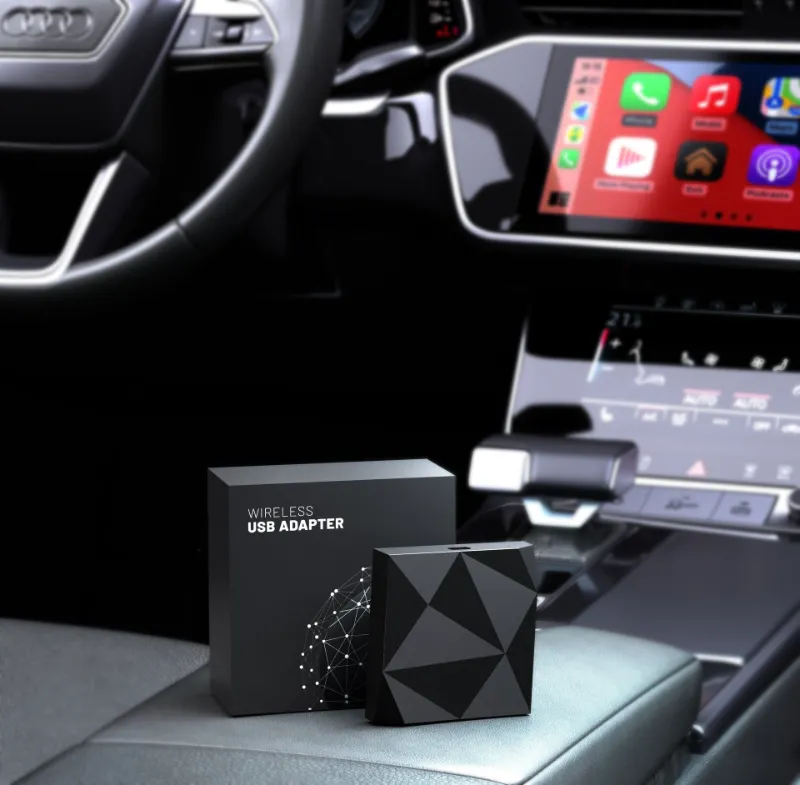
A wireless carplay adapter plugs into your existing wired CarPlay port and connects to your iPhone over Bluetooth and Wi-Fi, eliminating the need for a cable every time you drive. If your car supports wired CarPlay but not wireless, a wireless carplay adapter bridges the gap in minutes without expensive head unit replacements or dealer visits.
The process is straightforward: plug the adapter into your car's USB port, pair your iPhone once, and enjoy automatic connections on every drive. We've tested multiple options and compiled the real-world steps, compatibility checks, and troubleshooting tips you need to choose and install the right adapter for your vehicle.
Check Your Car's Compatibility Before You Buy
Not every vehicle works with every adapter. Before investing in a wireless carplay dongle, verify these requirements:
- Wired CarPlay support – Your car must already have factory wired Apple CarPlay. You can test this by plugging in your iPhone with an apple carplay cable and seeing if the CarPlay interface appears on your screen.
- USB-A or USB-C port – Most adapters ship with USB-A connectors, but newer vehicles use USB-C. Check which port your car has, or choose a carplay usb adapter with the correct connector for your model.
- iPhone 6 or newer – Wireless adapters require iOS 10 or later. Older iPhones won't establish the Wi-Fi Direct connection needed for wireless operation.
- Bluetooth and Wi-Fi on your phone – Both must stay enabled. The adapter uses Bluetooth for the initial handshake and 5 GHz Wi-Fi for audio and video streaming.
Some head units from 2016–2018 have firmware bugs that prevent third-party wireless adapters from working. If your car falls in that range, search Reddit or manufacturer forums for your specific make and model to confirm compatibility. Independent reviews at Roadandtrack and Car Audio Now highlight which vehicles and head units have known issues.
Step-by-Step Installation of a Wireless CarPlay Adapter
Installation takes less than five minutes and requires no tools. Here's the exact process we follow:
- Turn on your car and make sure the infotainment system is fully booted.
- Plug the adapter into the USB port you normally use for wired CarPlay. If you have multiple USB ports, use the one labeled for data (not charging only).
- Wait for the adapter's LED to start blinking, usually blue or white. This signals it's in pairing mode.
- Open Bluetooth settings on your iPhone and look for a device name like "AutoKit," "CarlinKit," or similar. Tap to pair.
- Follow the on-screen prompt on your iPhone to allow Wi-Fi connection. This step is critical—without it, CarPlay won't launch.
- CarPlay appears on your car's screen within 10–20 seconds. If it doesn't, unplug the adapter, restart your car's infotainment system, and try again.
On subsequent drives, the adapter reconnects automatically when you start the car and unlock your iPhone. There's no need to open Bluetooth settings again. If you want to check current pricing or grab the code for 10% off, visit our Thecarplayer discount page.
Choosing the Best Wireless CarPlay Adapter for Your Needs
Not all adapters deliver the same performance. We prioritize these features when testing:
| Feature | Why It Matters |
|---|---|
| Auto-reconnect speed | Premium adapters connect in under 10 seconds; budget models take 30+ seconds and may require manual pairing. |
| 5 GHz Wi-Fi | Essential for smooth video playback and navigation. 2.4 GHz adapters cause lag and stuttering. |
| Firmware updates | Adapters with OTA (over-the-air) updates fix bugs and improve compatibility with new iOS versions. |
| Dual-device support | Useful if multiple drivers share the car. The adapter remembers both iPhones and switches automatically. |
The wireless carplay options we've tested from Thecarplayer consistently reconnect faster than generic Amazon alternatives and include firmware update support through a companion app. CarPlay Life's 2026 roundup confirms these picks rank among the top-performing models for reliability and speed.
For drivers who also want Android Auto support, look for dual-protocol adapters. If you need a wired backup connection, keep an apple certified cable for carplay in your glovebox—certified cables prevent the "accessory not supported" error that cheap cables trigger.
Troubleshooting Common Wireless Adapter Issues
Even quality adapters occasionally hiccup. Here's how we solve the most frequent problems:
- Adapter won't pair on first try – Restart your iPhone and your car's infotainment system. Make sure no other device is connected via Bluetooth. Some cars limit active Bluetooth connections to one at a time.
- CarPlay connects but audio is choppy – Your car's USB port may not supply enough power. Try a different port or add a powered USB hub between the adapter and the port.
- Reconnection takes over 30 seconds – Update the adapter's firmware through its companion app. Older firmware versions have slower handshake protocols.
- CarPlay interface is laggy – Close background apps on your iPhone. Heavy apps like Spotify or Waze running simultaneously can overwhelm the Wi-Fi connection.
- "Accessory not supported" error – This typically means the adapter isn't seated fully in the USB port or the port is charging-only. Wiggle the connector or switch ports.
If issues persist after trying these fixes, check the latest price and consider swapping to a higher-spec model with better chipset support.
When to Choose Wired Over Wireless CarPlay
Wireless isn't always the better option. Stick with a wired apple car cable if:
- You take frequent short trips – The 10–20 second reconnection delay eats into trips under five minutes. Plugging in is faster.
- Your iPhone battery drains quickly – Wireless CarPlay uses more power than wired. If you don't have a wireless charging pad in your car, your phone may die mid-drive.
- You have an older car with a weak USB port – Some 2016–2017 vehicles supply only 0.5A through the USB port, not enough to power an adapter reliably.
- You stream high-bitrate audio – Wired connections deliver lossless audio quality. Wireless compresses the stream slightly, though most ears won't notice the difference.
For these scenarios, an apple certified cable for carplay remains the most reliable choice. You can always add a wireless adapter later if your needs change.
Bonus: Expanding Your Setup with Additional Accessories
Once you've installed your wireless adapter, consider these complementary upgrades:
- Wireless charging mount – Pair your wireless CarPlay with a Qi charging pad so your iPhone stays topped up without cables.
- Front camera – Some drivers add a front facing camera for dashcam recording or parking assistance, especially in vehicles without factory cameras.
- CarPlay AI box – For cars that lack any form of CarPlay, an AI box replaces your entire infotainment system and adds wireless connectivity, Netflix, and Android apps.
- CarPlay Tesla adapter – Tesla owners can retrofit CarPlay into their vehicles using specialized adapters designed to work with Tesla's unique software.
These accessories integrate with your wireless setup and often share the same USB port through a splitter. Visit our Thecarplayer discount code page to save on bundles that combine adapters with complementary gear.
Our Verdict: Is a Wireless CarPlay Adapter Worth It?
For most drivers with wired CarPlay, a wireless carplay adapter delivers immediate convenience without the cost or complexity of replacing the head unit. We've found reconnection times fast enough that the car feels seamless, and the lack of cable clutter makes daily commutes noticeably cleaner.
Budget $50–$120 depending on features. Premium models with 5 GHz Wi-Fi, fast auto-reconnect, and firmware updates justify the higher price if you drive daily. Occasional drivers can save money with simpler adapters that still eliminate the cable but reconnect more slowly.
The best wireless carplay adapter for iPhone users combines plug-and-play simplicity with reliable performance across multiple iOS updates. We recommend starting with adapters from established brands that offer return policies, so you can test compatibility with your specific vehicle before committing.
Frequently asked questions
Does a wireless CarPlay adapter work with any iPhone?
A wireless CarPlay adapter requires an iPhone 6 or newer running iOS 10 or later. Older models lack the Wi-Fi Direct protocol needed for wireless connectivity.
Will the adapter drain my iPhone battery faster?
Yes, wireless CarPlay uses more power than wired because it maintains active Bluetooth and Wi-Fi connections. Pairing the adapter with a wireless charging mount keeps your phone charged during drives.
Can I use a wireless adapter if my car only has USB-C ports?
Most adapters ship with USB-A connectors, but you can use a USB-C to USB-A adapter or choose a model specifically designed with a USB-C plug. Check your car's port type before ordering.
How long does it take for the adapter to reconnect each time I start the car?
Premium adapters reconnect in 8–15 seconds. Budget models may take 30 seconds or longer, and some require manual Bluetooth pairing on every drive.
Do wireless CarPlay adapters support Android phones?
Some dual-protocol adapters support both wireless CarPlay for iPhones and wireless Android Auto for Android devices. Single-protocol adapters work only with iPhones.
What should I do if my adapter won't pair on the first try?
Restart both your iPhone and your car's infotainment system, then try pairing again. Make sure no other Bluetooth device is connected to your car, as some head units limit active connections to one at a time.