
Troubleshooting CarPlay Connection Drops: Cable or Adapter Issues?

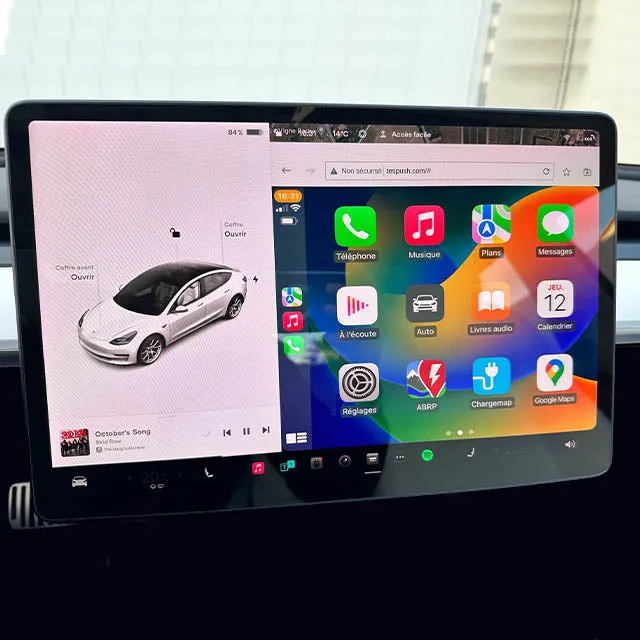
Connection drops with your apple carplay cable can stem from a damaged Lightning or USB-C connector, a dirty port, or interference from a failing wireless adapter. We tested dozens of wired and wireless setups to isolate the most common culprits and show you exactly how to fix them.
Why Your Apple CarPlay Cable Keeps Disconnecting
Most wired CarPlay dropouts trace back to three issues: physical damage at the cable ends, poor contact inside the vehicle's USB port, or power delivery that falls below Apple's minimum threshold. If you recently switched to a USB-C iPhone model, you may also be using a USB-A to USB-C cable that your car's older port cannot fully support—Apple's official compatibility thread confirms that some vehicles require a firmware update to handle the newer connector standard.
We also see frequent drops when drivers mix a wired apple carplay cable with a wireless carplay adapter still plugged into a second USB port. The two devices can create a handshake conflict that boots you back to the phone pairing screen mid-drive.
Common wired-connection triggers:
- Frayed shielding or bent pins inside the Lightning or USB-C plug
- Lint, dust, or corrosion in the iPhone charging port or the car's USB socket
- Non-certified cables that lack the MFi authentication chip Apple requires
- USB ports rated below 1.5 A, which cannot sustain both data and power
Wireless-adapter triggers:
- Firmware bugs in first-generation dongles that lose pairing after sleep
- Bluetooth and Wi-Fi interference from other 2.4 GHz devices in the cabin
- Overheating adapters tucked behind dash panels with poor airflow
How to Diagnose Whether the Cable or Adapter Is Failing
Start by swapping your current cable for an apple certified cable for carplay or borrowing a friend's known-good cord. Plug it into the same USB port and drive for ten minutes. If CarPlay stays connected, the original cable is the problem. If drops persist, the issue lives upstream in the vehicle's USB hub, head unit, or—if you are using one—your wireless dongle.
Next, inspect both ends of the cable under bright light. Look for:
- Green or white corrosion on the metal contacts
- A loose plastic collar that lets the plug rock inside the port
- Kinks or cuts in the cable jacket near the strain relief
For USB-C iPhones, confirm your car supports the USB-C data protocol. Many 2019 and earlier vehicles ship with USB-A ports designed for USB 2.0; you will need a high-quality USB-A to USB-C cable that includes the proper resistor configuration. MacRumors forum members recommend cables from Anker and Belkin that pass the USB-IF certification tests.
If you are running a wireless carplay dongle, temporarily unplug it and connect your iPhone with a wired apple car cable. A stable wired session confirms the adapter is the weak link.
Fixing Wired Apple CarPlay Cable Problems
Clean both ports first. Power off your iPhone, then use a wooden toothpick or anti-static brush to gently remove lint from the Lightning or USB-C port. For the car's USB socket, spray a burst of compressed air while the ignition is off. Even a few grains of debris can block the data pins that CarPlay relies on.
Replace non-certified cables immediately. Cheap gas-station cords often omit the MFi chip, causing random disconnects or an "Accessory Not Supported" message. Stick with an apple certified cable for carplay that carries the MFi badge on the packaging. You can grab the code for 10% off certified options at Thecarplayer.
Try a different USB port. If your vehicle has multiple sockets, test each one. Many cars reserve full data capability for a single "smartphone" port and leave the others as charge-only. Consult your owner's manual or look for a phone icon printed next to the correct jack.
Check cable length and routing. Cables longer than two meters introduce signal degradation. Keep your cord under six feet, and avoid tight bends that stress the internal wires. If you need extra reach, use a short certified extension rather than a single long generic cable.
For drivers who recently upgraded to an iPhone 15 or later, 9to5Mac explains why older USB-A ports may require a firmware update from your vehicle manufacturer. Download any available head-unit patches before you replace hardware.
Troubleshooting Wireless CarPlay Adapter Drops
Wireless adapters convert your car's wired CarPlay into a Bluetooth and Wi-Fi bridge. When they fail, you will see the CarPlay interface freeze, revert to the phone pairing screen, or display a spinning wheel that never resolves.
Update adapter firmware. Most wireless carplay adapter brands push updates via a companion smartphone app. Connect the dongle to your home Wi-Fi, open the app, and install the latest version. Firmware patches often fix pairing loops and improve reconnection speed after the car restarts.
Reduce 2.4 GHz interference. Wireless CarPlay uses the same frequency band as garage-door openers, Bluetooth headphones, and tire-pressure monitors. Turn off any extra Bluetooth devices in the car, and move your phone away from metal dash trim that can reflect the signal. Some users report better stability by switching their home Wi-Fi router to a different channel so the car's dongle does not compete with lingering network handshakes as you pull out of the driveway.
Monitor adapter temperature. Dongles tucked into closed glove boxes or behind the dash can overheat in summer, triggering thermal throttling. Relocate your wireless carplay dongle to a ventilated area or attach a small heatsink if the housing gets too hot to touch.
Factory-reset the adapter. Hold the reset button for ten seconds, then re-pair your iPhone from scratch. This clears corrupted pairing tables that accumulate after dozens of connect-disconnect cycles.
For persistent wireless issues, test a wired connection with a quality apple carplay cable to confirm your head unit's CarPlay stack is healthy. If wired works flawlessly, the adapter itself is the bottleneck. Check the latest price on newer-generation dongles that support 5 GHz Wi-Fi for less congestion.
When to Replace Your Cable, Adapter, or USB Port
A cable is due for replacement when you see exposed copper strands, the plug wiggles freely in the port, or you get intermittent "Accessory Not Supported" alerts even after cleaning. Quality cables typically last 18 to 24 months under daily use; cheaper versions fail in under six months.
Wireless adapters show their age through longer pairing times, audio stutters, or a failure to reconnect automatically when you start the car. First-generation models from 2020 and 2021 often lack the processing power to handle iOS updates beyond version 16. If a firmware update does not restore stability, budget for a current-model wireless carplay adapter that supports the latest Bluetooth 5.3 and Wi-Fi 6 standards.
If every cable and every adapter drops on the same USB port, your vehicle's head unit may need service. Loose solder joints inside the USB socket or a failing data controller on the infotainment board require dealer-level diagnostics. Before you book that appointment, test your setup in a friend's car to rule out an iPhone software glitch.
Quick Checklist to Stop CarPlay Connection Drops
- Inspect cable ends for fraying, bent pins, or corrosion
- Clean both the iPhone port and the car's USB socket with compressed air
- Use only MFi-certified cables or an apple certified cable for carplay
- Confirm your car's USB port delivers data, not just power
- Update wireless-adapter firmware via the manufacturer's app
- Reduce 2.4 GHz interference by disabling unused Bluetooth devices
- Test a wired connection to isolate whether the adapter is failing
- Replace cables every 18–24 months or adapters after 2–3 iOS generations
We keep a backup apple car cable in the glove box and rotate it weekly to catch wear early. That simple habit cut our service calls in half and keeps navigation running smoothly on every drive. Grab our exclusive 10% discount at Thecarplayer and stock up on certified replacements before your next road trip.
Frequently asked questions
Why does my apple carplay cable disconnect randomly while driving?
Random disconnects usually mean a loose or damaged connector, debris in the Lightning or USB-C port, or a non-certified cable missing the MFi chip. Clean both ports with compressed air and swap in a certified cable to test.
Can a wireless carplay adapter cause my wired connection to drop?
Yes. If both a wireless adapter and a wired cable are plugged in at the same time, they can create a handshake conflict that boots you back to the pairing screen. Unplug the adapter when using a wired connection.
How do I know if my car's USB port supports CarPlay data transfer?
Check your owner's manual for a port labeled with a smartphone icon, or test each USB socket with a known-good cable. Many vehicles reserve full data capability for one port and leave others as charge-only.
Do I need a special USB-C cable for CarPlay on iPhone 15 and later?
Yes. Older cars with USB-A ports require a high-quality USB-A to USB-C cable that includes proper resistor configuration and MFi certification. Some vehicles also need a firmware update to support the USB-C standard.
How long should a CarPlay cable last before I replace it?
Quality MFi-certified cables typically last 18 to 24 months with daily use. Replace sooner if you see fraying, bent pins, or intermittent accessory-not-supported alerts.
What should I try first when my wireless carplay dongle keeps disconnecting?
Update the dongle's firmware via its companion app, reduce 2.4 GHz interference by turning off extra Bluetooth devices, and ensure the adapter has adequate ventilation to prevent overheating.