

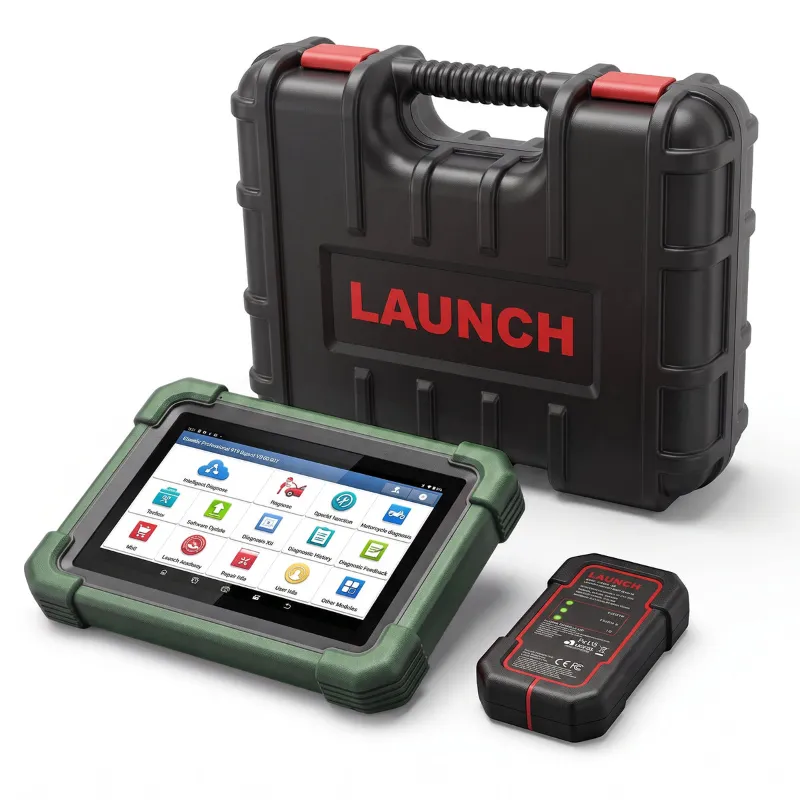
Most launch car scanner connection failures come down to three things: the tool isn't getting steady power through the OBD-II port, the vehicle protocol isn't being detected, or the software and firmware are out of date. Work through the checks below in order, and you'll usually have live data on screen in under ten minutes without packing anything up for a return.
We test these tools on real vehicles in our own garage, and the same handful of issues come up again and again across the whole family of launch scanners, from a basic launch code scanner to a full launch scanners diagnostic tablet. Here is the order we run through.
Start With the Simple Stuff: Power and the OBD Port
Before you assume the tool is broken or the car is unsupported, confirm the scanner is actually alive.
- Check the ignition state. Most functions need the key in position II or the car in accessory mode with the engine off. Some live-data and bidirectional tests need the engine running. If the screen boots but never finds the ECU, try the other ignition state.
- Push the connector fully home. OBD-II ports are tight and stiff on newer cars. A connector that is 90 percent seated will power the tool but fail to communicate, which looks exactly like a dead scanner.
- Inspect the port itself. Look for bent pins, corrosion, or a loose socket that pushes back when you insert the plug. A worn port is a car problem, not a scanner problem.
- Try another vehicle. If the tool wakes up on a second car, the fault is with the first car's port or its wiring, and you can stop troubleshooting the scanner.
- Check the fuse. On many models the OBD-II port shares a fuse with the cigarette lighter or interior sockets. A blown fuse means no power at the port at all.
If the scanner has its own battery, charge it fully before the next test. A weak battery causes dropouts mid-scan that look like connection errors.
Confirm Vehicle Compatibility Before You Blame the Tool
A launch car scanner covers a huge amount of the market, but coverage still has gaps, and knowing them saves a lot of frustration. Do a quick vehicle compatibility check before your first session:
- Confirm the model year, engine code, and market of the vehicle, not just the badge on the tailgate.
- Check the tool's coverage list for that region and that system. Engine and transmission coverage is broad. Body, chassis, and some ADAS functions vary.
- Note that a pre-2008 diesel or a pre-1996 petrol car may not be OBD-II compliant at all, in which case no generic scanner will connect through the standard port.
- For a manufacturer-specific function such as key coding or injector coding, check that the model supports it, and that the relevant software module is installed.
This is also where the scanner model comparison matters. A launch creader elite is built for fast fault-code reading and everyday jobs. A full diagnostic tablet does module-level work, coding, and service resets. If your goal is deep work on a specific brand, confirm the software package covers it before you buy rather than after.
Fix Protocol Detection and Communication Errors
When the scanner powers on but reports "communication failure," "no response from ECU," or simply spins on "searching protocol," you're dealing with a handshake problem.
- Let auto-detect finish. Don't tap through the protocol screen manually in the first attempt. Give automatic detection a full cycle.
- Move away from interference. Cheap 12V chargers, dashcams on noisy adapters, and aftermarket head units can interfere. Unplug accessories and retry.
- Try the other communication path. If you're on Bluetooth or Wi-Fi, switch to the USB cable, or vice versa. This instantly separates a wireless pairing fault from a tool fault.
- Forget and re-pair the device. On phones, delete the adapter from the Bluetooth list entirely, then pair fresh from inside the app rather than from system settings.
- Check that the right vehicle profile is selected. Picking the wrong model year or engine variant is a very common cause of a failed handshake.
- Look for aftermarket wiring. A tapped-in alarm, a chipped ECU, or a radio install that disturbed the CAN wiring can break communication on one module while others still respond.
If a single module refuses while the rest respond, that's a vehicle wiring or module fault, not a scanner fault, and no amount of reconnecting will change it.
Update the Software and Firmware
An out-of-date tool is the most overlooked cause of connection trouble, especially on newer vehicles. The software update process is straightforward but must be done properly:
- Download the official PC update tool or the companion app from the manufacturer's site, not a third-party mirror.
- Register the device serial number, then check for both firmware and diagnostic software updates. They are separate, and sometimes only one is out of date.
- Keep the tool connected to power for the whole update, and don't unplug mid-write.
- After updating, restart the tool and re-run the vehicle handshake before you test again.
New model years often need a software release the factory shipped after your unit was boxed. If your car is brand new and the scanner is a year old, this is the first thing to check. If you want a unit that ships with current coverage, see what's available now and check the included software version before ordering.
Match the Tool to the Job: Code Reader vs Full Diagnostics
Some "won't connect" reports are really mismatched expectations. A basic code reader pulls emissions-related fault codes and clears the light. It doesn't do module scans, live graphing, or service functions, and it will often appear to "fail" when it simply doesn't know what to do with a request.
| Tool type | Best for | What it connects to | Typical user |
|---|---|---|---|
| Code reader, e.g. a launch code scanner | Reading and clearing fault codes, emissions checks | Engine and emissions modules | DIY owners, quick checks |
| Mid-range tablet, e.g. launch creader elite | Codes plus live data, service resets, broader module access | Engine, transmission, plus selected systems | Enthusiasts and light repair shops |
| Full diagnostic scanner, e.g. launch scanners | Bidirectional tests, coding, calibration, deep brand coverage | Most modules including body and chassis | Shops and serious DIY |
Pair your expectation with the tool tier before you assume a fault. Our guide to the best car scanner 2025 options breaks down which tier pays off for which kind of owner.
Licensing, Subscriptions, and Where Setup Usually Goes Wrong
Two licensing issues masquerade as connection failures:
- No active licence for a premium module. The tool connects to the vehicle, then bounces you out of a brand-specific function. That's a subscription state, not a hardware fault.
- Device not bound to your account. Some features require the serial number to be registered and bound. Licensing and subscription terms vary by product and region, so confirm the included period and renewal cost before you depend on a feature.
For setup and first use, do the boring things first: register the device, connect to Wi-Fi, run the update, then do a scan on a known-good vehicle. That establishes a baseline. If the first scan is on a car you're already troubleshooting, you can't tell a tool fault from a vehicle fault.
Genuine Product, Warranty, and Returns
Counterfeit adapters do circulate, and they fail in exactly this way: they connect once, then stop, or they simply don't support the advertised protocols. Genuine product verification matters:
- Buy from an authorised seller with a stated warranty.
- Check the serial number with the manufacturer's verification tool or support line.
- Confirm the box, the labelling, and the accessories match the official product images.
If you've worked through power, compatibility, updates, and licensing and it still won't talk to a car it lists as supported, that's a warranty conversation. Warranty and repair support terms, plus returns and refunds and shipping and delivery windows, differ by seller, so read the terms on the store page before you post anything back. Keep the packaging and the invoice until you've completed a successful scan.
Worth knowing: many "faulty" units we see returned are units that were never registered or never updated. Ten minutes with the official updater resolves a surprising share of them.
Common Mistakes Worth Avoiding
- Buying a code reader for a coding job, then treating the missing function as a failure.
- Testing on a car with a flat or weak battery and reading power dropouts as connection errors.
- Skipping the update because the tool "worked fine last year" on an older car.
- Using a phone in battery-saver mode, which silently kills the app's Bluetooth session.
- Leaving an aftermarket accessory plugged into the OBD port, which can block or interfere with the connection.
Work through the list in order, keep notes on which step changed the behaviour, and you'll either be scanning within the hour or holding a clear, specific fault report that makes warranty or support conversations fast. If you're still deciding which unit to buy, grab the code and compare the tiers before you commit.
 Shopping at LAUNCH US? See today's verified LAUNCH US discount code
Frequently asked questions
Why does my launch car scanner power on but never find the vehicle?
That pattern usually means the tool has 12V power but the protocol handshake is failing. Check that the connector is fully seated, confirm the correct model year and engine, then try a different vehicle or switch between cable and Bluetooth to narrow it down.
Do I need to update a LAUNCH scanner before first use?
Yes, and it's the single most common fix for newer cars. Register the serial number, then run both the firmware and diagnostic software updates with the tool on stable power before your first real scan.
What is the difference between a launch code scanner and a full diagnostic tablet?
A code reader reads and clears engine and emissions fault codes. A full diagnostic scanner reaches body and chassis modules and supports bidirectional tests, coding, and service resets. A missing function is a tool tier limit, not a connection fault.
Will a launch creader elite work on my car?
Coverage is broad for engine and transmission work, but it varies by model year, engine code, and market, and body or chassis functions may be limited. Check the official coverage list for your exact vehicle before buying.
Does premium software need a subscription?
Some brand-specific and advanced functions run on a licence that may be included for a period and renewed separately. Licensing and subscription terms vary by product, so confirm what's included before you rely on a function.
What if it still won't connect after every fix?
If it fails on a vehicle the tool lists as supported, gather your notes and contact the seller. Warranty, repair, and returns terms vary, so check them early and keep the packaging and invoice.