

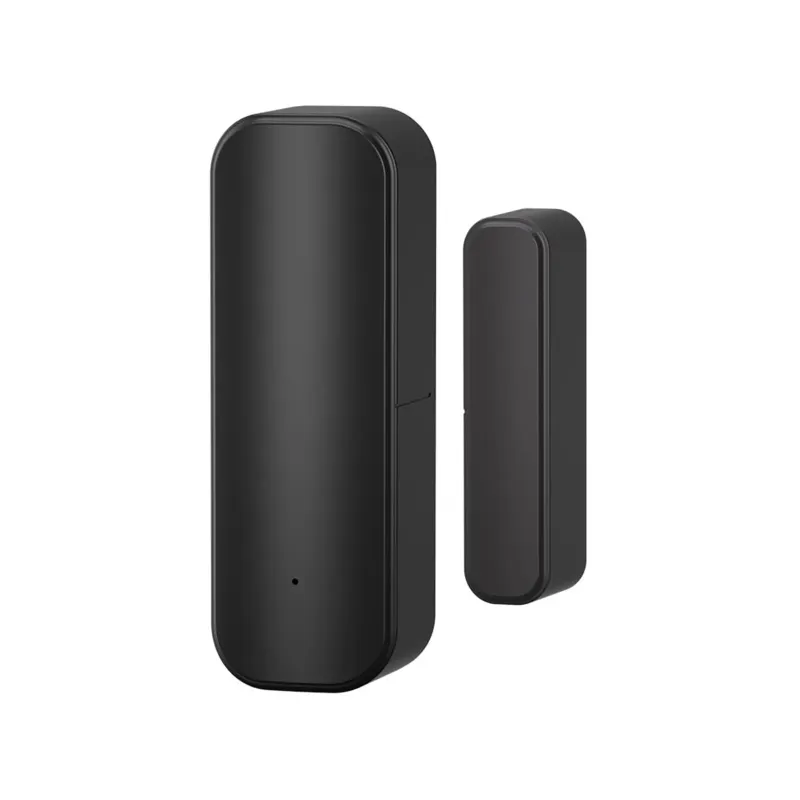
Pairing a google home door sensor with the GHome Smart app and Google Home takes about two minutes: add the wifi door sensor in the GHome Smart app first, then link your GHome account inside the Google Home app so the sensor's open and closed states show up in Google's device list and can trigger Routines. The most common mistake is trying to add the sensor directly in Google Home, which will not work because GHome sensors talk to Google through the GHome cloud, not the other way around.
Below is the exact order of operations we use when testing, plus the settings worth changing after pairing and how to add the rest of your GHome gear to the same system.
What you need before you pair a google home door sensor
Get these ready first so you are not hunting for them mid-setup.
- The smart door sensor and its battery. Most GHome sensors ship with the battery loose in the box or with a pull tab, so open the cover and seat it properly.
- Your 2.4 GHz Wi-Fi network name and password. GHome devices do not join 5 GHz networks, and a phone on 5 GHz will make setup fail silently.
- The GHome Smart app installed and an account created and verified.
- The Google Home app installed, signed in to the same Google account you want running Routines.
- Physical access to the door or window, so you can trigger the magnet and watch the status change.
If you bought a multi-pack, pair one sensor at a time and rename it before moving to the next. Sensors named "Door Sensor 1, 2, 3" are the number one reason people cannot tell which device fired a notification later.
Step-by-step: pair the sensor in GHome Smart, then Google Home
- Power the sensor. Open the battery cover, remove the plastic tab if present, and confirm the LED blinks. No blink means a dead or unseated battery.
- Put the sensor in pairing mode. In the GHome Smart app, tap the plus icon, choose the sensor category, and follow the prompt. If the app asks for a reset, hold the pinhole button until the LED flashes quickly.
- Confirm the 2.4 GHz network. Enter your Wi-Fi credentials carefully. Case and trailing spaces matter here.
- Name the sensor something human. "Back Door" beats "Sensor 04." This name carries through to Google Home and to voice queries.
- Test locally. Separate the sensor body and magnet. The app should flip to Open within a second or two, and back to Closed when they are within a few millimetres of each other.
- Link GHome to Google Home. Open the Google Home app, tap the plus, choose Works with Google Home, search for GHome Smart, and sign in with your GHome credentials. Authorise the devices you want shared.
- Assign a room. Google will ask where the sensor lives. Assigning a room is what makes "is the back door open" style voice queries work properly.
- Run one Routines test. Create a simple Routine that turns a light on when the sensor opens, trigger it, and confirm it fires before you build anything more complex.
That is the whole pairing flow. If step 6 returns "no devices found," the fix is almost always to re-authorise the GHome skill in Google Home rather than to remove the sensor from GHome.
Sensor pairing tips that save you a support call
Distance from the hub or router matters. A door sensor on a far exterior wall behind a metal frame can drop off the network. Pair it where it will live, not on the kitchen table near the router.
The magnet gap is tiny. These are reed-switch sensors, so the two halves need to sit close with the alignment marks facing each other. Mount the magnet on the frame and the sensor on the door, and test before you stick anything down.
Do not pair all your sensors at once. Ten devices joining a router in the same minute is a reliable way to get partial failures.
Watch for battery type. Most door sensors take a coin cell. If you swap in a different chemistry than specified, voltage sag causes false "offline" alerts.
For the wider battery and power picture across the range, the smart power strips and smart surge strip are worth a look if you also want to cut standby draw on the devices your Routines control.
Which GHome sensor should you pair?
There are three door and window options in the range, and they differ mostly in radio and ecosystem rather than in the sensing part.
| Product | Best for | Notes |
|---|---|---|
| wifi door window sensor | Direct Wi-Fi setups with no hub | Joins 2.4 GHz Wi-Fi directly, simplest for one or two doors |
| tuya door sensor | Mixed-brand smart homes | Works within the Tuya ecosystem, good if you already run Tuya devices |
| google home door sensor | Google-first homes | Built to surface cleanly in Google Home alongside Routines |
Choosing the right sensor comes down to one question: does the rest of your kit live in Google's ecosystem, or is it a mixed bag? If it is Google-first, pair the Google Home door sensor and keep everything in one place. If you are mixing brands, the Tuya variant often integrates more smoothly with what you already own.
Whichever you pick, check the current bundle pricing on the GHome Smart discount code page before you order more than one.
Common pairing problems and how to fix them
- "Device not found" in GHome Smart. Put the phone on 2.4 GHz, move closer to the router, and reset the sensor with the pinhole button.
- Sensor shows offline in Google Home but fine in GHome Smart. Re-link the GHome account in Google Home. A token refresh usually fixes it.
- Status does not update. Re-check the magnet gap and the battery. A weak coin cell keeps the radio alive but drops events.
- Google Home sees the sensor but voice queries do not work. The device has no room assigned, or it was shared without query permission.
- Sensor drops every evening. Interference from a nearby access point or a metal door frame. Try repositioning before replacing hardware.
Building out the rest of the system
A door sensor on its own tells you something happened. It gets genuinely useful when it triggers something else.
- Pair a door locks smartphone so a lock event and a door-open event can be compared in one app.
- Use a light switch google as the Routine target for "hall light on when the front door opens."
- Add 3 way smart switch or smart three way switch if your hallway lighting is on a two-switch circuit. Check the wiring requirements before ordering, because three-way circuits need a neutral at the switch box in most cases.
- A thermometer with app is a sensible companion if a door-left-open Routine should also warn you about temperature drop.
Keep Routines simple at first. One trigger, one action, tested. Stacking four conditions onto a new sensor is how people conclude the sensor is broken when it is the automation logic.
Setup, shipping and support notes
GHome ships the stock quickly in most regions, and returns follow the standard store policy, so read the shipping and returns page before a large multi-pack order. Warranty and support run through the store, and the app setup guide inside the GHome Smart app covers firmware updates, which you should run once after pairing. If a sensor behaves oddly a week after setup, check for a firmware update before assuming a hardware fault.
Our recommendation: buy one sensor, pair it, test a Routine, and only then buy the rest. It is a five-minute experiment that saves a lot of guessing, and you can grab the code when you come back for the multi-pack.
 Shopping at GHome Smart? See today's verified GHome Smart discount code
Frequently asked questions
Can I add a google home door sensor directly in the Google Home app?
No. Pair the sensor in the GHome Smart app first, then link GHome Smart under Works with Google Home so the device is shared across. Google Home acts as a viewer and automation layer, not the pairing radio.
Why does my GHome sensor keep going offline in Google Home?
Most offline alerts come from weak Wi-Fi at the door, a low coin cell battery, or an expired account link. Re-authorise the GHome skill in Google Home and check the magnet gap before replacing anything.
Does the wifi door window sensor need a hub?
No. The Wi-Fi version joins your 2.4 GHz network directly, so it does not need a separate hub. It does need a phone on the same 2.4 GHz band during setup.
Which is better, the tuya door sensor or the google home door sensor?
Choose the Google Home door sensor if Google is your main ecosystem and you want clean Routines there. Choose the Tuya door sensor if you already run other Tuya devices and want everything in one brand app.
How many sensors can I pair to one GHome account?
GHome supports multiple sensors per account, but pair them one at a time and rename each as you go. Pairing a whole multi-pack at once is the usual cause of failed setups.
Do these door sensors work with three-way light switches?
Yes as automation triggers. A door sensor can fire a Routine that controls a 3 way smart switch, but the switch itself needs a neutral wire at the box, so check wiring requirements first.