

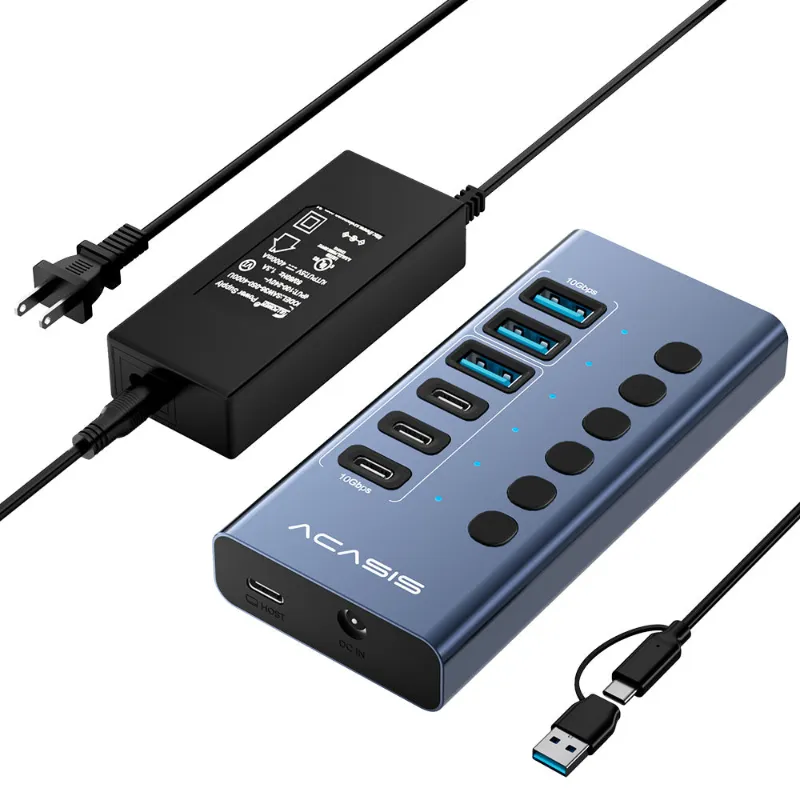
An acasis powered usb hub that stops detecting devices is almost always fixable in minutes with the right troubleshooting steps. Most failures trace back to a small handful of causes: insufficient power, a stale driver, a faulty cable, or a host port that simply cannot handle the load. Work through the sections below in order and you will find the culprit.
Why Your Acasis Powered USB Hub Stops Detecting Devices
Before touching any settings, it helps to understand what actually goes wrong. A powered hub draws its own electricity from a wall adapter rather than borrowing it from your laptop, which is exactly why it can feed power-hungry peripherals like external drives and capture cards. When detection fails, the problem is almost never the hub itself — it is usually one of these:
- Underpowered adapter. A loose or under-spec wall adapter means the hub's controller never fully initialises.
- Cable quality. A cheap or damaged USB-C cable can carry power but drop data signals entirely.
- Driver or OS conflict. Windows and macOS both cache USB device trees; a corrupted entry blocks new enumeration.
- Host port bandwidth. Connecting a hub that expects USB 3.2 to a USB 2.0 port silently limits what gets detected.
- Daisy-chain overload. Plugging a usb splitter pc off another hub fragments available bandwidth and confuses the host controller.
Knowing the cause cuts your troubleshooting time from an hour to a few minutes.
Step-by-Step Fixes to Try First
Work through these in order before assuming hardware failure.
- Re-seat every cable. Unplug the hub from the wall and from your computer, wait ten seconds, then reconnect power first and then the data cable. This forces a clean enumeration cycle.
- Swap the wall adapter. Use the adapter that shipped with your hub. Third-party adapters often meet voltage specs but fall short on sustained current.
- Try a different host port. Move the hub's upstream cable to a port on the back of a desktop or directly into a laptop's primary USB-C port. Avoid front-panel ports on desktops — they share internal headers that throttle bandwidth.
- Test a different data cable. Use a cable rated for the speed your hub supports. For USB 3.2 Gen 2 hubs, the cable matters as much as the port.
- Reduce the device count. Disconnect everything, then reconnect devices one at a time. If detection fails only when a specific device is added, that device is drawing too much power or creating a protocol conflict.
- Restart the USB root hub in Device Manager (Windows). Open Device Manager, expand Universal Serial Bus controllers, right-click each USB Root Hub, and select Disable then Enable. This flushes the cached device tree without a full reboot.
- Reset the SMC or USB subsystem (Mac). On Apple Silicon Macs, a full shutdown (not restart) for 30 seconds resets the USB controller state.
Driver and Firmware Checks
If physical fixes did not solve it, software is the next layer to check.
- Update chipset and USB drivers. On Windows, open Device Manager, right-click your USB host controller, and choose Update driver. On laptops, also check the manufacturer's support page for a chipset driver update — these often fix hub enumeration bugs silently.
- Check for hub firmware updates. Visit the Acasis product page for your hub model. Some newer hubs ship with updatable firmware; a one-step update can resolve compatibility issues with the latest OS versions.
- Disable USB selective suspend. Windows aggressively powers down idle USB devices. Go to Power Options > Change plan settings > Advanced, find USB settings, and set USB selective suspend to Disabled. This alone fixes phantom disconnects for many users.
- Reinstall the hub as a new device. Unplug the hub, open Device Manager, click View > Show hidden devices, and delete any greyed-out entries related to the hub. Reconnecting it forces Windows to build a fresh device entry.
When the Hub Itself Needs an Upgrade
Sometimes the hub is not faulty — it is simply the wrong tool for the job. If you are running a laptop docking station dual monitor setup, a switch capture card, and an external hard drive enclosure simultaneously, a basic USB 3.0 hub will buckle under the bandwidth demand.
Consider these upgrade paths based on your workload:
| Workload | Recommended Upgrade | Why It Helps |
|---|---|---|
| Dual-monitor + peripherals | acasis 11 ports thunderbolt 4 docking station | 40 Gbps bandwidth, dedicated display outputs |
| Fast NVMe storage + hub | acasis 40gbps m.2 nvme ssd enclosure + powered hub | Keeps storage on its own fast bus |
| iPhone workflow | phone docking station for iphone | Charge + sync without competing for hub ports |
| General multi-device desk | multiple usb port hub with powered adapter | Dedicated power per port prevents brownouts |
If your current setup involves a usb c docking station or a docking station laptop that already manages power delivery, adding a downstream powered hub is often redundant and can create enumeration conflicts. Consolidate to a single high-bandwidth dock where possible.
Matching the Right Acasis Hardware to Your Desk Setup
The quickest way to prevent future detection problems is to match hub bandwidth to actual device demand from the start.
- Light use (keyboard, mouse, webcam, card reader): A standard powered hub with four to seven ports handles this comfortably. The acasis powered usb hub covers this tier well and keeps your laptop's direct ports free.
- Creative workstation (capture card, NVMe enclosure, audio interface): Step up to a Thunderbolt 4 dock. The acasis 11 ports thunderbolt 4 docking station provides the headroom these devices need without bandwidth contention.
- Storage-heavy work (video editing, backups): Pair a powered hub for peripherals with a dedicated enclosure for m.2 ssd on its own USB4 or Thunderbolt port so drive transfers never stall your other devices.
For current pricing on any of these options, check the latest price and grab our code before ordering — Acasis currently offers 10% off all orders, which adds up quickly on docking stations and enclosures.
Quick-Reference Checklist Before You Call It Broken
Run through this list before returning or replacing anything:
- Wall adapter is the original unit and fully seated
- Data cable is rated for the hub's USB generation
- Hub is plugged into a primary host port, not a downstream port
- USB selective suspend is disabled on Windows
- Device Manager shows no hidden conflicting entries
- Devices are connected one at a time to isolate the problem
- Total device power draw does not exceed the hub's rated output
If every item above checks out and devices still fail to appear, the hub's internal controller may have failed. Acasis warranty and customer support covers manufacturing defects, so visit the store page to find contact and returns information alongside the latest pricing.
 Shopping at Acasis? See today's verified Acasis discount code
Frequently asked questions
Why does my acasis powered usb hub keep disconnecting and reconnecting?
This usually means the wall adapter is not delivering consistent current, or USB selective suspend on Windows is powering down the hub after a period of inactivity. Swap in the original adapter and disable USB selective suspend in your Power Options advanced settings.
Can I use the Acasis 11 Ports Thunderbolt 4 Docking Station as a powered hub replacement?
Yes, and it is often a better choice for demanding desks. The Acasis 11 Ports Thunderbolt 4 Docking Station provides far more bandwidth and dedicated power delivery per port, which eliminates the detection failures that happen when too many devices share a standard hub.
Does connecting an external hard drive enclosure through a USB hub cause detection issues?
It can, especially if the hub is unpowered or low-powered. An external hard drive enclosure draws significant current on spin-up, and if the hub cannot supply it the drive simply will not appear. Use a powered hub with at least 2.4 A per port, or connect the enclosure directly to a host port.
Will the Acasis discount code apply to powered hubs and docking stations?
The current offer covers all orders in the Acasis store, including hubs, docking stations, and enclosures. Check the coupon page for the active code and any conditions before checkout.
Is it safe to plug a USB splitter into an already connected powered hub?
Technically yes, but daisy-chaining a USB splitter off a hub fragments available bandwidth and can confuse the host controller, leading to intermittent detection failures. Keeping all devices on a single high-port-count powered hub or docking station is more reliable.
What should I check if my hub detects some devices but not others?
First check per-port power limits — some hubs allocate fixed current per port and a power-hungry device will fail while low-draw devices work fine. Also check whether the undetected device requires a driver that hasn't installed yet, particularly for capture cards and NVMe enclosures.